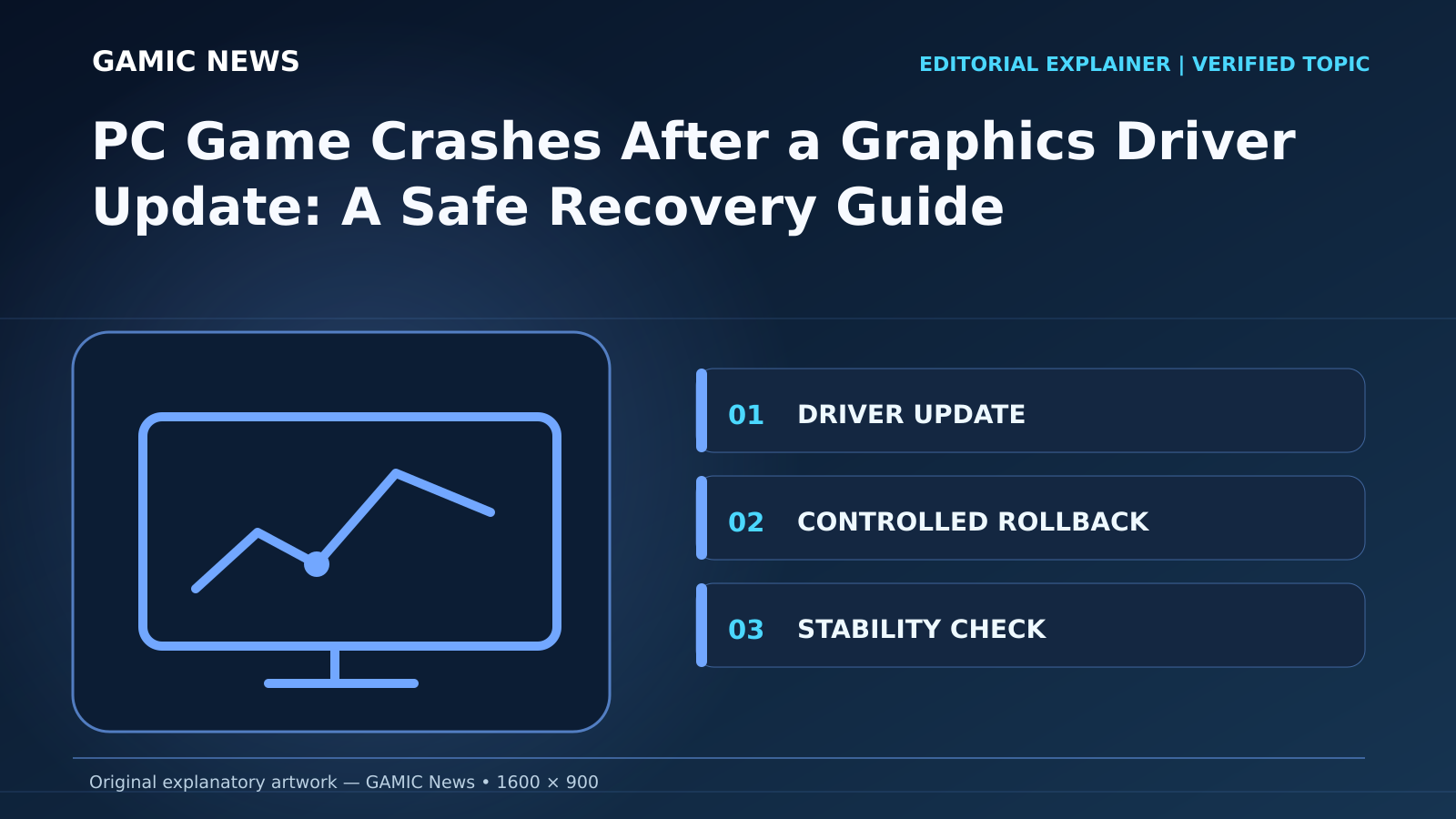
If a PC game starts crashing immediately after a graphics-driver update, first record the old and new driver versions, restart Windows once, and reproduce the failure with the same game settings. Disable only optional overlays and any GPU overclock for the test. If the timing strongly implicates the update, use Windows Device Manager's Roll Back Driver option when available, or reinstall a known-good package downloaded from the GPU manufacturer's official site. Do not download drivers from third-party aggregators.
The phrase “the new driver broke my game” may be correct, but timing alone is not proof. A game patch, Windows update, anti-cheat change, shader-cache rebuild, unstable memory profile or failing power connection can appear in the same session. Changing several things at once destroys the comparison that would identify the cause. The safest recovery is therefore a short evidence-led sequence: preserve the error, establish a baseline, remove optional variables, then roll back or reinstall through documented channels.
This guide applies to ordinary Windows gaming PCs using supported NVIDIA or AMD graphics hardware. It does not recommend modified packages, registry cleaners, firmware flashing or tools from unknown publishers. Manufacturer utilities and Windows recovery features can change over time, so the linked Microsoft, NVIDIA and AMD pages remain the primary references. If the computer shows artifacts before Windows loads, shuts off under load, smells hot, or has a damaged power connector, stop software troubleshooting and inspect the hardware safely.
Before rollback: prove what actually changed
Write down the installed graphics-driver version, its installation date, the game build, Windows build and the last known combination that worked. In Windows, the Display adapters entry in Device Manager exposes the Driver tab and version details. The game launcher or main menu normally shows the game build. Save the exact crash code, a screenshot and the time of the event. These facts turn “it crashes now” into a version pair that a developer or GPU vendor can reproduce. For more gaming coverage, read Gaming news and guides.
Check the timeline for other changes. Did the game patch on the same day? Did Windows restart to finish an update? Was a new overlay, capture tool, anti-cheat component or hardware-monitoring utility installed? A coincident change does not clear the graphics driver, but it prevents premature certainty. Do not clear Windows logs, wipe caches or reinstall the game before collecting the first clean reproduction. Those actions can remove evidence and add new variables.
Create one repeatable crash test
Choose the smallest sequence that reliably triggers the problem: load one save, enter one area, start one benchmark or wait at one menu. Keep resolution, graphics preset, API selection and frame cap unchanged. Restart Windows, stop downloads, then run that sequence once. Note whether the crash happens before the game renders, during shader preparation, at the same scene, or only after the GPU has been under load for several minutes.
Test one other trusted 3D application or game, preferably one that worked before the update. If only a single title fails, a game-specific regression, damaged game file or API interaction is more plausible. If several unrelated 3D applications fail in the same way, the driver installation, system stability or hardware moves higher on the list. Do not use an hour-long stress test when a two-minute game sequence already reproduces the fault; repeated hard crashes can corrupt open files.
Return clocks and overlays to a neutral baseline
A driver can change boost behavior, shader compilation or memory use enough to expose an overclock that appeared stable before. Restore the GPU and video memory to their manufacturer defaults. If a CPU or memory overclock is easy to disable through a documented profile, record the existing configuration before testing the default. Do not change voltages or update firmware as a first response. The objective is to test a supported baseline, not to tune around an unknown fault.
Temporarily disable optional overlays one at a time: recording, performance monitoring, chat overlays and frame injectors can hook into the graphics path. Keep security software and anti-cheat enabled unless the relevant publisher explicitly instructs otherwise. If removing a specific overlay stops the crash on the same driver and route, re-enable it once to confirm the relationship, then update or report that component. A mass “clean boot” may hide the cause without identifying it.
Check temperature, power and visible artifacts
Driver timing can reveal a marginal power or thermal problem, but software cannot repair a loose cable or overheating card. Watch for colored blocks, sparkling pixels, corrupted geometry, black screens outside the game, sudden restarts or a complete power loss. A normal application crash that returns to the desktop is different from a machine that shuts down. Log temperatures and clocks with one reputable tool, and compare them with the hardware maker's published guidance rather than a random universal limit.
Power down and disconnect the computer before touching internal hardware. If you are qualified to inspect it, check that the card is seated and that power connectors are fully engaged without visible heat damage. Do not repeatedly boot a system with a scorched connector or burning smell. Laptops and warranty-covered desktops should generally be handled through the manufacturer. If artifacts are visible in firmware screens or before the graphics driver loads, a Windows rollback is unlikely to be the complete solution.
Use Windows Roll Back Driver when it is available
Microsoft documents rollback through Device Manager: expand Display adapters, open the GPU's Properties, choose the Driver tab, select Roll Back Driver, give the requested reason and restart. Administrator permission is required. The button can be unavailable when Windows no longer retains the previous package, when the driver was replaced through another installation method, or when storage cleanup removed rollback files. Its absence is not proof that no earlier driver exists.
After the restart, confirm the actual version rather than assuming the rollback succeeded. Repeat the same short game route with the same settings. If the crash disappears, preserve the working configuration and report the version pair to the game or GPU vendor. Do not immediately reinstall the failing version just to make the system current. First check its release notes, known issues and whether a newer hotfix or game patch addresses the regression.
If rollback is unavailable, reinstall an official known-good package
Download the intended driver directly from the official NVIDIA driver page or AMD support page. Match the operating system, GPU family and architecture. Laptop owners should also check the computer manufacturer's support page because some models use customized power, display-switching or thermal components. Verify that the file publisher is the expected vendor before running it. Avoid mirror sites, “driver updater” subscriptions and repackaged installers.
Close games and creative applications, preserve open work, and use the vendor installer's documented options. A normal reinstall is often enough; “clean install” is not inherently safer and resets profiles that may be useful evidence. Restart when requested, confirm the version, then repeat the same reproduction route. Do not install several historical packages in succession. One controlled known-good comparison is more informative than cycling through a stack of versions.
Reserve cleanup utilities for a failed or corrupted install
A cleanup tool is justified when the official installer fails, Device Manager shows an error, driver components are visibly mixed, or a normal reinstall cannot complete. AMD's official Cleanup Utility is designed to remove previously installed AMD graphics and audio driver software while leaving AMD chipset software in place. Follow the vendor's instructions, including its Safe Mode recommendation where applicable, and create a restore point or backup first.
Do not treat any third-party removal utility as a mandatory gaming ritual. Deep removal changes more state, can erase profiles and complicates support if the original failure was game-specific. For NVIDIA hardware, use NVIDIA's official installation guidance and support channels rather than assuming an AMD procedure applies. Disconnecting the internet to prevent Windows Update interference may be recommended in a particular official workflow, but should not become a permanent configuration. Reconnect and restore normal updates after the controlled install.
Understand shader caches after a driver change
A new graphics driver can invalidate or rebuild cached shader and pipeline data. The first launch may therefore stutter, spend longer on a preparation screen, or compile work again. That behavior is not the same as a repeatable crash, but interrupting preparation or repeatedly deleting caches can make the first-run cost recur. Let explicit shader compilation finish, then compare the first and second run before deciding that the cache is damaged.
Delete a cache only when the game or vendor documents that step for corruption, and remove the narrowest relevant cache. Record what you deleted so the result can be interpreted. Never download another person's cache for a different GPU, driver or game build. For a deeper method, GAMIC News' shader-compilation guide explains how to compare first-use hitches with storage, CPU and frame-pacing problems without turning cache deletion into an automatic remedy.
Repair game files only after the driver comparison
If rollback does not change the result and only one game fails, use the storefront's verify or repair function before reinstalling the entire title. Verification can restore damaged executable or data files while preserving most of the installation. Back up local saves and custom files using the game's supported method. Mods, ReShade-style injectors and altered DLL files should be documented and removed through their own supported uninstall process for a clean test.
Check the game's official known-issues page, patch notes and support forum for the exact driver version and error signature. Be cautious with community fixes that replace system DLLs, disable certificate checks or ask users to turn off security protections. A launch option supplied by the developer to switch between DirectX versions can be a useful diagnostic, but changing the graphics API also changes cache and feature behavior, so record the result instead of presenting it as a universal fix.
Use System Restore only for a broader system regression
Microsoft System Restore can return system files, registry settings and installed programs to a selected restore point without targeting personal files. It is broader than a driver rollback and may undo unrelated application changes, so review the affected programs before proceeding. Use it when the failure extends beyond the graphics package or when a documented restore point cleanly predates a cluster of system changes. Back up important work first even though personal files are not the intended target.
A restore point is not a substitute for identifying a failing component. After recovery, confirm the graphics version and repeat the same test before allowing multiple pending updates to install. If the game works, reintroduce changes in a controlled order. If the machine still crashes across applications, stop repeating restore operations and investigate memory, storage, power and GPU health with the hardware vendor or a qualified technician.
Build a useful crash report for the vendor
A concise report should include GPU model, desktop or laptop model, Windows build, old and new driver versions, game build, storefront, graphics API, exact settings, crash message and a short reproduction route. State whether the problem affects other 3D applications, whether default clocks change the result, and whether rollback restores stability. Attach a small relevant log or dump only when the support instructions request it, and remove account names or personal paths where practical.
Report the regression to the party best placed to act. A failure confined to one game belongs with the developer as well as the GPU vendor; failures across several applications belong primarily with the driver vendor or system maker. Do not label a correlation as proven if the comparison is incomplete. “Driver 600.00 crashes build X at step Y; driver 599.50 does not on the same settings” is actionable. “Latest drivers are broken” is not.
A safe decision tree
If the crash began after an update, first reproduce it and record versions. If optional overlays or an overclock are involved, test the supported baseline. If several games fail and rollback is available, roll back through Device Manager and repeat the route. If rollback is unavailable, install one known-good package from the official source. If the installer is corrupted or incomplete, use the vendor's documented cleanup path. If only one game still fails, verify its files and consult its known issues.
Stop software experimentation when the evidence points to hardware: artifacts outside the game, power loss, thermal shutdown, damaged connectors or errors that persist across clean supported driver versions. Also stop when a stable known-good driver restores the machine; there is no prize for forcing a problematic release back onto it. Keep automatic updates under normal supported control, watch for a corrected release, and retain the clear versioned report that made the recovery trustworthy.