GAMING / PRACTICAL GUIDE
Steam Offline Mode Before a Trip: Test the Game, the Login and the Save
Prepare Steam Offline Mode while you still have a reliable connection. Update and launch the games you intend to take, confirm that the client can enter Offline Mode, and test the result. A downloaded game or a single-player label alone does not prove that a particular title will start offline.
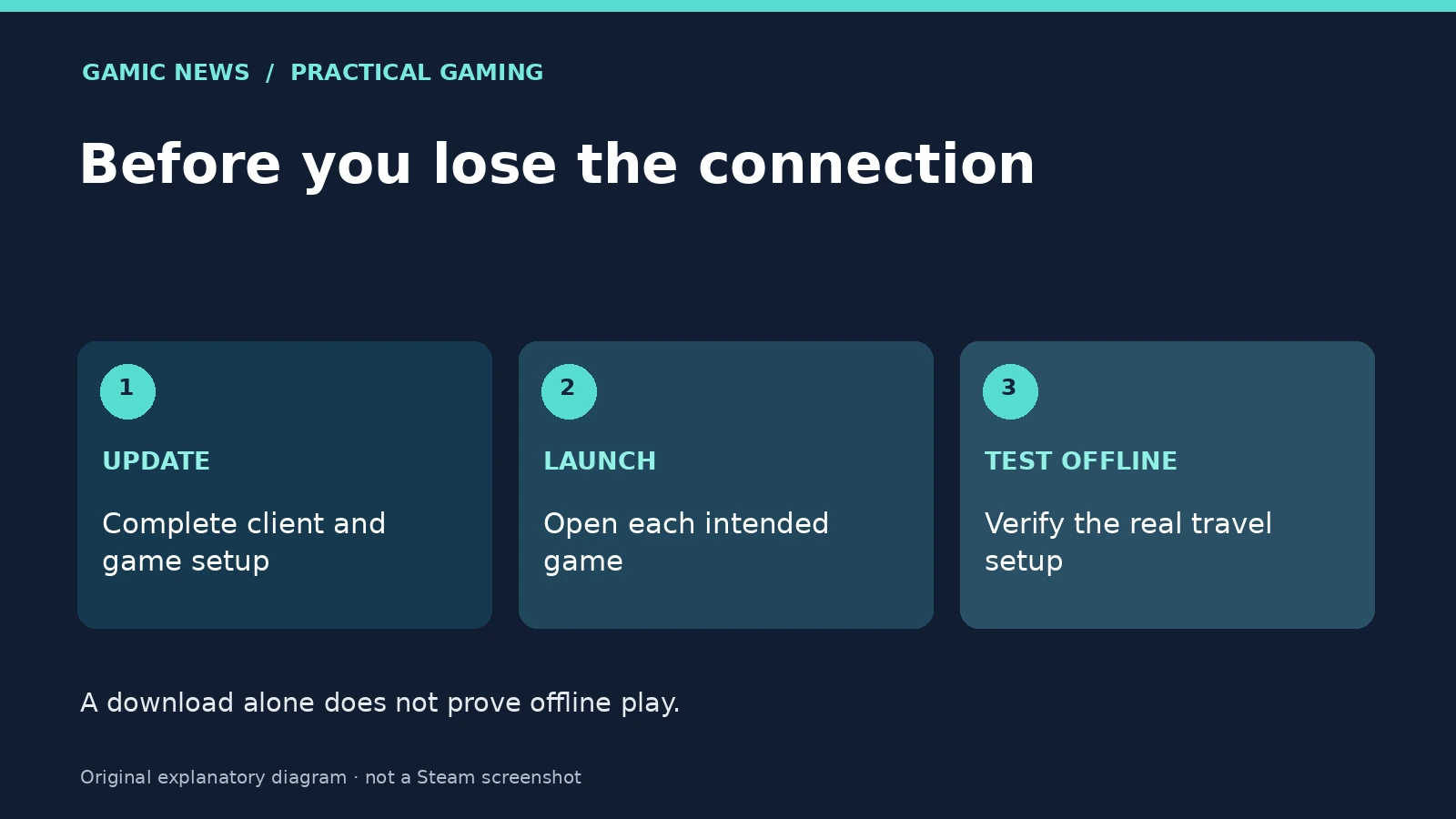
Make a travel list before changing settings
Choose the specific games you intend to play and identify the device that will travel with you. Test those titles on that device rather than relying on a result from another computer. Record whether each reaches its normal playable state, whether a launcher requests another sign-in, and whether the save you expect is available. A concise list exposes an unfinished installation or a forgotten account requirement while you can still address it. It also provides an alternative if one title needs online access. The aim is a realistic preparation check, not a promise that every game in your library can operate without a connection.
Follow Valve's client preparation sequence
Valve's Offline Mode instructions start with Steam online, saved login credentials, completed updates and a launch of the intended games before switching through the Steam menu. Review the current official instructions on your device, because settings labels can change. Complete the setup while a dependable connection is available. If a client or game asks for an update during the rehearsal, finish it and test again before travel. Do not treat the visible download percentage as the only condition. A first launch may still expose an installation step or another requirement that a quick look at the library would not reveal.
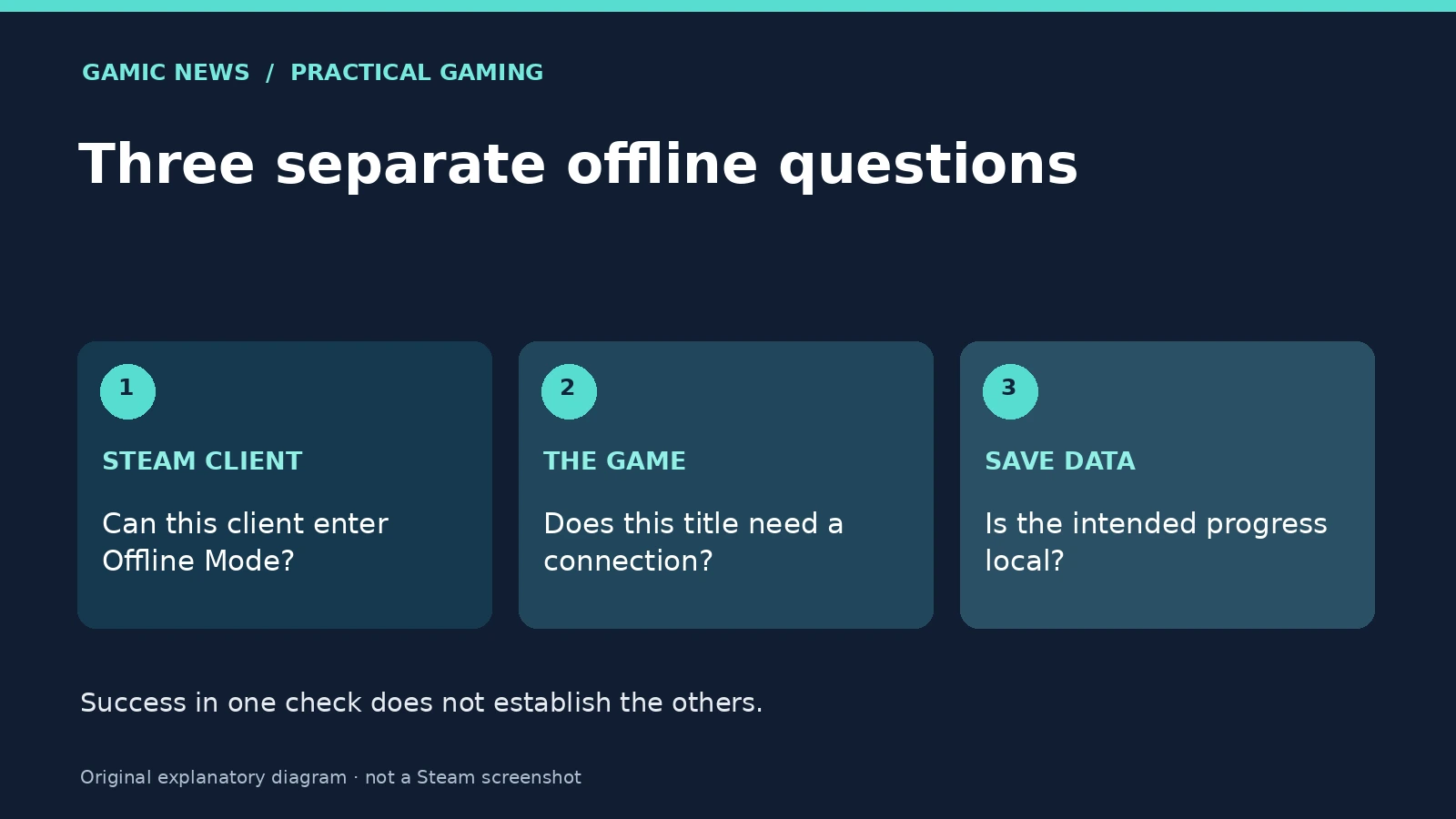
Separate client access from a game's own requirements
Offline Mode limits access to Steam features that need the network; it does not remove a game's independent online requirements. A launcher, service or multiplayer component may have its own conditions. Check the official information for the exact game and test the part you actually want to use. Reaching a title screen is a weaker observation than loading your intended single-player mode and save. If that mode asks for a connection, record the message instead of assuming that a client setting will override it. Use official support for clarification and avoid tools claiming to disable ownership checks or change another service's access rules.
Rehearse the conditions you will really have
After completing the official preparation, run a short offline session on the travel device. Confirm that the game opens, the expected controls work and the relevant save loads. Then close it normally and check that you can return to the same progress under the conditions you tested. This is a proposed preparation routine, not a report of a test of your account. A successful check is useful evidence for that setup and moment; it cannot establish how a future update or service change will behave. Repeat it after a material change to the installation rather than relying indefinitely on an old result.
Plan for a sign-in request without taking account risks
Valve states that if the client requires a login, it cannot be bypassed without going online. Deal with an unexpected sign-in prompt while you still have a safe connection and access to your legitimate authentication method. Do not share passwords, Steam Guard codes or recovery information with a person offering an offline unlock. If you travel with several devices, keep their preparation separate and note which one has been tested. A rushed account change at a station or airport can create more uncertainty than it resolves. When preparation fails, taking another game that passes your check is often a more practical choice than relying on an unverified workaround.
Keep a preparation note you can use without a network
For each selected title, record the device, the date, the mode you opened and the save you loaded. Add any remaining requirement in plain language, such as a sign-in prompt that still appeared during your rehearsal. Keep the note available locally. The purpose is to distinguish what you actually checked from what you only installed or intended to try; a list of optimistic assumptions is less useful once the connection has gone.
Treat local progress and cloud progress separately
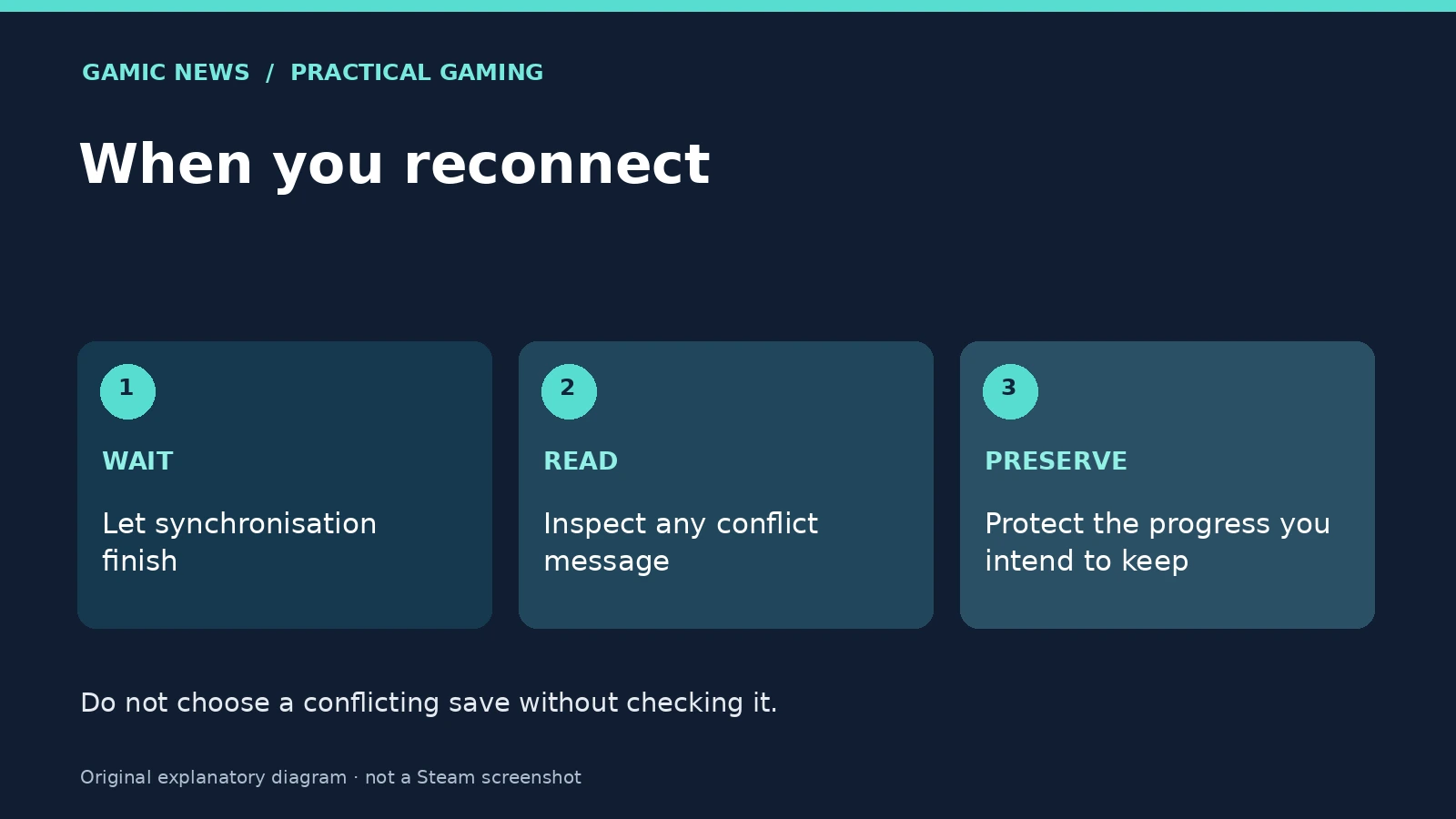
Valve's Steam Cloud guidance warns that offline play delays synchronisation and can lead to a conflict when you reconnect. Before leaving, allow any pending synchronisation to finish and confirm that the save you expect loads locally. If you also play on another computer, avoid creating different new progress in the same game without understanding its save handling. Do not assume that a cloud icon is a substitute for checking the actual save. For important progress, consult the game's official instructions about save locations and supported backups before moving files. Save formats and storage locations are game-specific, so a folder path from an unrelated title is not reliable evidence.
Read a synchronisation conflict before choosing
When a conflict appears after reconnection, stop and compare the information shown with the session you want to retain. Check the device, timestamps and the progress you remember making. Do not choose a file simply because one button looks like the normal next step. If the information is ambiguous, preserve the relevant local files where the game's documentation permits and ask official support before overwriting anything. The useful outcome is the intended progress retained and the synchronisation issue resolved, not merely a dismissed warning. Keep your notes until you have opened the game again and confirmed that the expected state is present.
Build a fallback that does not depend on guesswork
A sensible travel library contains more than one title you have actually prepared and checked. Record which games worked offline, the date of the check and any mode that still needed a network connection. This takes less effort than troubleshooting an entire library after departure. If you also want to capture a highlight, test Steam Game Recording and export before the trip. If access to a shared title is uncertain, investigate Steam Families eligibility and copy availability as a separate question. Each check answers one specific problem and leaves the others visible.
Sources and method
Valve primary documentation checked on 6 November 2026. The troubleshooting sequence and comparison exercises are editorial guidance, not claims that we tested your account or measured your hardware.