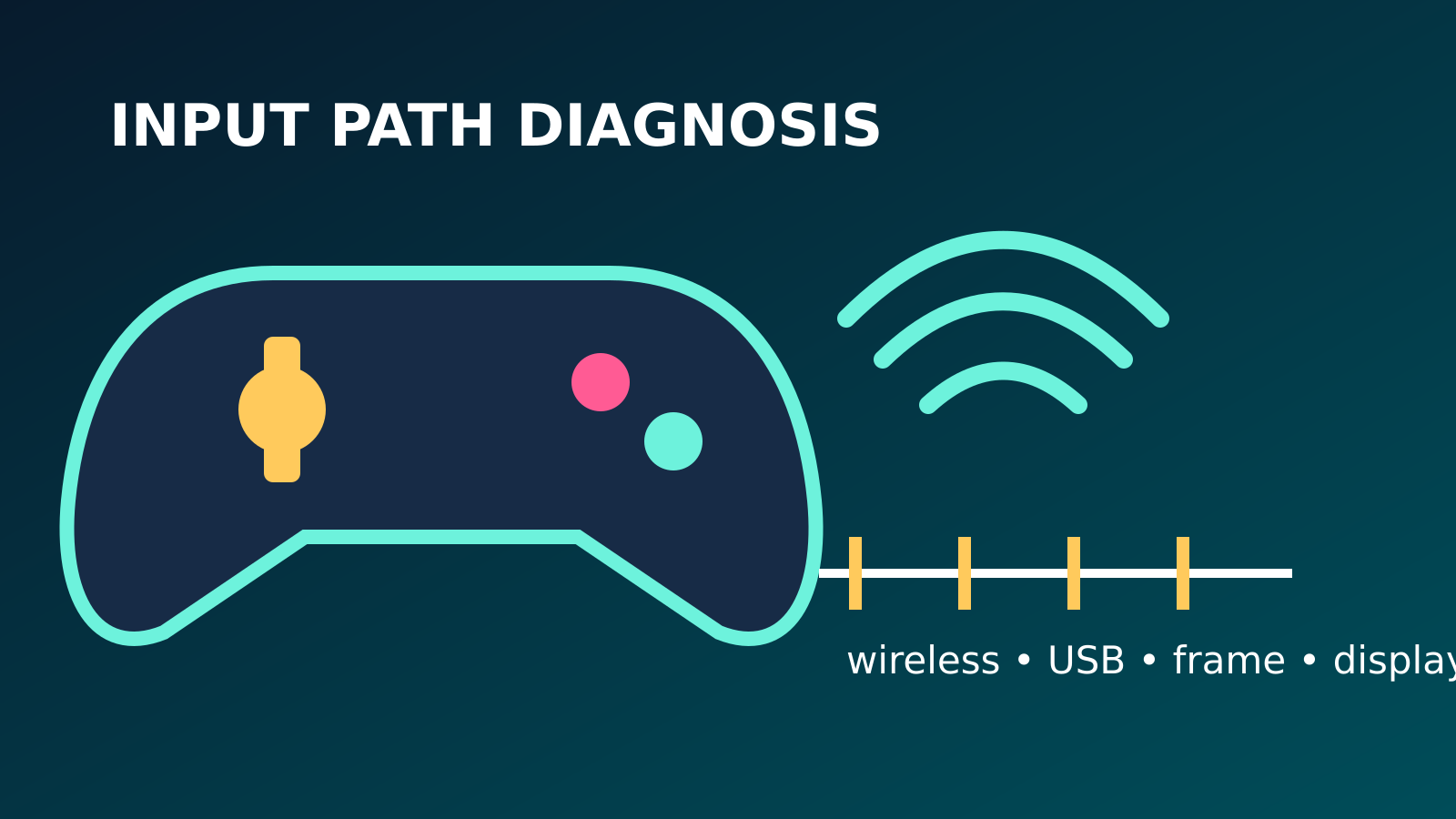
To diagnose controller input lag on a PC, first decide whether the delay is in the controller link, the game, frame delivery or the display. Reproduce one simple action in one game, then compare the same controller by a known data-capable USB cable and by its supported wireless connection. Keep frame rate, V-Sync, display mode and game settings unchanged during that comparison.
A delayed feeling is real to the player, but it does not identify the layer at fault. Bluetooth interference can cause missed or bunched inputs; an unstable frame rate can postpone when an input becomes visible; a television picture mode can add display processing; and a game can filter analog movement by design. Changing every setting at once may improve the symptom while destroying the diagnosis.
Use official firmware and Bluetooth guidance, avoid unofficial polling-rate modifications, and stop using a swollen battery, damaged cable or hot connector. This guide provides a repeatable comparison rather than a universal millisecond promise, because controllers, radios, games, displays and measurement methods differ.
Define the symptom before changing settings
Write down what the controller actually does. A consistent delay between a button press and an on-screen action differs from an input that is missed, repeated, held after release or delivered in a burst. Analog-stick drift, a large dead zone and slow camera acceleration can feel like latency but are different behaviors. Test a digital menu movement and a digital action as well as an analog movement so the report does not reduce every symptom to one word. For related reporting on diagnose and diagnosis, read Gaming Laptop Thermal Throttling: How to Diagnose Slowdowns Safely.
Note whether the problem begins immediately, only after several minutes, only at a distance, or only when another wireless device is active. Record the controller model, connection mode, Windows build, game build, display and any remapping software. If the controller behaves incorrectly in Windows menus or an official test surface outside the game, the game is less likely to be the only cause. Do not use an untrusted web tester that demands unusual permissions.
Build one repeatable input test
Choose a game menu or training area where one button produces an obvious response without network dependence. Stand in the same location and repeat a short sequence: press, release, move, stop. Keep resolution, frame cap, V-Sync, upscaling and display mode constant. Record a short high-frame-rate phone video only if you understand that it can compare two setups but does not provide laboratory latency by itself. For related reporting on diagnose and diagnosis, read PS5 DualSense Stick Drift: How to Diagnose It Before Paying for Repair.
Run the sequence after a fresh controller connection, then again when the symptom normally appears. A competitive online match is a poor first test because server latency and simulation can change independently. If the issue exists only online, compare an offline mode before blaming Bluetooth. The purpose is to create the smallest route that another person can repeat, not to produce a single impressive millisecond number.
Compare a real USB data connection
Use a known data-capable cable, not a charge-only cable, and connect directly to the computer for the comparison. Confirm that Windows recognizes the controller over USB rather than continuing to use the wireless link. If practical, temporarily turn the controller's wireless connection off or remove the pairing only after noting how to restore it. Repeat the same game route without changing any graphics or display option. For related reporting on diagnose and diagnosis, read Shader Compilation Stutter in PC Games: How to Diagnose It Without Guesswork.
If wired mode eliminates missed or bunched inputs, investigate the radio path. If the controller remains consistently delayed in both modes, the game, frame queue, remapping layer or display becomes more plausible. If USB disconnects when the cable moves, inspect the connector and try another official or standards-compliant data cable. Do not hold a damaged plug at an angle as a permanent fix; intermittent power or data can corrupt the comparison and damage the port.
Check frame time before blaming the controller
An input can be received promptly but appear late because the game produces frames slowly or unevenly. Display a trustworthy in-game frame-time graph if one is available. Reproduce the action during stable performance and during the reported delay. A 30 frames-per-second cap naturally provides fewer visual update opportunities than 120 frames per second, while a severe hitch can postpone the visible result much longer than the controller transport.
Do not disable every synchronization feature at once. Record the current frame cap, V-Sync and low-latency option, then change only one supported setting for a comparison. A setting that reduces latency may introduce tearing or unstable pacing, so it is a tradeoff rather than a universal correction. If input feels delayed exactly when frame time spikes, investigate the rendering or CPU workload alongside the controller instead of applying radio fixes alone.
Separate display processing from input transport
Televisions and some monitors can add image processing for motion smoothing, noise reduction or scaling. Use the display's documented game or low-latency mode for one comparison, and confirm the PC is connected to the intended input. Do not copy service-menu changes from another model. Keep the controller connection fixed while changing display mode; otherwise an improvement cannot be assigned to either layer.
A display problem normally delays the visible response to keyboard and controller input alike. Compare a wired keyboard action in the same local menu when appropriate. If both feel delayed, inspect the display and frame pipeline. If only one controller has missed or repeated inputs while another device is clean, the controller path deserves more attention. Photograph the original picture settings before changing them so color and accessibility adjustments can be restored.
Troubleshoot Bluetooth with official Windows steps
Microsoft's Bluetooth guidance begins with confirming that Bluetooth is enabled, checking the device state, running the relevant troubleshooter, restarting the radio and examining driver updates. Follow the current Windows instructions for the installed version. Remove and pair the controller again only after recording the existing pairing and verifying that you can complete the process. Pairing repeatedly without fixing a radio or driver problem adds noise rather than evidence.
Check whether the Bluetooth adapter is internal, attached by USB or integrated with Wi-Fi. An external adapter hidden behind a metal desktop can have a poor radio path. Use a supported extension or front port only if the adapter maker permits it, and keep the test arrangement stable. Do not download a generic Bluetooth driver from a driver-aggregation site. Use Windows Update, the computer maker or the adapter maker's official package for the exact hardware.
Reduce wireless interference methodically
For one test, move the controller closer with a clear line of sight and move high-traffic wireless devices away from the adapter. USB 3 devices and hubs, crowded 2.4 GHz networks and a desktop case can affect radio conditions, but proximity alone does not prove which source is responsible. Change one physical factor at a time and repeat the same input route. Record distance and adapter location so the result can be reproduced.
Do not permanently disable Wi-Fi, security devices or essential peripherals merely to improve a gamepad. If moving one USB device or adapter clearly restores stability, test the arrangement twice before settling on cable management or a supported extension. A proprietary controller receiver may behave differently from Bluetooth; treat it as a third connection mode and identify it accurately rather than calling every wireless path Bluetooth.
Update controller firmware through official tools
Controller firmware can address connectivity and compatibility, but the update must come from the manufacturer. Xbox Support documents updates through the Xbox Accessories app or supported console paths. Sony provides its official updater for supported controllers on Windows. Read the current compatibility and connection requirements, keep the cable stable and do not interrupt power during an update.
Record the firmware version before and after if the tool exposes it, then repeat the same route. Do not claim that an update fixed latency if graphics or display settings changed at the same time. Avoid firmware files and flashing utilities from forums. If the official updater cannot detect the controller, troubleshoot the cable, USB path and supported operating system before attempting more invasive steps.
Inspect Steam Input and remapping layers
Steam Input, game launchers, accessibility tools and controller-vendor software can translate or remap input. Translation is useful, but two active remapping layers can create conflicts, wrong button prompts or duplicated actions. Record which layers are enabled for the affected game. Test the title with its documented native controller support or one translation layer at a time, without deleting a carefully built accessibility profile.
A game-specific Steam Input setting can explain why one title behaves differently while Windows and other games are normal. Consult Valve's current controller support documentation and the game's own support notes. Do not install kernel-level remapping drivers or unsigned filters as a first response. If disabling an optional remapper fixes the symptom, re-enable it once to confirm, export its profile if possible and update or report that component.
Check battery, cable and power behavior
Low battery can reduce wireless reliability or trigger disconnects depending on the controller design. Charge with the supported method, confirm the indicator and repeat the test. A battery that is swollen, leaking or unusually hot requires immediate retirement and manufacturer guidance. Do not puncture, compress or continue charging a damaged pack. Replace disposable cells as a matched set according to the controller instructions.
For USB testing, watch for Windows connection sounds or an on-screen device reconnect. Try a second known-good data cable and a direct port before assuming the controller electronics have failed. Hubs and front-panel wiring add another link; they can be tested later. If the connector is loose on the controller itself, a cable swap may change the symptom without providing a durable repair.
Compare another game and another controller carefully
Test one other local game with known controller support while preserving the same connection mode. If only one title is affected, inspect its input settings, patches, dead-zone controls and known issues. If every title shows the same missed inputs, the controller, connection or system layer becomes more plausible. A browser test is not a perfect substitute because browser scheduling and page code add their own variables.
If available, compare another supported controller on the same USB port and wireless adapter. Then compare the original controller on another supported device. These crossed tests help separate device and host, but avoid moving immediately to a console or phone with different firmware and polling behavior and declaring the numbers equivalent. The useful result is categorical: symptom follows controller, follows PC, follows wireless mode or follows one game.
Avoid misleading latency fixes
Unofficial overclocked polling drivers, timer-resolution utilities, blanket USB power edits and registry packs can change system behavior and security without isolating the cause. A higher advertised polling rate does not guarantee a lower complete input-to-photon delay, and an unstable USB configuration can create drops. Keep supported drivers and create a restore point before any documented system-level change.
Likewise, do not present a single phone-camera calculation as universal hardware truth. Camera frame rate, display scanout, game loop position and button actuation all influence the observation. Use simple recordings to compare before and after under the same setup. For purchasing decisions, prefer measurements from laboratories that disclose equipment, sample size, firmware, connection mode, game and display rather than anonymous latency tables.
Build an actionable support report
A good report includes controller model, firmware, connection mode, Bluetooth adapter or receiver, Windows build, USB cable and port, game build, remapping software, frame cap, display mode, battery state and exact reproduction steps. State whether the issue is consistent delay, missing input, repetition or disconnection. Include which crossed tests were clean and which reproduced the fault.
Send a game-only issue to the developer with its configuration and input layer. Send cross-game wireless failures to the controller, adapter or PC maker with the wired comparison. Stop troubleshooting and seek repair for heat, battery damage, broken ports or repeated disconnections with known-good cables. The objective is not to eliminate every millisecond; it is to identify the failing layer safely and retain a configuration that can be reproduced.