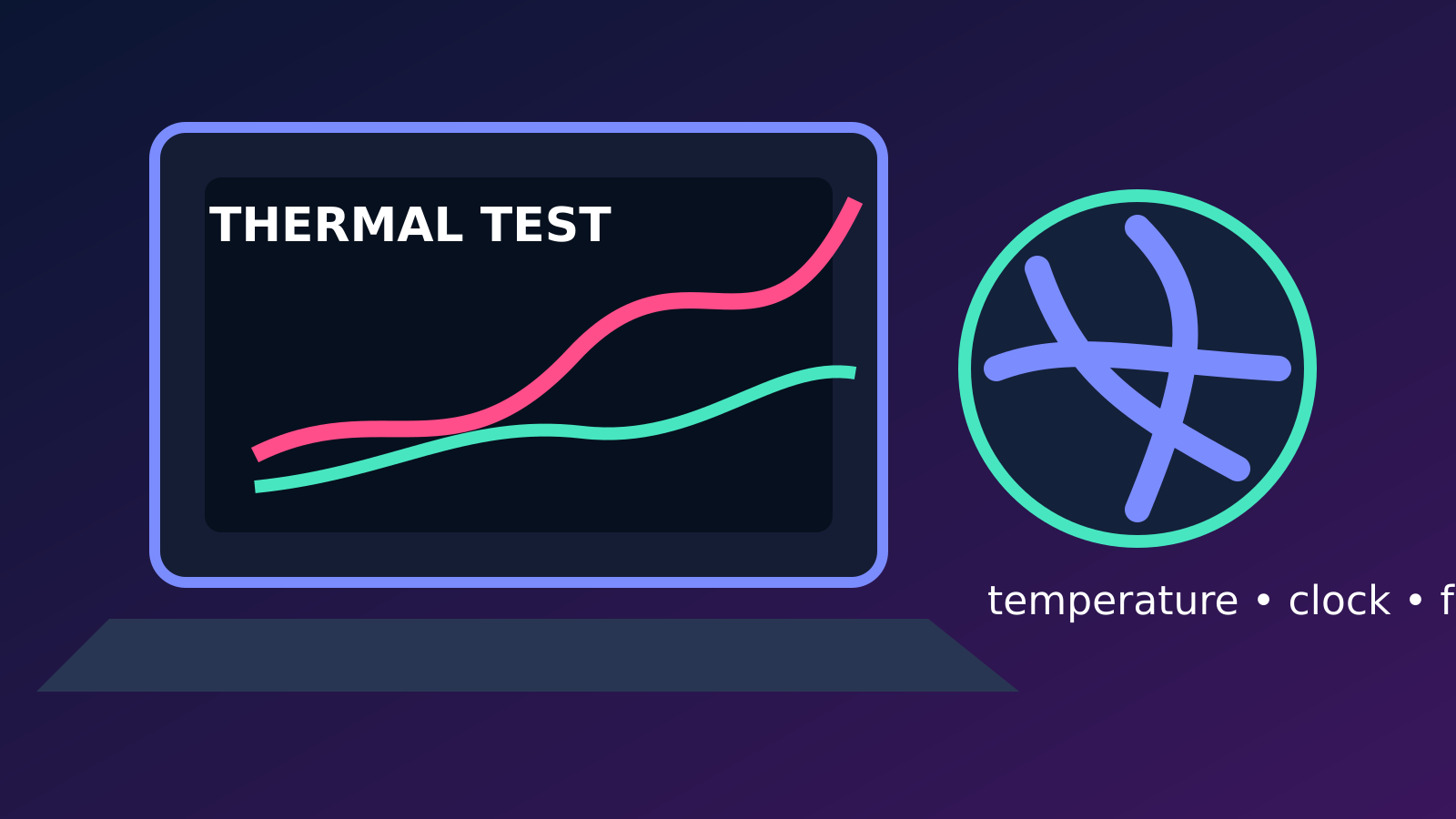
Thermal throttling is a protective reduction in processor or graphics performance when temperature, electrical or platform limits are reached. To diagnose it, reproduce one short game sequence while recording frame time, CPU and GPU temperature, clock speed, power and utilization. Compare the start of the run with the point where performance falls. A hot laptop is not proof of throttling, and one temperature number is not enough.
The useful question is whether a limit activates at the same moment that sustained clocks and frame performance drop. Begin with the original charger, a hard flat surface, default performance settings and no overclock. Change one factor at a time. Stop if the machine smells hot, powers off, has a swollen battery, a damaged connector or a fan that does not spin.
This guide avoids universal temperature promises because processors and laptop designs have different control targets. Manufacturer documentation and diagnostic tools remain the primary references for a specific model. The goal is a safe, versioned comparison that can be handed to the laptop maker, not a risky attempt to force maximum clocks at any cost.
What thermal throttling actually means
Modern laptop processors constantly adjust clock speed and voltage. Short boosts above a listed base clock are normal, as are later reductions when a workload becomes sustained. Thermal throttling is one reason for a reduction, but current, power, firmware and workload limits can produce a similar graph. A thin gaming laptop may also share a cooling or power budget between the CPU and GPU, so one component can slow when the other becomes busier without either being defective. For related reporting on diagnose and diagnosis, read Controller Input Lag on PC: Diagnose Bluetooth, USB and Game Delay.
Do not diagnose from the case temperature or a single maximum reading. The keyboard deck can feel hot while internal control remains within the manufacturer's design, and a sensor can briefly touch a limit without a visible performance loss. The stronger pattern is synchronized evidence: temperature or a reported limit rises, effective clock and power fall, and frame time worsens during the same repeatable scene. Record the pattern instead of chasing an internet temperature threshold for a different machine.
Create a safe baseline before testing
Use the charger supplied for the laptop or an officially supported replacement with the required power rating. Connect it directly, place the computer on a rigid desk, and make sure the intake and exhaust openings are not covered. Soft bedding can block an underside intake. Let the machine reach an ordinary idle state, pause downloads, close unnecessary launchers and record the Windows power mode and the laptop utility profile. Restore CPU, GPU and memory tuning to defaults. For related reporting on diagnose and diagnosis, read PS5 DualSense Stick Drift: How to Diagnose It Before Paying for Repair.
Restart once and use the same display, resolution, refresh rate and game settings for every comparison. Disconnecting every peripheral or disabling security software creates too many differences; remove only an optional device that is directly suspected. Note ambient conditions approximately because a hot room changes cooling headroom. Do not open a warranty-covered laptop merely to begin diagnosis, and do not use compressed air in a way that overspeeds or damages a fan.
Choose one repeatable game sequence
Select a built-in benchmark or a two-to-five-minute route through the same save. A benchmark is helpful only if it represents the slowdown you experience. Keep the frame cap, upscaler, graphics API and ray-tracing settings unchanged. Run the sequence from a fresh start, then repeat it after the system is warm. Record average performance if available, but prioritize frame-time behavior because a short severe hitch can disappear inside an average frame-rate number. For related reporting on diagnose and diagnosis, read Shader Compilation Stutter in PC Games: How to Diagnose It Without Guesswork.
If the first run is slower only while shaders compile, the thermal hypothesis weakens. If performance begins high and then settles to a stable lower level, that can be normal boost exhaustion rather than a fault. A repeating saw-tooth pattern—clocks and frame rate fall, temperature drops, then both recover—can be more suggestive of a limit cycle. Preserve screenshots or a short log with timestamps so each change can be compared against the same phase of the workload.
Monitor the smallest useful set of signals
Use the laptop maker's diagnostic utility or one reputable monitoring tool. Record CPU and GPU utilization, effective clock, temperature and power, plus frame time. Fan speed is useful when the model exposes it. Avoid running several hardware monitors together because they can poll the same sensors, add overlays and complicate the test. A logging interval fast enough to show the transition is preferable to a screen full of unrelated voltage rails.
Interpret the signals as a system. Near-full GPU utilization with stable clocks usually points to a graphics-limited workload rather than CPU thermal throttling. Low GPU utilization alongside one saturated CPU thread can indicate a CPU or game-engine limit. Both utilizations may fall when the game waits on storage, networking or shader work. A reported thermal or power-limit flag is helpful, but match it to the exact time of the slowdown before calling it causal.
Separate CPU, GPU and platform limits
Reduce only the graphics resolution for one comparison. If frame rate rises substantially and the GPU remains highly utilized, the original run was likely GPU constrained. If resolution barely changes performance while one or more CPU threads are busy, CPU or engine work becomes more plausible. This is a diagnostic test, not a permanent optimization. Restore the original setting afterward so the next comparison remains controlled.
Laptop firmware may redistribute power between processors. A scene with heavy CPU simulation can leave less budget for the GPU, while a graphics-heavy scene can do the reverse. Some utilities label this behavior with vendor-specific terms. Consult the model manual rather than assuming that a lower clock equals overheating. If the slowdown appears only on battery, examine the power policy and supported charger behavior first; demanding games commonly reduce performance away from mains power by design.
Check fans and airflow without unsafe disassembly
Listen for a fan that never starts, grinds or changes abruptly. Inspect external vents under good light and remove loose surface dust according to the manufacturer's care instructions. Do not insert tools through the grille. Raising the rear slightly with a stable non-slip stand can be a controlled airflow test if it does not obstruct vents. If that change consistently delays the slowdown, airflow deserves attention, but it does not identify whether internal dust, a fan, thermal interface or chassis design is responsible.
An external cooling pad can be tested after the baseline, but it should not be used to conceal a failed internal fan. Record its model and fan setting. Large claimed temperature improvements from an unrelated laptop are not evidence for yours because vent layout matters. If the model's service manual permits cleaning and you have the skill, follow it exactly; otherwise use an authorized or qualified service provider, especially when battery removal or fragile ribbon cables are involved.
Verify the power path
Check that Windows recognizes normal mains power and that the battery does not repeatedly switch between charging and discharging during the test. A loose connector, under-rated USB-C supply or dock can limit available power even though the charging icon appears. Use the laptop's designated gaming power input when the manual requires it. Inspect the cable and plug for heat damage, bending or intermittent contact, and stop using damaged equipment.
Do not defeat charger identification or buy an unverified high-wattage adapter. If performance is normal with the original direct-connected supply but degrades through a dock, the dock, cable or negotiated power may be the constraint. A battery that is swollen, unusually hot or lifting the case is a safety issue, not a benchmark problem. Shut the system down, disconnect power if safe and follow the manufacturer's battery-service guidance.
Rule out software and background-load lookalikes
Use Task Manager to check whether an update, antivirus scan, browser process, capture encoder or cloud sync becomes active when performance falls. Preserve normal security protections; the goal is to identify load, not disable safety. A game overlay or recording tool can affect frame pacing, so test one optional overlay at a time. A driver update can also invalidate shader caches, causing first-run work that improves on the second comparable run.
Verify the game files if the problem affects only one title and persists after the controlled baseline. Check official game and GPU-driver known issues before reinstalling Windows or clearing every cache. A background CPU task should be visible in utilization and process history, while a storage wait may appear as disk activity with low processor use. These patterns keep a software delay from being mislabeled as heat simply because the fans are audible.
Use power modes as a diagnostic, not a cure
Microsoft documents Windows power modes, and many gaming laptops add quiet, balanced and performance profiles. Record the current mode, then compare one lower supported mode using the same route. If the lower mode produces slightly less peak performance but stable frame times and much lower temperature, the system may be operating near its sustained cooling envelope. That result does not by itself prove a defect or justify unsupported tuning.
Avoid random registry power plans, hidden firmware menus and copied undervolt values. Firmware updates can change allowed voltage control, and an unstable undervolt can create crashes that resemble the original problem. If the manufacturer offers an official profile reset or diagnostic, use that route. The safest long-term configuration is a supported mode that meets your workload without cycling, excessive noise or shutdowns—not necessarily the highest short benchmark score.
When firmware or drivers are relevant
Check the laptop maker's support page for the exact model and operating system. Read release notes before installing BIOS, embedded-controller, chipset or graphics updates. A firmware update carries more risk than changing a game setting and should not be used as an exploratory first step. Maintain stable power, follow the official procedure and never interrupt the process. Record the previous and new versions so the result is attributable.
If throttling began immediately after a graphics-driver update, use a controlled driver comparison rather than changing cooling hardware. If it began after firmware, contact the manufacturer and check whether rollback is supported; do not force an unofficial downgrade. Driver and firmware changes can alter fan curves and power sharing, but hardware symptoms such as a dead fan or damaged connector still require physical service.
Know when to stop and request service
Stop testing if the laptop shuts down, emits a burning smell, shows battery swelling, has liquid damage, produces artifacts before the operating system loads, or reports a fan error. Repeatedly forcing a thermal shutdown is not a meaningful stress test. Back up important data while the machine is stable, then contact the manufacturer or a qualified technician. Describe the exact workload and attach the concise logs rather than stating only that it becomes hot.
Service evidence should include the model and serial where appropriate, BIOS version, Windows and driver versions, power supply used, room conditions, game build, settings, time until slowdown, and the synchronized temperature, clock, power and frame-time change. State which supported profiles and external airflow checks were tried. A reproducible five-minute record is more actionable than hours of uncontrolled benchmarks.
A practical decision sequence
Begin with the correct charger, hard surface, open vents and default settings. Reproduce one route and log the minimal signals. If performance remains stable, compare the real scenario that originally failed. If it drops, identify whether GPU, CPU, power, background load or storage changes at the same time. Test one lower supported power profile, one resolution change and one airflow change only when each answers a specific question.
If the evidence points to a software regression, verify the game and use official driver guidance. If the evidence points to airflow or a fan, follow the model's service route. If behavior is stable but below expectations, compare it with the manufacturer's documented configuration, not an overclocked review sample. Keep the final working settings and the original log; the value of the diagnosis is that another person can repeat it safely.