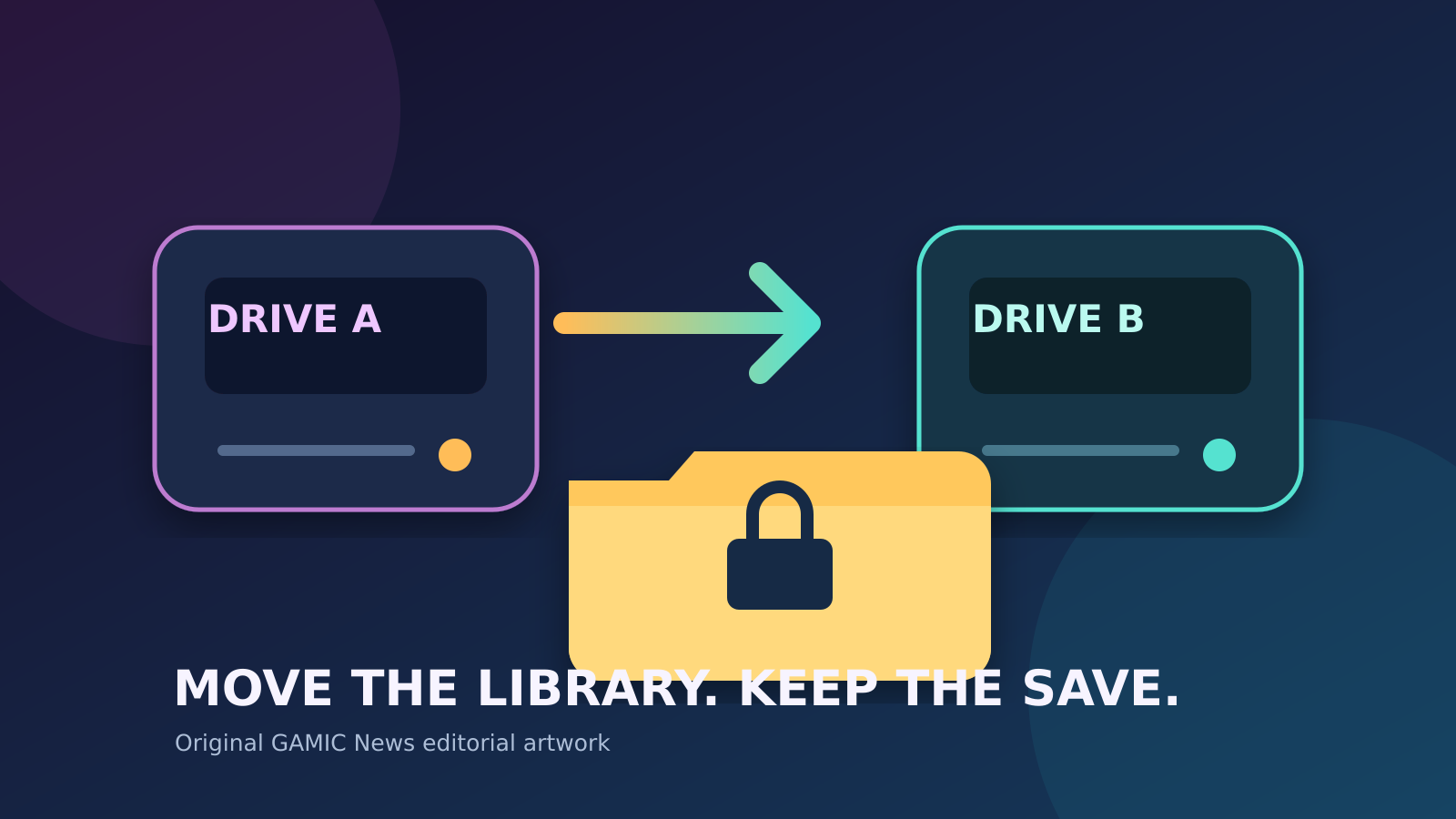
To move a PC game safely, back up its local saves first, create or select the destination library inside the launcher, and use that launcher's supported move or reinstall-to-new-location workflow. Keep the original files until the relocated game launches, loads the correct save and completes a second restart. Never assume the installation folder contains progress: saves, mods, screenshots and profiles may live elsewhere and need separate protection.
Moving a game is not the same as moving a personal document. A launcher tracks manifests, ownership, update state and sometimes anti-cheat or publisher components. Dragging one folder to another drive can leave those records pointing at the old path. The safest method lets the launcher register the destination and verify the files. Epic's official process, for example, starts with a backup copy and uses a partial install at the new location before copying the data back for verification.
This guide focuses on ordinary Windows gaming libraries. Interface labels and supported filesystem choices can change, and a title that starts through a second launcher may need extra steps from its publisher. Do not use junctions, registry edits or third-party library movers unless you understand their recovery path. If the source drive has hardware warnings or intermittent disconnects, prioritize copying saves and other irreplaceable data; repeated migrations can accelerate failure.
Separate the installation from player data
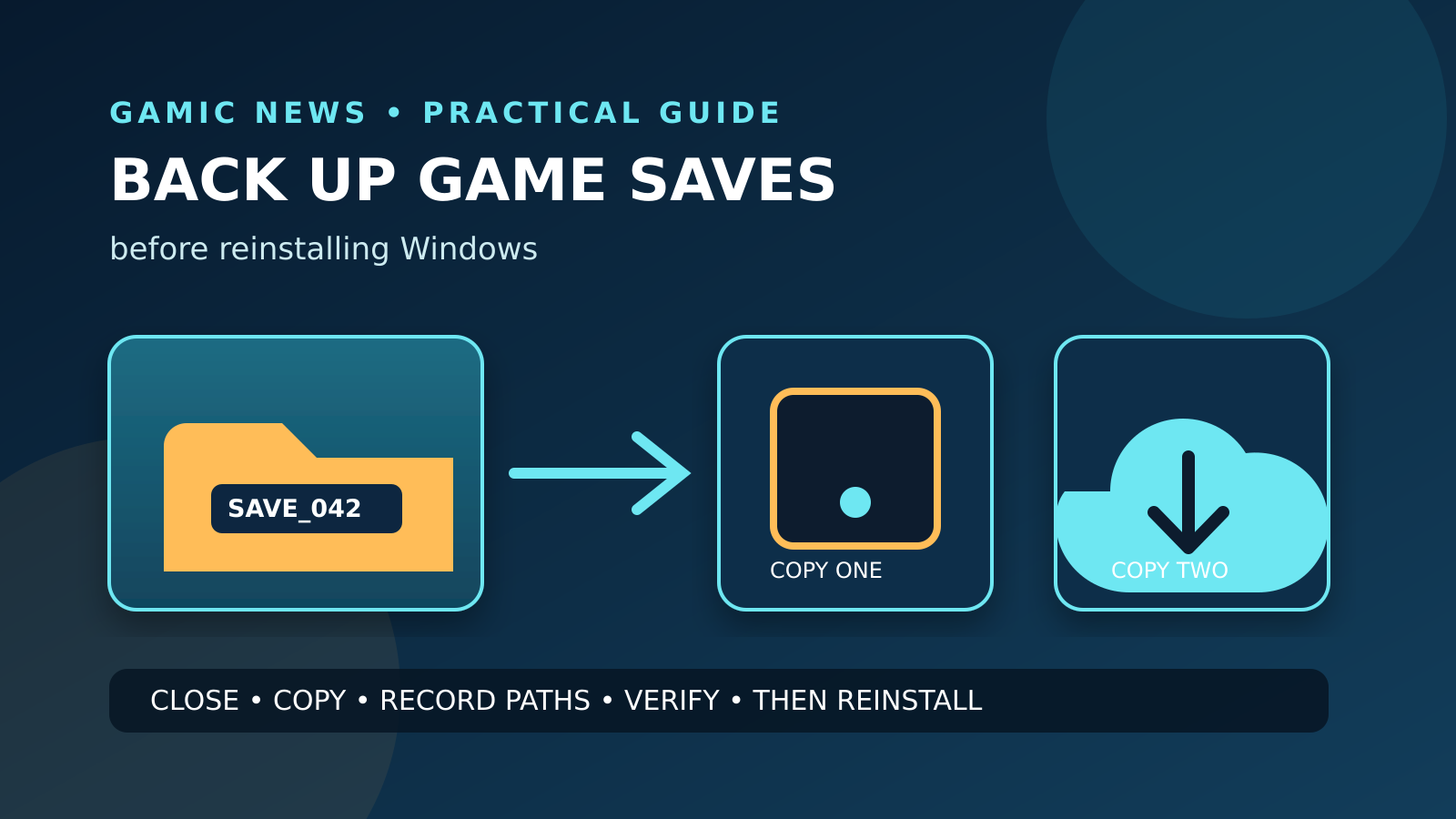
The game library contains executables, archives and downloaded assets that a launcher can usually replace. Player data may instead live in Documents, Saved Games, AppData, ProgramData, a launcher userdata folder or a publisher-specific directory. Some titles split settings, photos and saves across several roots. Identify those locations before moving anything, close the game normally and copy the important folders to storage that is not part of the migration. For related reporting on without and losing and saves, read How to Uninstall a PC Game Without Losing Saves or Mods.
Record the account, launcher, game version and original path in a small manifest beside the backup. Export a mod-manager profile and load order when supported. Cloud synchronization is an additional layer, not proof that every local item is protected. Open the backup destination and compare file counts and sizes. A migration that preserves the 100-gigabyte installation but loses a tiny unsynchronized save folder is not successful.
Check the destination drive before copying
Confirm the destination has room for the full installed size plus temporary update and verification data. File Explorer shows available capacity under This PC, and Windows Storage settings can identify large categories. Leave operational headroom rather than filling an SSD to its final few gigabytes. A launcher may need to unpack a patch nearly as large as the game, and Windows also needs working space for updates and caches. For related reporting on without and losing and saves, read How to Verify PC Game Files Without Losing Saves.
Use a filesystem supported by Windows and the launcher, normally NTFS for an internal Windows game library. Removable media, network shares and cross-platform filesystems can impose permissions, file-size or disconnection constraints. Give the volume a stable, recognizable label. If BitLocker or another encryption layer is used, preserve the recovery information separately. Do not begin a long transfer when the destination reports filesystem errors or unstable cabling.
Pause updates and close every related process
Finish or pause downloads through the launcher, exit the game and allow cloud synchronization to settle. Close mod managers, overlay tools and publisher clients that can rewrite the installation. Moving files while an update changes the same archives can create a mixed version that neither the old nor new manifest recognizes. A clean launcher shutdown also prevents it from immediately recreating directories at the previous path.
Restart the PC when a file remains locked, rather than forcing ownership changes across the whole library. After restarting, open only the launcher required for the move. Keep stable power during the transfer and avoid sleep. For an external destination, connect directly to a reliable port and do not route a multi-hour copy through an unpowered hub. Record the transfer start so later timestamps have context.
Move a Steam game through Storage settings
Create or select a library on the destination drive through Steam's Storage settings. Then select the installed title and use the move command offered by the current client. Steam updates its library records while transferring the managed files. The exact button placement can change, so consult Steam Support for the current desktop version. Avoid dragging the common folder first and hoping the client will discover it automatically.
When Steam reports completion, verify the destination path and launch the title before deleting leftovers. If the game invokes another publisher client, confirm that client can still locate its components. Workshop content and shader caches may follow different rules from the base installation. Test one representative modded save only after the unmodified title reaches its menu, and retain the save backup until cloud synchronization has completed without a conflict.
Follow Epic's backup-and-verify workflow
Epic's official support instructions begin by copying the installed game folder to a safe location. In the standard launcher workflow, the title is then uninstalled from the library, installation begins at the new location, and the small initial download is cancelled. The backed-up folder is copied into the new directory, duplicate files are replaced, and installation resumes so the launcher verifies the content. Follow the current official page because the Early Preview client can use different detection steps.
That workflow makes the backup copy essential. Do not interpret Uninstall as permission to erase the only existing files before the copy has been opened and checked. Keep saves separately even though Epic says its verification process does not affect saved data. After verification, review the download result and launch without restored mods. If a publisher launcher also opens, make sure its install path or repair command recognizes the relocated build.
Handle Xbox app and Microsoft Store titles conservatively
Use the Xbox app's supported manage, files or installation-location controls when they are available for the title. Windows can also set where new apps are saved, but changing the default for future installations is not the same as relocating every existing game. Packaged applications can use protected directories and permissions. Do not take ownership of broad WindowsApps trees merely to drag files between disks; that can break updates and other installed apps.
Confirm the Microsoft account and Xbox profile before starting, then let cloud saves synchronize. Move one title at a time and test it. If the app offers no relocation control, an uninstall and reinstall to the chosen supported drive may be safer than a manual copy, provided local player data is independently backed up. Repair the Xbox app or Gaming Services only when the failure points to that layer, not as a routine part of every storage move.
Treat GOG and standalone games by their installer model
A GOG Galaxy-managed installation should be moved or reimported through options supported by the current client, followed by verification. A title installed with an offline installer may have fewer launcher records, but it can still store uninstall information, shared redistributables and saves outside its folder. Preserve the offline installer and patches when licensing permits, and record the exact build before changing the path.
For a DRM-free standalone game, a direct copy may work, but test shortcuts, configuration paths and save discovery before removing the source. Do not assume portable behavior unless the publisher documents it. Older games can store absolute paths in configuration files or the registry. Reinstalling to the new destination with the official installer and then restoring only personal data is often more reproducible than carrying forward an opaque folder accumulated over many updates.
Preserve mods without importing the original problem
Mod managers may deploy hard links, symbolic links or generated files that refer to the previous volume. Export the supported profile and keep the manager's download archive separately, but begin testing with the official game files. Reconfigure the manager's staging and deployment paths for the new drive before activating anything. Copying a deployed folder alone can preserve broken links while losing the source packages needed to rebuild it.
Add mods in controlled groups and watch for version requirements. A move performed at the same time as a game update can make an old plugin appear to be a storage failure. Keep the original mod list, logs and game version in the migration manifest. Never redownload executables from unofficial mirrors merely because an antivirus alert or missing file appears after relocation; verify through the launcher and the mod author's authenticated channel.
Verify the new installation and the old source
Use the launcher's verification command at the destination after the transfer. Then start the title, reach the main menu, load the correct save and perform a small non-destructive test. Exit normally, allow synchronization, restart the launcher and run the game a second time. The second launch catches missing runtime files and stale path records that may be masked during the first session.
Inspect the old location before deleting it. A launcher can leave screenshots, logs, workshop content or a second copy behind. Compare sizes, but remember that caches can be regenerated and therefore need not match exactly. Do not erase the original save backup. Once the new installation has survived updates and several sessions, the replaceable source game files can be removed through a reversible or documented process.
Troubleshoot a failed move without starting over blindly
If the launcher wants to redownload everything, stop and confirm that the selected destination contains the expected folder and that the launcher was pointed at its parent library rather than the game's deepest subfolder. Check permissions and free space. Use the official locate, import or verify function where provided. Renaming manifests or editing registry paths based on an old forum post can turn a recoverable mismatch into a larger maintenance problem.
When the game launches but cannot find saves, close it before further testing and compare the newly created save path with the recorded original. Account identifiers, Windows usernames and publisher profiles can change the folder. Copy only the verified save into the current documented location and keep both versions. If progress disappears after cloud sync, disconnect only through supported controls and ask publisher support before choosing which revision overwrites the other.
Finish with evidence and a rollback window
Mark the migration complete only when the launcher shows the new path, verification finishes, the game loads the intended progress, and a second launch works. Record the new volume label and folder in the manifest. Keep the original installation or its backup until the next ordinary game update succeeds. This rollback window costs temporary space but prevents a hurried deletion from converting a path mistake into a full redownload.
Finally, review automatic install defaults so future titles use the intended drive. Windows Storage settings and each launcher can have separate defaults. A clean destination layout with one managed library per launcher is easier to back up and diagnose than nested, manually renamed folders. Continue backing up saves independently: relocating a library solves capacity or performance needs, but it does not replace a tested recovery plan for player data.