To verify PC game files safely, first close the game, back up any local saves and record active mods. Then use the repair or verification command inside the launcher that owns the installation. Let the check finish without interrupting it, review what changed, and test the game before restoring mods. Verification normally replaces damaged program files, but it is not a save backup and cannot correct every account, driver or configuration problem.
File verification compares installed game data with the version expected by a store or publisher. It can redownload a missing executable, replace a corrupted archive or restore a library that security software quarantined. It is less drastic than reinstalling an entire title, but it is not risk-free: launchers can replace locally edited files, mods can become incompatible, and a cloud conflict can still affect progress. A careful workflow separates irreplaceable player data from replaceable program data before repair begins.
Menu names change as launchers are updated, and some games use a second publisher launcher with its own repair function. The current official support pages are the final authority for the buttons available on your version. This guide never recommends disabling account security, bypassing DRM or downloading replacement DLL files from unofficial sites. If the storage device is disappearing, reporting hardware errors or making unusual noises, protect the data first and diagnose the drive rather than repeatedly forcing a verification scan.
Decide whether verification matches the symptom
Verification is a sensible first repair after a download was interrupted, an update failed, a game suddenly reports a missing asset, or an executable was quarantined. It is also useful when the launcher itself identifies damaged content. The process is designed to compare replaceable installation data with a known manifest. It does not prove that every user setting, save database or cloud revision is correct, and it will not repair Windows components, graphics drivers, account permissions or a failing SSD. For related reporting on without and losing and saves, read How to Move PC Games to Another Drive Without Losing Saves.
Write down the exact error and when it occurs before changing anything. A crash before the publisher logo may point toward program data, while a crash only when loading one character may involve a save or mod. Test one change at a time. If verification is followed immediately by driver replacement, registry cleaning and a mod purge, a successful launch will not reveal which action mattered, and a failed launch will leave several new variables to investigate.
Protect saves and custom content first
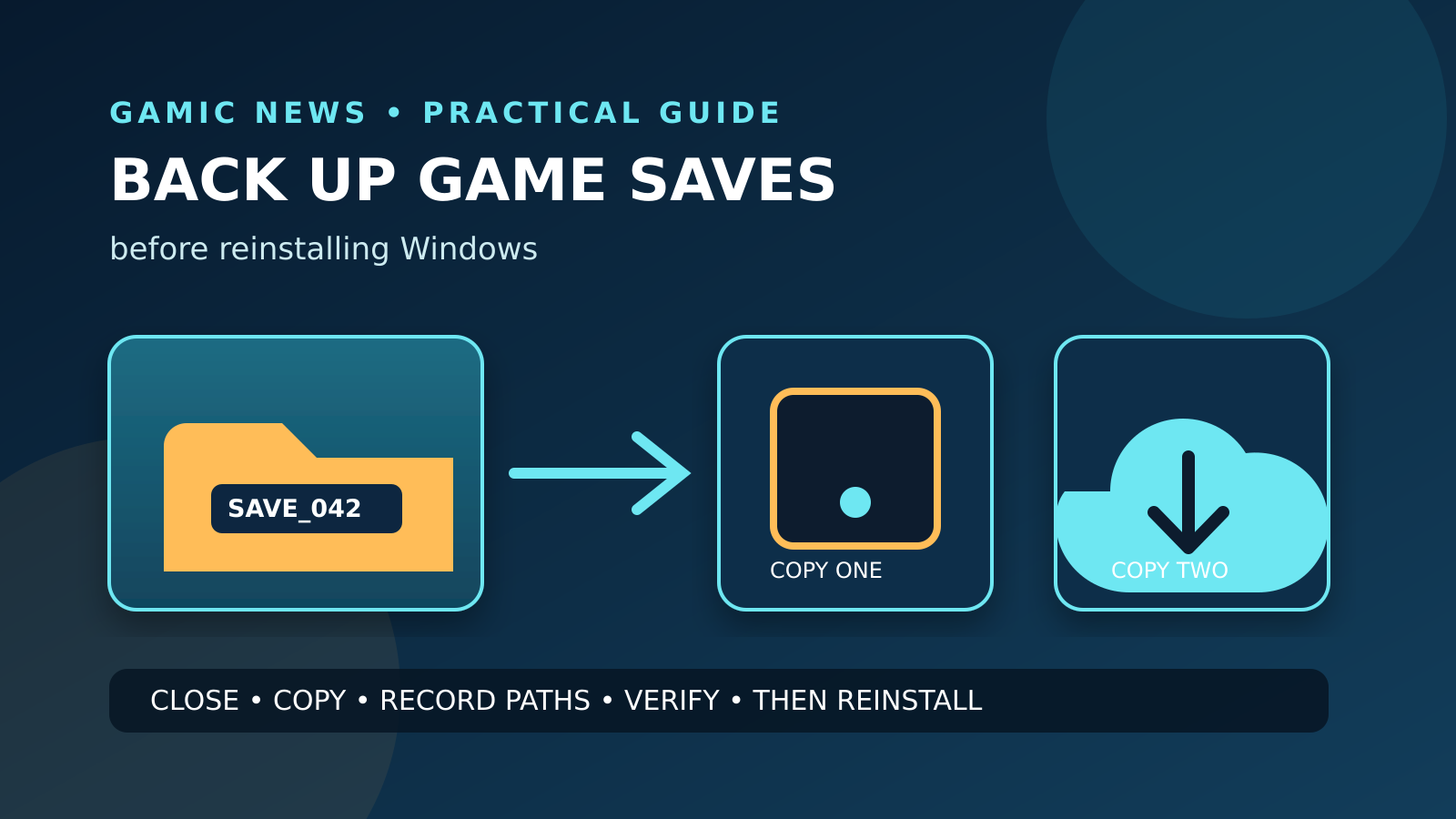
Close the title normally and wait for any save or synchronization indicator to finish. Find the actual local save folder through the publisher's documentation or the game's settings, then copy it to a separate location. Do the same for screenshots, custom maps, replays and locally stored profiles that matter. A cloud icon is useful evidence, but it is not an independent copy of every file on the machine. Verification should not normally erase saves, yet the backup removes an avoidable point of failure. For related reporting on without and losing and saves, read How to Uninstall a PC Game Without Losing Saves or Mods.
Export or record the mod manager profile, load order and game version. Verification commonly restores official files that a manual mod deliberately replaced. That is correct behavior for the verifier, but it can leave a modded installation half converted. Preserve configuration files before the scan, but do not automatically copy every old setting back afterward. A malformed configuration can recreate the original failure, so restore only the items that are needed and understood.
Prepare Windows for a clean comparison
Restart Windows if a previous update or launcher process is stuck, then sign in to the account that owns the game. Confirm that the destination drive has free space for temporary data and replacement files. Keep the PC connected to stable power and networking. Verification may read tens or hundreds of gigabytes and download only the differences, so the completion time depends on storage speed, antivirus scanning, archive layout and the amount of damaged content rather than only the download size.
Do not delete the install folder, rename random archives or download loose DLL files before the scan. Those actions change the evidence and can create security risks. If antivirus software quarantined a legitimate game component, review its history and the publisher's guidance rather than disabling protection globally. A repeated detection after a clean redownload deserves investigation. Excluding an entire library from security scanning is a broad change that should not be the automatic troubleshooting step.
Verify a Steam installation
In the current Steam desktop client, open Library, right-click the affected title, choose Properties, select Installed Files and use Verify integrity of game files. Keep Steam open while it checks the local manifest and content. The wording or navigation can change, so use Steam Support if the option moves. Do not launch the title during the scan. Steam may reacquire files that differ from the official depot, including files deliberately altered by a mod.
A message that one or more files will be reacquired does not by itself identify malware or failing hardware. Some runtime files can be regenerated when the game starts. Let Steam complete any download, then restart the client if it requests one. Test the game before reinstalling workshop items or copying edited files back. If the same large set is replaced on every run, inspect permissions, security-software history, storage health and whether another tool rewrites the files after launch.
Verify an Epic Games installation
Epic's official support workflow is Library, the three-dot menu for the title, Manage and Verify. Its documentation says the launcher checks whether files are damaged or corrupted and repairs files that differ; saved data is not affected by the verification itself. Wait for the operation to finish and avoid pausing the launcher through Task Manager. The command applies to games for which Epic is the source, not automatically to a linked title managed by another publisher client.
When verification ends, review the Downloads area for a repair download and note its size. Start the game without command-line experiments or restored mods. If Epic verifies successfully but a linked publisher launcher shows another error, repair the second client through its official route. Two launchers can own different layers of the same launch path, so a clean Epic manifest does not certify authentication tokens, anti-cheat services or publisher-side files outside that manifest.
Repair Xbox app and Microsoft Store games
The Xbox app can expose management or repair options for supported PC games, while Windows provides Repair and Reset for some installed apps. Microsoft documents Settings, Apps, Installed apps, the More menu and Advanced options for applications that support repair. Prefer Repair before Reset because reset may remove application data. Not every game exposes identical controls, and packaged games can store data in protected locations that should not be edited manually.
If the game uses Xbox cloud saves, allow synchronization to complete before repair and confirm the account in use. Repairing the Xbox app itself is different from repairing one installed game. Start with the narrowest relevant target, then test. If Gaming Services or Microsoft Store updates are pending, install them through supported Windows mechanisms. Avoid PowerShell removal recipes copied from unknown forums unless Microsoft or Xbox Support specifically directs that exact procedure for the current release.
Use GOG Galaxy or the offline installer deliberately
For a game installed and managed by GOG Galaxy, open its customization or manage-installation menu and select the verify or repair option available in the current client. Galaxy can compare the installation with the owned build and fetch missing data. Preserve local saves and mods first because a verified official build can replace altered game files. When a title was installed only from GOG offline installers, use the publisher's supported installer or reinstall route rather than pretending another launcher owns it.
Check which build channel is selected before repair. A classic game can have language packs, patches or optional components that differ between versions. Record those choices so a repair does not appear to remove content that was never selected in the current manifest. After verification, launch once without community wrappers or injectors. Add compatibility tools back individually only after the base installation reaches the menu and can load a copied, verified save.
Read the result instead of treating completion as a cure
A completed verification means the files covered by that launcher's manifest matched or were replaced at that moment. It does not certify uncatalogued files, cloud progress, mods, device drivers, memory stability or the physical disk. Record whether files were downloaded and whether the symptom changed. If nothing was replaced and the error is identical, move to the next evidence-based layer rather than running the same scan indefinitely.
If the title now works, restart it a second time and test the action that previously failed. Then re-enable one overlay, mod group or peripheral utility at a time. A single clean launch can result from a temporary service recovery rather than a durable repair. Keep the save backup until several sessions complete and cloud synchronization has settled. Do not delete the backup merely because the launcher's progress indicator turned green.
Handle recurring corruption as a storage or process problem
When the same files fail repeatedly, inspect Windows Event Viewer and the drive's vendor-supported health utility for storage warnings. Run the operating system's supported filesystem checks only after important data is backed up. Sudden power loss, unstable overclocking, defective memory, aggressive cleanup software and a nearly full drive can all produce repeated damage. Verification repairs the current copy; it does not remove the cause that changed the bytes.
Compare the timing with security scans, mod-manager deployment and automatic patching. If a file is healthy until a specific tool runs, capture the path and tool log. Do not keep redownloading hundreds of gigabytes onto a drive that disconnects under load. Move irreplaceable data elsewhere and seek hardware support. A verifier is a content-management feature, not a stress test or a substitute for a current backup.
Escalate with a compact evidence package
If the repair does not solve the problem, collect the game version, launcher version, exact error, verification result, Windows version and the time of the failed launch. Include the game's own log when the publisher documents its location, but remove account identifiers and personal paths where practical. Support teams can use a concise chronology more effectively than a list of undocumented tweaks. State clearly that saves were backed up and whether the base game was tested without mods.
Use the official support channel for the store or publisher that controls the failing layer. Launcher support can address download manifests; a game studio can interpret title-specific logs; Microsoft can address Windows app repair. Avoid posting license keys, full crash dumps or private save files publicly. Keep a copy of the evidence and of the last known-good save while troubleshooting continues. That preserves both technical context and the player's progress.