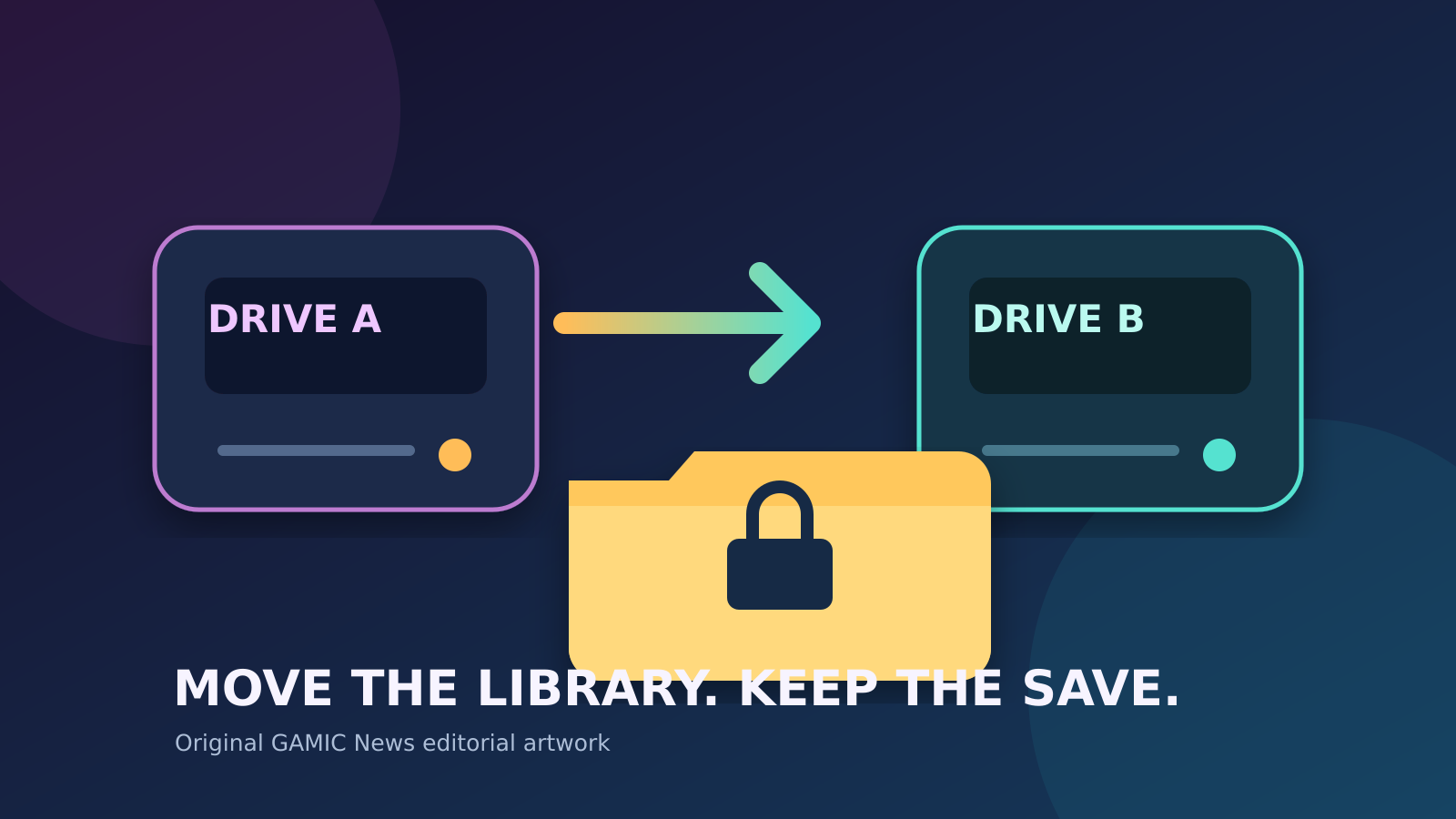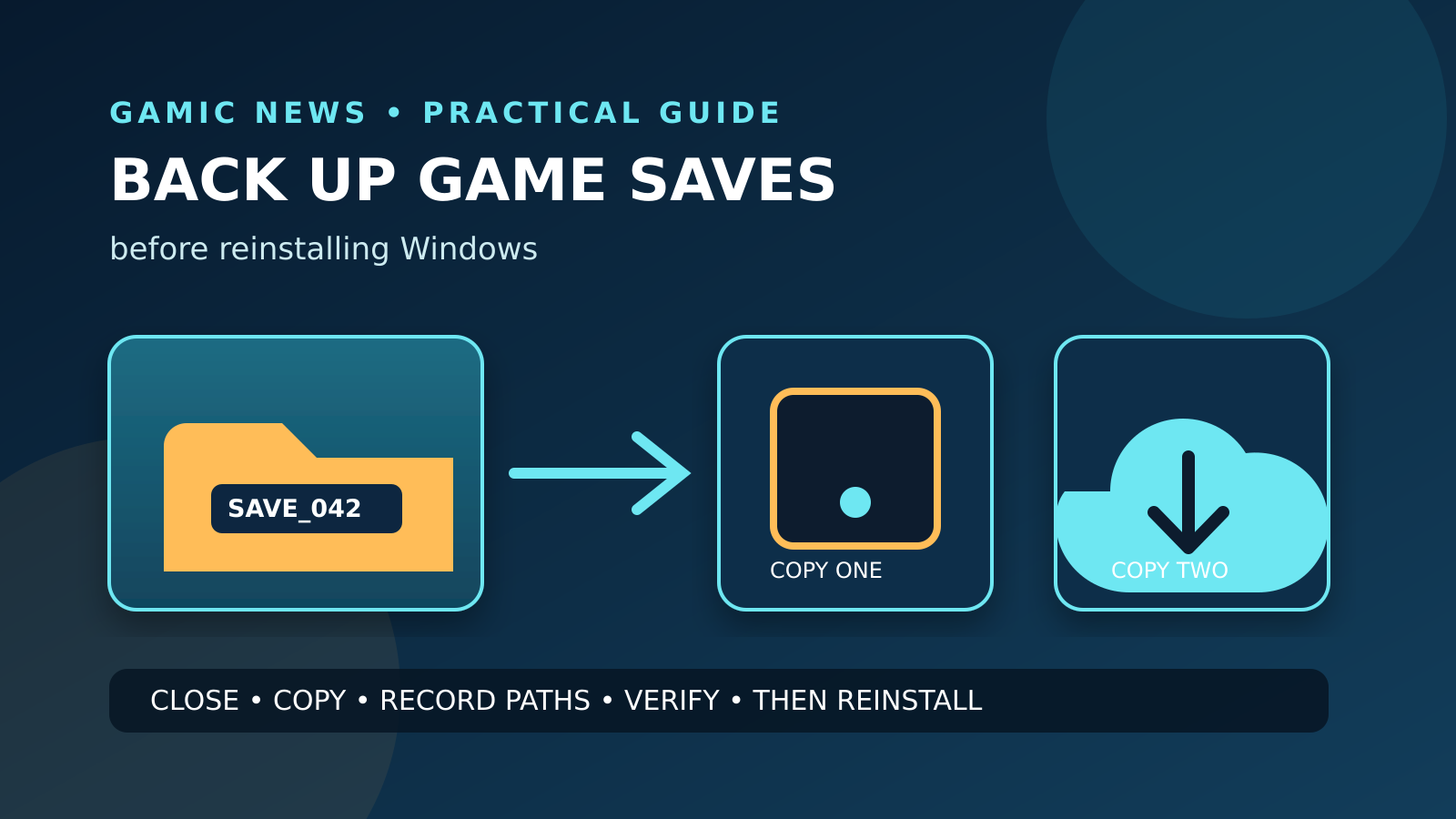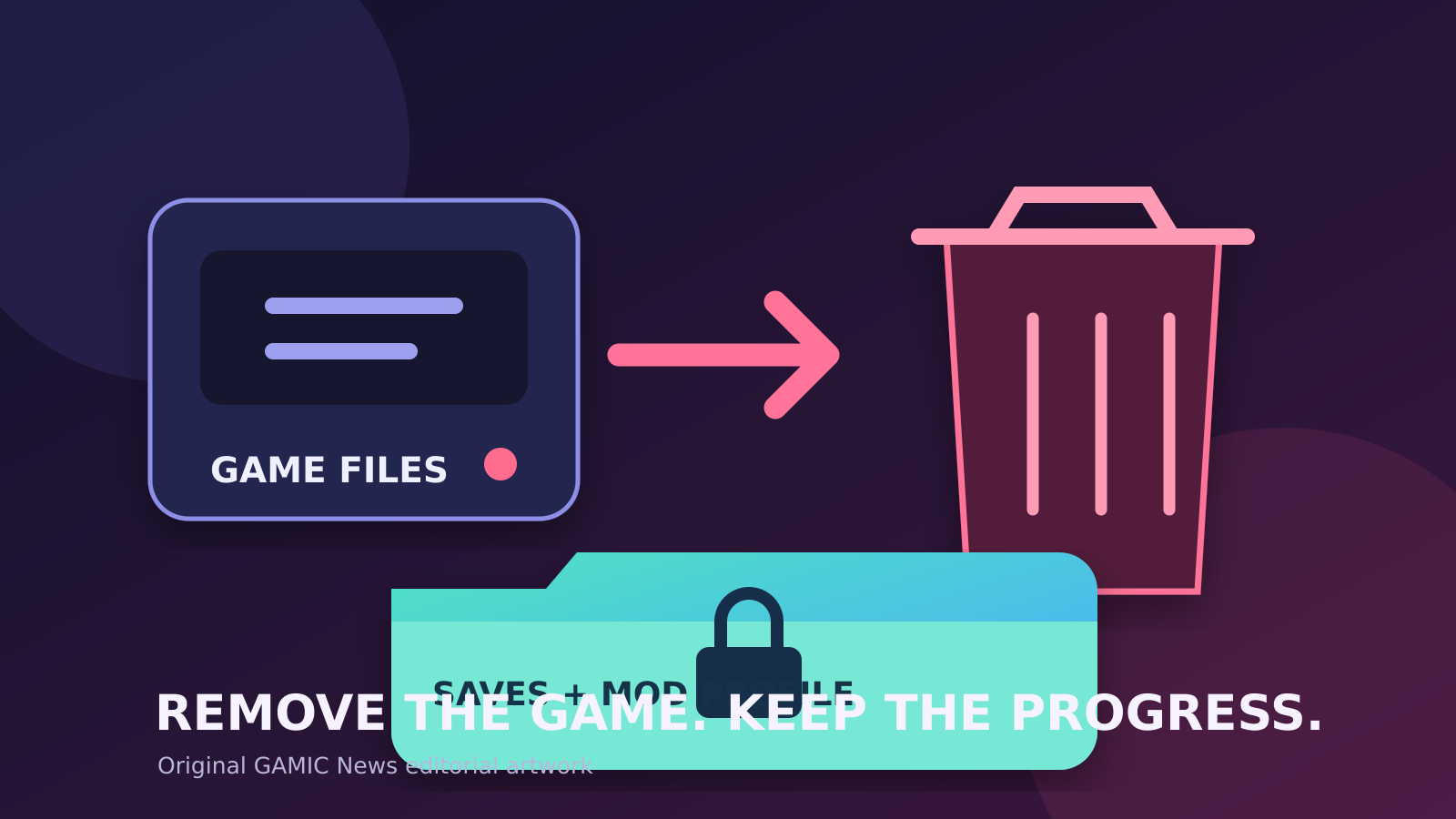
To uninstall a PC game without losing progress, close the game, let cloud synchronization finish, copy its local save folder to a separate location, and export any mod-manager profile. Then remove the title through the launcher that owns the installation instead of deleting its folder manually. Keep the backup until the game has been reinstalled, launched twice and confirmed to load the correct save. Cloud storage is useful, but it is not a substitute for a verified local copy.
A game installation contains mostly replaceable program data, while player progress may be stored in Documents, AppData, a launcher-specific userdata folder, the publisher's cloud or several places at once. Mods, screenshots, replays and configuration files can follow different rules again. An uninstaller may preserve all of them, some of them or none of them. The only dependable approach is to identify and copy what matters before removal rather than inferring safety from the size of the install directory.
Launcher interfaces and individual game behavior change over time. Use the current support page for the store and the documentation for the specific title when they differ from this general workflow. Do not disable account security, copy unknown DLL files or use registry cleaners to force an uninstall. If a drive is failing or disconnecting, protect irreplaceable files first; repeated uninstall and reinstall cycles are not a storage diagnosis.
Separate replaceable game files from irreplaceable player data
The large folder under SteamLibrary, Epic Games or another launcher is usually the downloadable build: executables, textures, audio, shaders and archives. A reinstall can replace those files. Progress is more complicated. A title may write saves under Documents or Saved Games, inside AppData, under a launcher account folder, or in a publisher directory. Some games keep settings next to saves; others place screenshots and replays in their own folders. Treat every category as unknown until the game's documentation or an inspected backup confirms its location. For related reporting on without and losing and saves, read How to Move PC Games to Another Drive Without Losing Saves.
Make a short inventory before touching the uninstall button. Record the game edition, current version, active downloadable content, selected language, install drive and the account that owns the license. Note whether a second publisher launcher opens. If the title is modded, record the mod-manager profile, deployment method and load order. This information turns a reinstall into a controlled restoration instead of a guessing exercise, especially when an old save expects a specific game or mod version.
Confirm the latest save actually reached the cloud
Cloud support is not universal, and a cloud-enabled title can still have a pending or conflicted revision. Steam explains that games may store saves, settings and profile data in Steam Cloud, but it also documents conflicts when a file was changed in two places without synchronization. Close the game normally, keep the launcher online and wait for its synchronization indicator to settle. If the launcher reports a conflict, compare timestamps and recent play activity carefully rather than automatically selecting the newest-looking entry. For related reporting on without and losing and saves, read How to Verify PC Game Files Without Losing Saves.
Do not manufacture a test by deleting the local save to see whether the cloud restores it. That turns uncertainty into risk. Instead, locate the local data and copy it while the known-good progress is still visible in the game. Note the character name, chapter, play time or another harmless marker that can later confirm the correct revision. A green cloud icon shows that a launcher completed its process; it does not prove that every game-specific file you value is included in that process.
Create and verify an independent save backup
Close the game and launcher before copying files so that no save database is changing mid-copy. Copy the entire documented save directory to another physical drive or a clearly named backup folder outside the installation tree. Include a text note with the game title, account, game version, backup date and original path. If the files are small, make a second copy in a trusted personal cloud location. Microsoft documents Windows Backup and OneDrive folder protection, but only folders actually covered by those features are synchronized.
Verification matters more than the copy progress bar. Open the destination, compare the number and approximate size of files, and make sure the newest modification time matches the last session. For a simple folder, an archive such as ZIP can preserve the directory structure and prevent accidental editing. Do not encrypt the only backup with a password you may forget. Keep the original path in the note because several games use similarly named folders and restoring a valid save to the wrong location can look exactly like data loss.
Preserve mods, load order and custom content separately
Mods are not the same as saves. A mod manager may maintain a download cache, a staged deployment directory, profiles and generated configuration outside the game folder. Export the profile if the manager supports it, capture the load order and back up personally created content. Record the manager version and whether deployment uses copies, hard links or another method. Copying only the visible mod files from the game directory may miss the information needed to reconstruct the setup.
Decide whether the goal is a clean reinstall or an exact restoration. For troubleshooting, preserve the mod records but do not restore them immediately. Launch the unmodified game first, confirm the save can be read, and then restore compatible mods in controlled groups. A save created with removed content may warn, refuse to load or permanently discard objects. Keep an untouched copy of the pre-uninstall save so experiments with a changed mod list never overwrite the only recoverable version.
Uninstall through Steam, Epic, Xbox or GOG
Use the client that manages the license and installation. Epic's current official workflow is Library, the three-dot menu beside the title, Uninstall, and confirmation. Steam, the Xbox app and GOG Galaxy expose their own management routes. Using the owner launcher allows it to update manifests and installed-state records. Manually deleting the folder can leave the client believing the title is present, leave shared prerequisites behind or complicate later verification.
Read every removal prompt instead of clicking through automatically. Some games or publisher uninstallers ask whether user data should also be removed. If the wording is ambiguous, cancel and consult the title's official support documentation. Do not assume a Windows Settings uninstall is identical to the launcher's command for every game. When an installation uses a second launcher, close both clients and use the route recommended by the publisher controlling the installed build.
Check what remains without deleting blindly
After the launcher reports completion, confirm that the title no longer appears as installed and record the free-space change. Residual folders can contain logs, shader caches, crash reports, screenshots, mods or user settings. Their presence does not automatically mean the uninstall failed. Inspect names, dates and contents before removal. If a folder holds your save backup or mod-manager staging data, deleting it to recover a few extra megabytes can defeat the entire safety plan.
Do not run an aggressive cleanup utility merely because it promises to remove leftovers. Shared runtimes, anti-cheat components and publisher clients may support other installed games. Remove a shared component only through its supported uninstaller and only after confirming nothing else depends on it. If the goal is disk space, start with the known installation size and documented launcher caches. Preserve small unknown user-data folders until the restoration test is complete.
Reinstall to the intended drive and test a clean launch
When reinstalling, select the destination library inside the launcher and confirm enough free space exists for the download, unpacking and future updates. Keep the machine on stable power and networking. Let the client finish verification or first-run prerequisites. Launch the game once before adding mods or copying old configuration. This establishes whether the base build and account entitlement work independently of restored data.
At the first menu, check whether the expected cloud save appears. Do not overwrite it immediately with a new game. If the correct progress is present, load it and verify a recognizable marker. Exit normally, wait for synchronization, restart the launcher and test again. Two successful launches are stronger evidence than one because the second run exercises the newly written local files and the first post-install cloud synchronization.
Restore a local save without creating a cloud conflict
If the cloud revision is absent or stale, close the game and launcher before restoring the copied save to the documented path. Preserve whatever the reinstall created by renaming or copying it elsewhere. Restore the smallest necessary set rather than every old cache and configuration file. Start the launcher and watch for a conflict prompt. Choose based on the known backup timestamp, play marker and official guidance, not simply on whether a button is labelled local or cloud.
GOG's support instructions for cloud-save removal explicitly recommend making a backup of save files first, which illustrates the correct order: preserve, then change synchronized state. Never experiment with cloud deletion while the only valid progress exists in one location. Once the restored save loads, make a fresh manual copy before the next synchronization. Keep the pre-uninstall archive unchanged until several sessions confirm that progress, settings and account state are stable.
Restore mods gradually and keep a rollback point
Reinstall the mod manager from its official source, import the saved profile where supported and compare every dependency with the current game version. Restore framework or library mods first, then small groups of content. Launch between groups and record changes. This is slower than copying the old game directory wholesale, but it identifies incompatibility and avoids mixing obsolete binaries with a clean build.
Maintain two save branches during restoration: the untouched pre-uninstall backup and a working copy used with the new mod set. Never allow the working copy to replace the archive automatically. If a modded save reports missing content, stop and determine which dependency is required before saving again. Some games permanently remove unavailable objects when a save is rewritten. A rollback point makes that behavior recoverable rather than final.
Escalate missing progress with evidence, not more deletion
If neither cloud nor local restoration shows the expected progress, stop creating new saves and collect evidence. Record the account, launcher, game version, original and current paths, backup timestamps, cloud-conflict choices and exact on-screen message. Search the publisher's current support material for that title and submit a concise ticket. Remove personal identifiers before posting logs publicly, and never share account recovery codes or license keys.
A support team cannot guarantee recovery of data that was never synchronized or backed up, but a clear chronology avoids making the situation worse. Keep all candidate save files, even if their names appear old, until the publisher confirms the format. Do not repeatedly toggle cloud synchronization or reinstall launchers in the hope that progress will reappear. Each uncontrolled change can replace timestamps or upload an empty state. Preserve evidence first, then follow the platform or developer's documented recovery route.