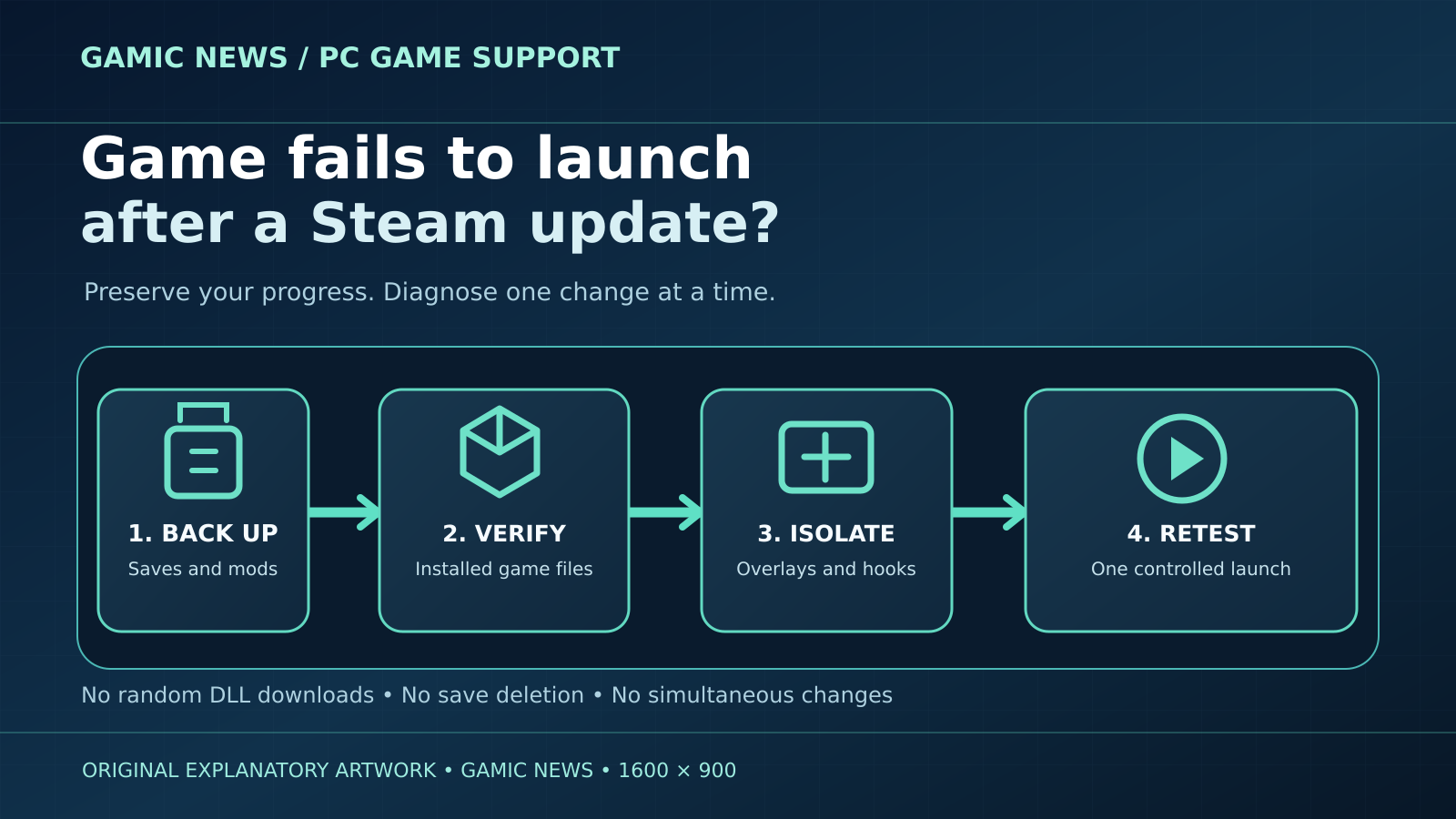
When a Steam game stops launching after an update, first preserve evidence and decide where startup ends: before any window appears, at a splash screen, at a black screen, or with an error. Restart Steam and Windows once, then verify the game files before reinstalling or deleting anything.
Treat the timing as a clue, not proof that the patch is defective. A simultaneous graphics-driver change, security quarantine, overlay update or corrupted local configuration can produce the same symptom. Change one layer at a time and repeat the same launch test.
This checklist follows Steam’s official integrity-verification and launch guidance, Microsoft’s current driver guidance and the game publisher’s own support channel. It prioritizes reversible checks and protects save data.
Quick answer: use a reversible launch sequence
Close the game and Steam completely, restart Windows once, then launch Steam normally and try the same game one time. If it still fails, record the exact error and use Steam’s Installed Files control to verify integrity. Temporarily close nonessential overlays or monitoring tools only after that baseline. Check the publisher’s support page for a known issue before changing drivers or reinstalling. For related reporting on after and safe and checklist, read PC Game Black Screen After Alt-Tab: A Safe Display, HDR and Driver Checklist.
Do not delete the game’s save directory, disable Windows security globally or download DLL files from third-party sites. Those actions can destroy evidence, expose the PC or create a second problem. A disciplined sequence is slower than random toggling for five minutes, but much faster than rebuilding a system whose original fault was never identified.
Define exactly what “won’t launch” means
Write down what appears after pressing Play. Steam may return the button from Running to Play, a launcher may open and disappear, the game may reach a splash screen, or a black window may remain. Capture the wording of any error and the time. These observations separate Steam authentication, prerequisite, graphics and game-engine failures. For related reporting on safe and troubleshooting and checklist, read PC Game Controller Not Detected in Windows: A Safe Troubleshooting Checklist.
Note whether the game launches offline, from another Windows account, or after a second attempt, but do not run a large matrix yet. Record the game build, Steam client version, Windows build, GPU model and driver version. If the problem followed several updates on the same day, the chronology matters more than an assumption about the culprit.
Protect saves, mods and local configuration first
Before verification, reset or reinstall, identify the game’s documented save location and cloud-save behavior. Use the publisher’s support page or PCGamingWiki only as a locator, then copy local saves and configuration to a separate folder. Steam Cloud synchronization is useful but is not a substitute for a local backup when troubleshooting. For related reporting on after and update and safe, read PC Game Crashes After a Graphics Driver Update: A Safe Recovery Guide.
Document installed mods, launch options and custom files. Verification can replace modified game files, while a clean reinstall may leave local configuration behind. Keep the backup outside the game installation directory. Never delete an entire Documents or AppData tree merely because one title fails to launch.
Restart the client and Windows once
Exit Steam from its menu so background processes close, then restart Windows. This clears stale launcher, update and graphics processes without modifying the installation. After reboot, open Steam normally and launch only the affected game. Avoid starting monitoring, capture or mod-management tools before the baseline attempt.
One clean restart is evidence; repeated restarts are not a diagnosis. If the game now launches, check whether the result survives a second normal start. Record the recovery but do not immediately change drivers. A transient locked file or pending prerequisite may have cleared, and preserving that simple explanation avoids unnecessary work.
Use Steam’s official file-integrity check
Open the game’s Properties in Steam, choose Installed Files and select Verify integrity of game files. Steam explains that one or more local configuration files may fail verification normally because they are not meant to be replaced. Let the process finish and note whether content is reacquired.
Verification compares installed content with the current depot and can replace missing or corrupted files. It does not prove that every local configuration, save or third-party mod is valid. Launch once after verification with the same baseline conditions. If files fail repeatedly, record which security or storage events coincide with the replacement.
Check free space and the storage path
Confirm that the game drive and the Windows system drive both have reasonable free space. Patches may need temporary working room beyond their final download size. Inspect the drive for ordinary Windows errors and ensure the Steam library remains mounted with the same letter or path. Do not move the library while diagnosing a launch failure.
If the game lives on an external drive, reconnect it directly and verify that Windows reports it normally. A disappearing library, read-only folder or cloud-synced install directory changes the problem from game launch to storage reliability. Back up important data before running any repair that writes extensively to a questionable disk.
Remove custom launch options and mod loaders carefully
Copy the current Steam launch options into your notes, then remove them temporarily. Old renderer flags, resolution switches or executable overrides can become invalid after a patch. Disable one mod loader through its documented method and preserve its files rather than deleting them. The objective is a clean supported start, not loss of a working mod setup.
If the unmodified game launches, reintroduce one component at a time and check the mod author’s compatibility notes. A game update may change file hashes or scripting interfaces even when core files are healthy. Keep Steam verification and mod restoration as separate steps so their effects remain visible.
Test overlays and background hooks one by one
Capture overlays, performance monitors, RGB tools, controller remappers and chat overlays can inject into a game process. Close nonessential tools, then test again. Start with software updated near the failure time. Do not uninstall everything; temporary closure provides a reversible conflict test.
If the game launches, reopen tools individually until the conflict returns. Update or configure the identified tool using its official documentation. Steam’s launch guidance recommends disabling nonessential software, but that is a diagnostic step rather than a permanent demand to run the PC without security or accessibility software.
Treat antivirus and ransomware protection as evidence sources
Review Windows Security protection history and the logs of any authorized security product for an event at the failed launch time. A quarantine or Controlled Folder Access block can stop a new executable after a patch. Restore or allow a file only when its path, signature and publisher are expected and official guidance supports the action.
Do not disable real-time protection globally or create broad exclusions for the entire Steam library. Submit a suspected false positive to the game publisher and security vendor. Reverify files after resolving a confirmed quarantine so Steam can restore the official copy. Unknown unsigned files deserve investigation, not an automatic exception.
Confirm prerequisites without downloading random DLL files
Many games depend on Microsoft Visual C++ runtimes, DirectX components or a publisher launcher. Use the redistributable installers bundled with the game or official Microsoft and publisher sources. An error naming a DLL is not permission to download that file from a third-party catalog.
Check the game’s installation folder for a documented prerequisite directory and consult its support page. Repair one relevant package, restart if requested and retest. Installing many old runtime bundles at random can obscure the original state and introduce unsupported components.
Inspect graphics-driver state before replacing it
Open Device Manager and confirm the display adapter has no warning code. Record the installed driver version and date. Microsoft’s current guidance supports updating a driver and, when a recent update caused a problem, using the Driver tab to roll back where available. Follow the GPU maker’s official installation instructions.
Do not use third-party driver download sites or automated driver packs. If several games fail after a graphics update, a driver-level cause becomes more plausible; if only one title fails, publisher-specific evidence remains important. After any driver change, reboot once and repeat the same launch test.
Check Windows and the game’s supported configuration
Install pending stable Windows updates and review the game’s current minimum requirements, supported operating systems and known-issues page. A major patch may drop an older API, require a newer feature level or change CPU instructions. Compare those documented requirements with actual hardware rather than marketing names.
Avoid compatibility-mode toggles as a first response for a currently supported game. If the publisher recommends a specific mode or administrator setting, test only that documented change and restore it if ineffective. Running a game permanently as administrator expands risk and can create file-ownership inconsistencies.
Use logs and crash records without exposing personal data
Check the publisher’s documented log location, Windows Reliability Monitor and Event Viewer around the failure time. Look for the faulting executable, module and code, not just a generic application error. Preserve a copy before repeated launches rotate the log. A consistent module name can distinguish graphics, audio, anti-cheat and game-code faults.
Redact Windows usernames, account IDs, IP addresses and file paths containing personal names before sharing logs publicly. Do not upload full system inventories when a support form asks for only one file. Keep original logs privately so timestamps and context remain available to official support.
Reinstall only after the lower-cost checks
A reinstall is justified when verification repeatedly reacquires content, the installation path is damaged, or the publisher specifically recommends it. Confirm backups first, uninstall through Steam and check the official documentation about residual configuration. Reinstall to a stable local library with sufficient space.
A clean download does not repair a broken GPU driver, security block or incompatible mod stored elsewhere. Therefore record the result. If the fresh installation fails identically, stop repeating downloads and escalate with evidence. Bandwidth expenditure is not a troubleshooting strategy.
Know when the patch itself is the leading explanation
If many players on the publisher’s official channels report the same build and error, and your previous build worked with unchanged system state, a regression becomes plausible. Preserve the build number, error and logs. Do not copy unverified workarounds that replace executables or bypass anti-cheat.
Use the publisher’s status page, issue tracker or support forum for updates. A rollback is appropriate only when the platform and publisher provide a supported mechanism. Otherwise keep saves backed up, avoid repeated system changes and wait for a documented hotfix while using another title.
Build a useful support packet
Include the game name and build, Steam client and Windows versions, hardware summary, exact launch sequence, error text, integrity result, mod state, overlay test and driver version. Add a short list of steps already tried in order. This is more useful than a screenshot that says only the game stopped responding.
Send logs through the publisher’s official support channel. Contact Steam Support for client, library or content-delivery failures; contact the game publisher for game-specific crashes; contact the GPU or PC maker when multiple supported games fail with the same device error. Keep case numbers and the final fix.
Finish with a repeatable stability test
After the game launches, close it normally, start it again, then test the same save or menu that previously failed. Re-enable overlays and mods one at a time only if needed. Confirm that cloud synchronization completes and that the backed-up saves remain intact before removing temporary copies.
Write down the decisive change and current versions. A credible repair is reproducible and preserves security, saves and normal system behavior. If the failure returns, the record narrows the regression window and prevents another cycle of random driver changes or full downloads.