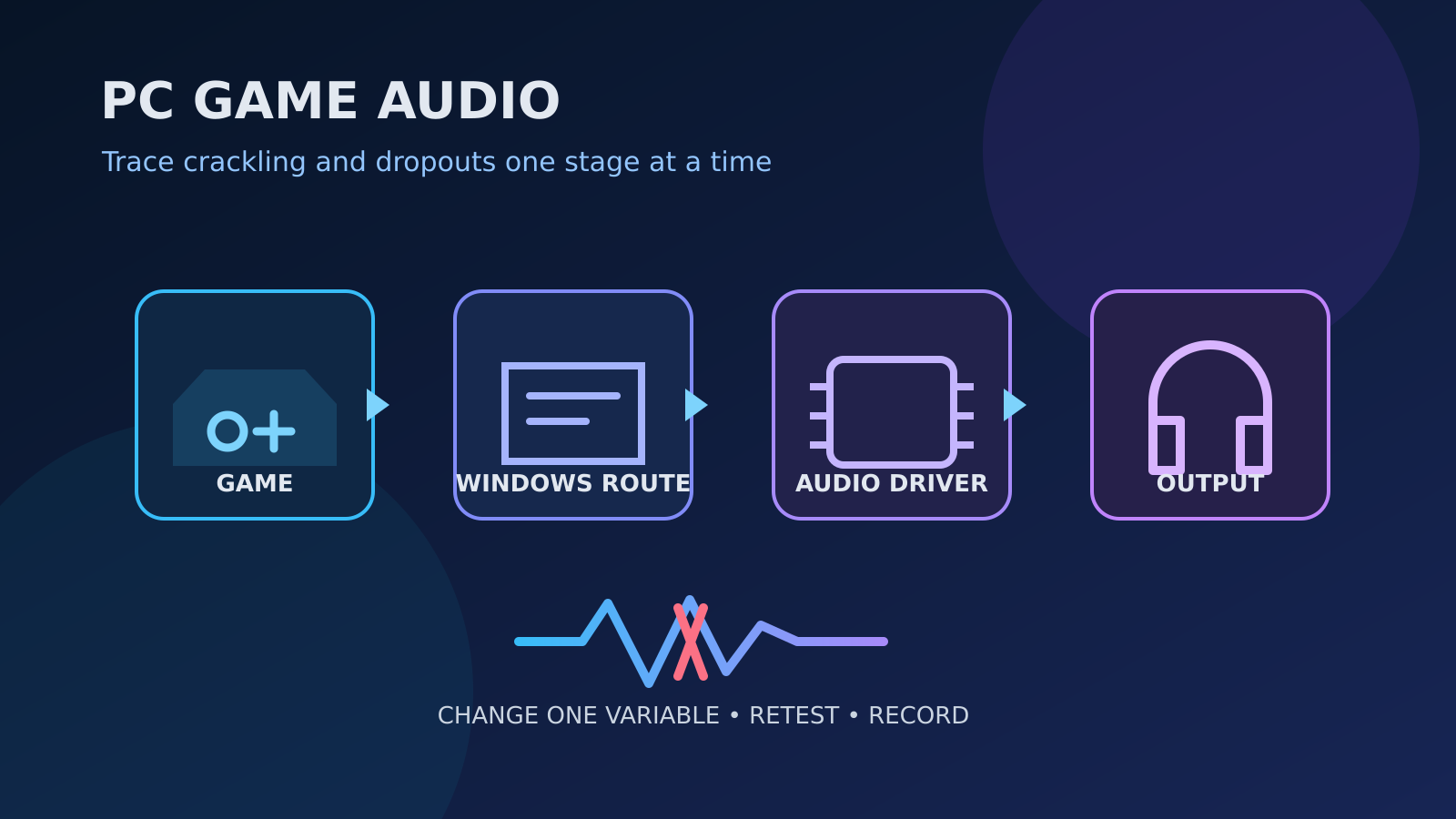
If a PC game crackles or loses sound, first confirm the correct Windows output, test another known audio source, and note whether the fault affects one game or the whole system. Then change one reversible setting at a time: disable audio enhancements, compare a supported default format, update the audio driver through Windows or the device maker, and retest with the same scene. Preserve the original settings so every change can be reversed.
Crackling, brief dropouts and delayed sound can have several unrelated causes. A game may be routed to an inactive output, an enhancement may conflict with a device, a USB or Bluetooth path may be unstable, a driver may be damaged, or the system may be missing real-time audio deadlines under heavy load. The symptom alone does not identify which layer is responsible.
This checklist follows Microsoft’s current Windows guidance for distorted audio, output selection and driver maintenance. It avoids registry edits, unsigned driver packages, blanket removal of security software and destructive device changes. Windows menu names can differ by release and hardware, so use the linked official instructions when the labels on a particular PC do not match exactly.
Define the failure before changing the audio stack
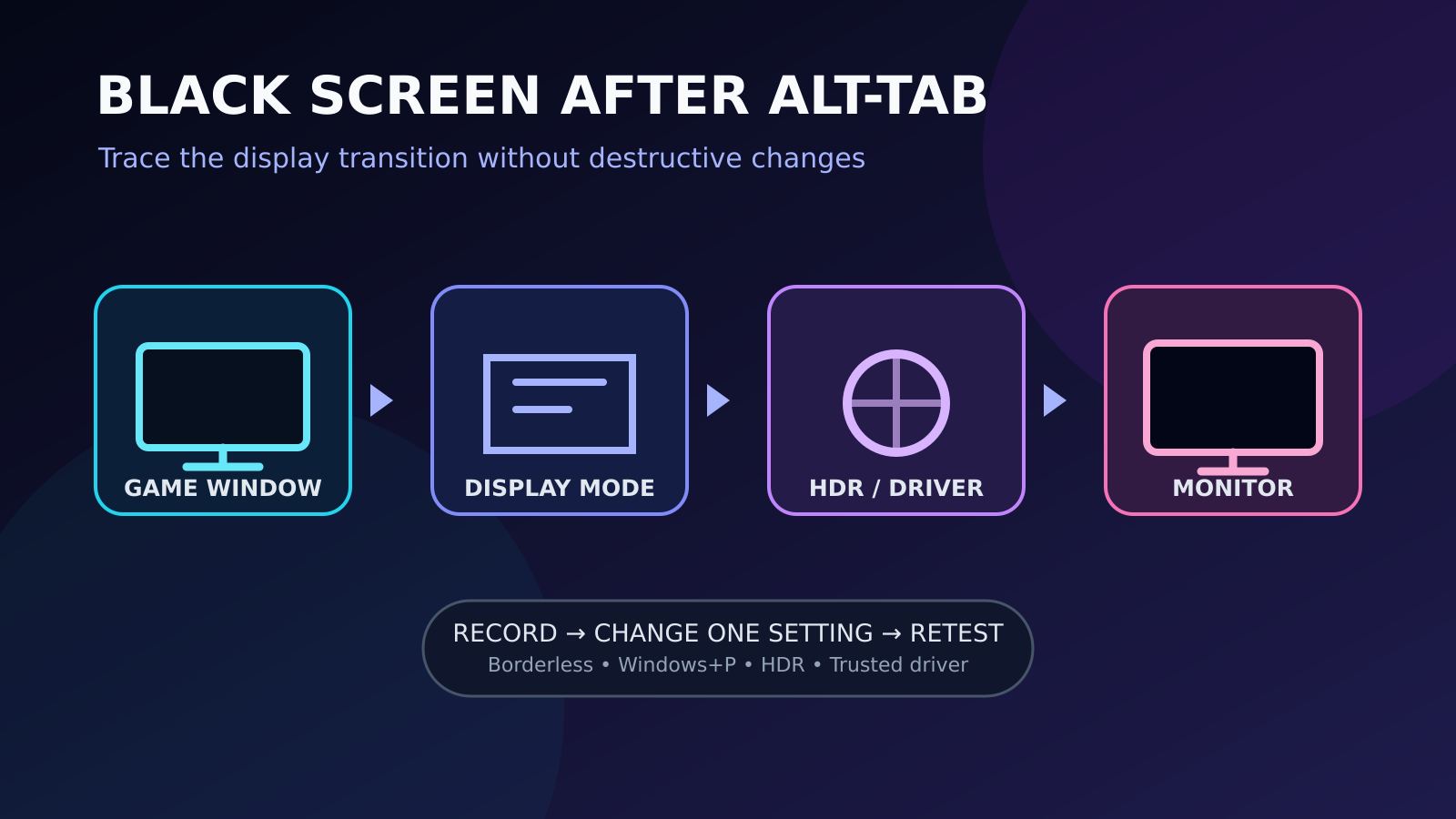
Choose a short, repeatable scene in the affected game and write down what the fault sounds like: regular clicks, random distortion, total silence, one-channel loss, delayed dialogue or brief dropouts. Note the local time, output device, connection type and whether the problem begins at launch or after several minutes. A repeatable test is much more useful than switching settings while gameplay, network load and background applications are all changing. For related reporting on safe and driver and checklist, read PC Game Black Screen After Alt-Tab: A Safe Display, HDR and Driver Checklist.
Play a known local audio file or a Windows system sound through the same device. Then test a second game if one is already installed. If every source fails, focus first on Windows, the output device and its connection. If only one title fails, preserve the system-wide configuration and check that game’s audio device, voice-chat, spatial-audio and integrity options. Do not reinstall a driver merely because one game has a damaged configuration file.
Confirm the physical path and the selected Windows output
Microsoft’s audio troubleshooting guidance starts with the output and the physical connection. In Settings, open System and Sound, identify the selected output and confirm that it is the device actually being used. HDMI monitors, docking stations, USB headsets, Bluetooth devices and motherboard outputs can all appear simultaneously. A graphics-driver update or reconnect can make a different device active without any hardware failure. For related reporting on safe and checklist, read Gaming Overlays and Recording Tools: A Safe Stutter and Crash Checklist.
For a wired device, reseat the plug once and inspect it for an obvious loose connection. For USB audio, use a direct port for one comparison rather than an unpowered hub, while avoiding repeated hot-plugging during active playback. Check the cable and volume controls without forcing a connector. If another known cable or port is available, change only that element, retest the same scene and record the result before restoring the preferred arrangement.
Check the game route and Windows Volume Mixer
Windows can route individual applications to different devices. Open the Volume Mixer while the game is running and confirm that the game is not muted, that its app volume is reasonable and that it is assigned to the intended output. Microsoft documents this per-app control for cases in which system sounds work but one application does not. If the game exposes its own output selector, compare that value with Windows rather than assuming Default points to the current device. For related reporting on safe and driver, read PC Game Crashes After a Graphics Driver Update: A Safe Recovery Guide.
Close and reopen the game after correcting a route because some titles choose an endpoint only at startup. Avoid changing the default communication device, spatial mode, sample format and per-app route simultaneously. If selecting the correct endpoint fixes the issue, stop there and document the cause. Additional driver or service changes would only add risk to a configuration that is already working.
Disable audio enhancements as a reversible test
Microsoft specifically lists audio enhancements as a possible source of distorted or crackling sound. In the selected output’s properties, locate Audio enhancements and turn them off for one test. Older driver panels may present an Enhancements tab with a Disable all enhancements option. Record the prior value first so it can be restored if the test makes no difference or removes a feature the user relies on.
Retest the same scene at the same volume. A clean result shows that an enhancement layer participated in the failure, but it does not identify which vendor effect or processing stage was responsible. Re-enable features individually only if their benefit matters and the interface permits it. Do not install a third-party equalizer or latency optimizer to replace the disabled effect during diagnosis; that would introduce another processing layer before the baseline is understood.
Compare one supported default audio format
Microsoft’s distorted-audio guidance also recommends testing the default format. In the output device’s advanced properties, note the existing sample rate and bit depth, choose one other format offered by Windows, apply it and repeat the same playback. Select only values exposed by the device interface. Do not use registry edits or utilities that claim to unlock unsupported sample rates, because a more extreme format is not a reliable fix.
Some games, communications tools and capture applications open an audio endpoint with different expectations. A format comparison can expose that interaction, but it should remain a controlled test. If one offered format is stable, keep a note of the before-and-after values. If no offered format helps, return to the original setting before moving on. That prevents later conclusions from being confused by an unrelated format change.
Update or reinstall the driver through a trusted path
Microsoft states that updated audio drivers can address no sound, distortion, crackling and headset or microphone problems. Start with Windows Update and its optional driver area, or use Device Manager to search for an updated driver. For a vendor-specific USB interface, laptop or motherboard, the hardware maker’s official support page may provide the validated package. Record the installed provider, version and date before changing it.
Restart Windows when the official instructions require it and retest before making another adjustment. If Microsoft’s troubleshooting path calls for reinstalling the device, understand that Windows may temporarily remove the endpoint and then detect it again. Do not download a generic driver pack, disable signature enforcement or select a driver for a merely similar model. If the device contains custom presets, confirm how the manufacturer preserves them before reinstalling.
Separate USB, Bluetooth and HDMI behavior
Connection types fail differently. USB audio can be affected by a hub, cable or port; Bluetooth audio can change profiles when a microphone is activated; HDMI audio follows the display and graphics path. Test only the connection that applies. For Bluetooth, check whether starting voice chat coincides with the quality change, and confirm the intended Bluetooth output remains selected. For HDMI, confirm the display has not entered a power state that removes its audio endpoint.
When comparing a second connection, keep the game scene and system settings constant. A wired headset comparison can show whether the fault is confined to a wireless path, but it does not prove the Bluetooth adapter or headset is defective. Similarly, stable motherboard audio does not prove a USB interface has failed. Report the narrow observation and continue with the official support path for that device rather than replacing hardware based on one comparison.
Observe system load without guessing at latency
Real-time audio can break up when the system cannot deliver buffers on time, but visible CPU use alone is not a diagnosis. Open Task Manager and observe CPU, memory, disk and GPU activity during the repeatable scene. Note whether the fault coincides with a shader-compilation spike, storage transfer, game update, recording task or thermal slowdown. Keep the observation descriptive: a simultaneous spike is a clue, not proof of a particular driver’s deferred-procedure latency.
Close only known optional applications through their own interfaces, one at a time. Game capture, streaming, voice processing and RGB or device utilities may interact with audio, but terminating unfamiliar Windows processes can create new failures. Do not disable antivirus protection or the firewall. If a clean restart eliminates the issue, reintroduce ordinary applications gradually and keep a record; avoid publishing a blanket claim that a product is incompatible without repeatable evidence.
Check exclusive control, voice chat and capture carefully
Some applications request exclusive access to an audio device, while voice-chat or recording software may open both input and output endpoints. If the crackle starts only when chat, capture or streaming begins, test with that optional feature closed normally. Review the app’s documented device selection and sample format. Do not grant microphone access broadly or weaken privacy settings merely to see whether a game’s output improves.
Windows device properties may expose exclusive-mode controls, but changing them can affect low-latency software and professional interfaces. Record both boxes before a comparison, change only the setting relevant to the observed conflict and restore it if there is no improvement. Users of dedicated interfaces should prefer the manufacturer’s documented buffer and driver panel instructions rather than generic advice written for consumer audio endpoints.
Preserve evidence and know when to stop
Stop changing settings if the device disconnects repeatedly, Windows reports a hardware error, the connector becomes hot, or the problem appears outside Windows on multiple known-good sources. Power down external hardware according to its instructions and contact the manufacturer. Continuing to reconnect a damaged cable or port is not a useful software test. Back up any device presets through supported tools before a repair or warranty process.
For a persistent software case, prepare a concise record: game and version, Windows version, output model, connection, driver provider and version, exact reproduction steps, whether other apps fail, and the result of each single-variable test. Include screenshots only after removing account names and device identifiers that are not needed. This evidence gives game support or the device maker a usable starting point without exposing credentials or inventing a root cause.
Retest the fix and restore a clean configuration
A successful result should survive several repetitions of the same scene and ordinary playback, not just one quiet minute. Confirm both the game and a second source, then note the final output, enhancement state, format and driver version. Restore every experimental setting that did not contribute to the result. Leaving several undocumented changes in place makes the next problem harder to diagnose and can silently remove useful features.
If the issue returns, use the record to identify what changed rather than repeating the entire checklist at random. A Windows update, game patch, new output route or reconnected dock may provide the relevant boundary. Escalate with observations and dates. Avoid claiming that a lower buffer, newer driver or disabled enhancement is universally best; the supported stable configuration depends on the specific device, software and connection.