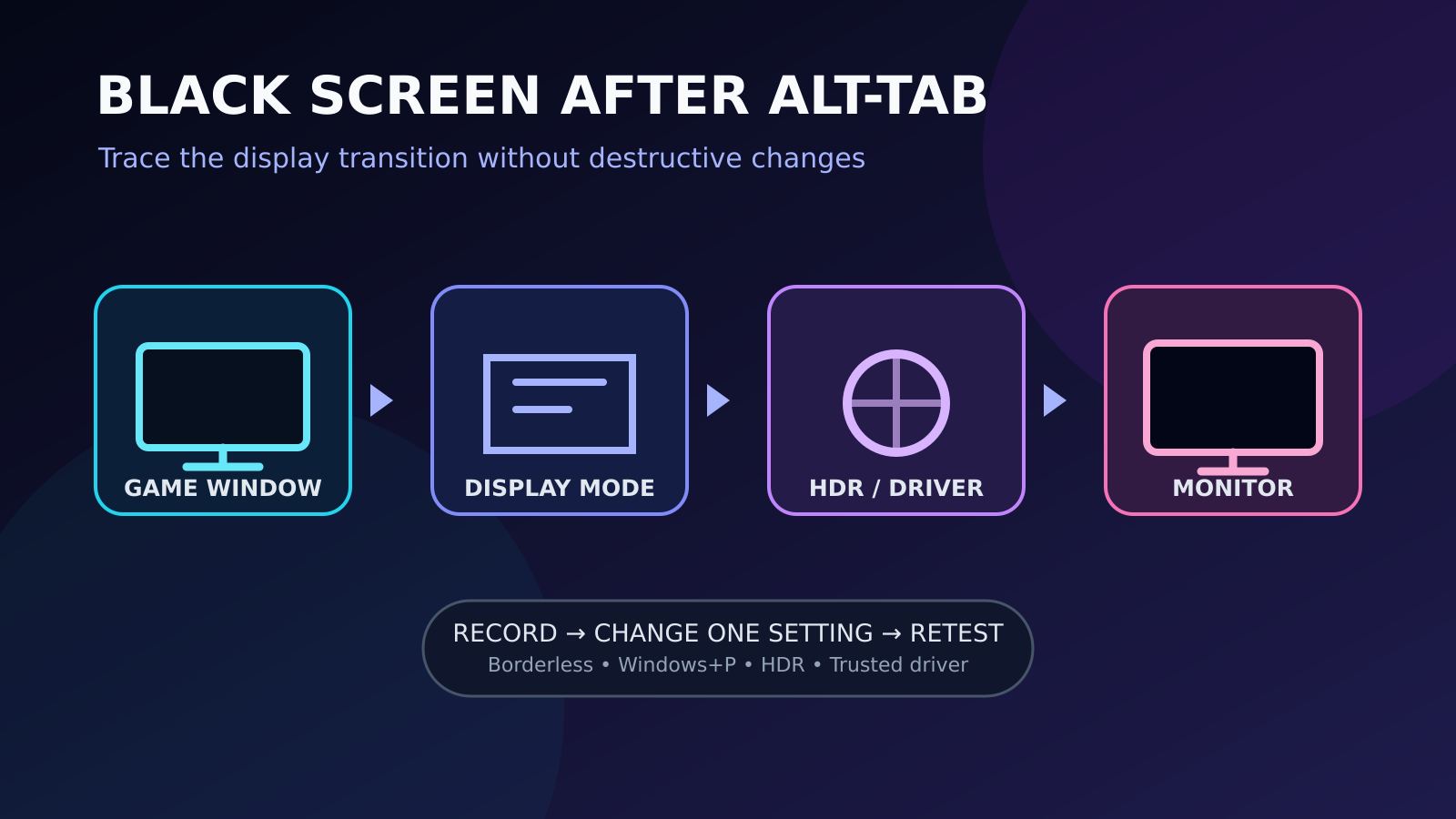
If a PC game turns black after Alt-Tab, first wait briefly, press Alt-Tab once more, and confirm that Windows is still responsive. Record the game’s display mode, resolution, refresh rate and HDR state. Then compare borderless windowed mode, check the active display with Windows+P, and update the graphics driver through Windows or the hardware maker. Change one setting at a time and restore it if the same test does not improve.
A black screen during task switching is not one diagnosis. Exclusive fullscreen may be renegotiating resolution or refresh rate, HDR can change the signal sent to a display, the desktop may be routed to a different monitor, an overlay can interfere, or a driver may fail to restore the game surface. The useful question is which boundary triggers the failure and whether the operating system remains usable.
This guide follows Microsoft’s current documentation for blank screens, HDR, external displays, windowed-game optimizations and Windows drivers. It avoids registry changes, unsigned driver packages, forced firmware updates and disabling system security. Menu labels vary between Windows releases and graphics hardware, so use the linked official pages when a specific device presents different wording.
Identify whether the game or the whole display path is black
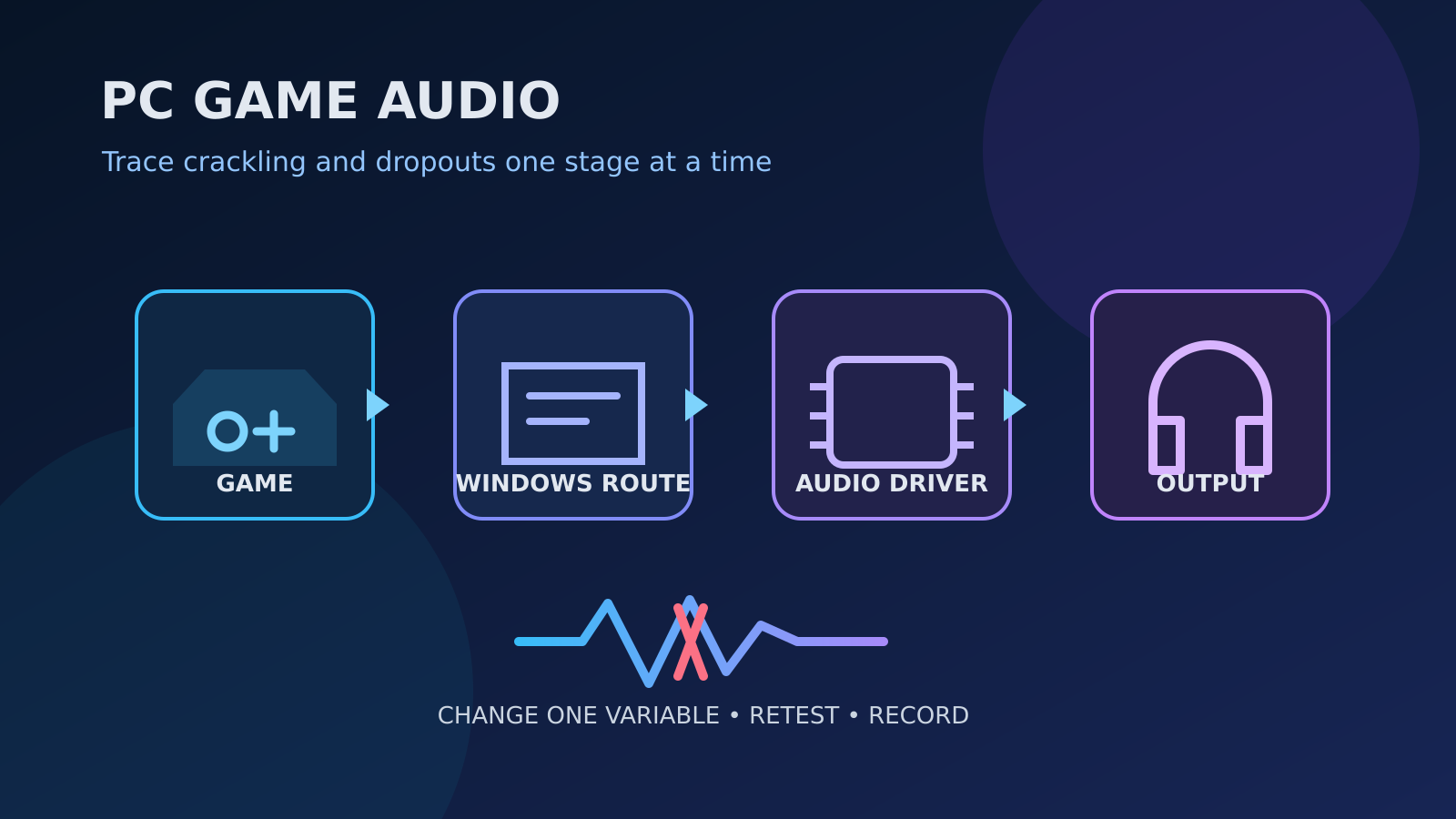
Start with a repeatable scene and describe the failure precisely. Does audio continue? Can the mouse pointer appear? Does the monitor report No signal, or is the panel lit with a black image? Can Ctrl+Alt+Delete show the Windows security screen? These observations separate a game window that failed to redraw from a wider display or driver problem. Record the local time, game version, display mode and every connected monitor before attempting a repair. For related reporting on safe and driver and checklist, read PC Game Audio Crackling or Cutting Out: A Safe Driver, Output and Latency Checklist.
Wait a short, consistent interval before declaring the switch frozen. Exclusive fullscreen can require the display to resynchronize when the game and desktop use different timing or color settings. Press Alt-Tab once more rather than repeatedly cycling windows. If Windows remains responsive, close the game normally when possible and preserve the test conditions. A forced power-off should be a last resort because it erases useful evidence and can interrupt writes.
Record resolution, refresh rate, display mode and HDR
Write down the game’s resolution, refresh rate, fullscreen choice and HDR option, then record the matching values in Windows Settings under System and Display. Note which monitor is marked as the main display. A game that changes resolution or refresh rate for exclusive fullscreen can trigger a brief signal transition during task switching. A mismatch is not automatically a fault, but it gives the next comparison a clear baseline. For related reporting on after and safe and driver, read PC Game Crashes After a Graphics Driver Update: A Safe Recovery Guide.
Do not lower every setting at once. First compare the game’s current resolution with the Windows desktop and choose a supported value offered by both interfaces. Retest the same Alt-Tab sequence. If the result changes, restore the baseline and repeat once to confirm. Avoid custom resolution utilities during diagnosis; an undocumented timing mode creates a new variable and can leave the display difficult to recover.
Compare borderless windowed mode with exclusive fullscreen
If the game provides borderless windowed mode, select it for one controlled comparison. This mode generally keeps the application in the desktop composition path, reducing the need for a full display-mode transition when focus changes. Retest the same scene and timing. A stable result narrows the issue to the exclusive-fullscreen transition or an interaction around it; it does not prove that the graphics card or monitor is defective. For related reporting on safe and checklist, read Gaming Overlays and Recording Tools: A Safe Stutter and Crash Checklist.
Windows 11 also exposes per-app Optimizations for windowed games under System, Display and Graphics. Microsoft allows the option to be changed for a specific game. Record its original state before comparing it. Do not change Auto HDR, graphics preference and windowed optimizations in the same test. If the option has no effect, return it to the baseline before continuing so the final configuration remains understandable.
Check the active display mode with Windows+P
Microsoft’s blank-screen guidance documents Windows+P for cycling display modes. If a desktop or game appears to have moved to an inactive screen, use the shortcut carefully: press Windows+P, then P and Enter to select another mode. On a multi-monitor system, check whether PC screen only, Duplicate, Extend or Second screen only matches the physical setup. Record the intended mode once the image returns.
Do not cycle blindly many times. A dock, television, virtual display or recently disconnected monitor can remain part of the configuration, and task switching may reveal that routing difference. Open Windows Display settings after recovery and identify every screen. Disconnect only known optional displays through normal controls, then repeat the test. Never uninstall an unknown display device simply because its label is unfamiliar.
Test HDR as a separate signal-path variable
Microsoft explains that HDR changes how Windows and a compatible display handle brightness, color and supported signal capabilities. Record the Windows HDR toggle and the game’s HDR option. If the failure occurs only when both are enabled, turn off the game’s HDR first, retest, restore it, and then compare the Windows setting separately. Keep brightness calibration and color-profile changes out of this test.
For an external HDR screen, confirm that the display itself has HDR enabled and that Windows reports the intended display as capable. Microsoft notes that duplicate-display configurations may not support HDR in the same way as an extended desktop. Use a documented, supported arrangement and the manufacturer’s input guidance. Do not flash monitor firmware or install an unofficial color profile to solve a task-switching symptom.
Verify cables, ports and external-monitor state
If the monitor reports No signal rather than showing a lit black frame, inspect the physical path. Confirm that the display remains powered and that the cable is firmly seated. Microsoft’s external-monitor troubleshooting starts with connections and the Windows graphics-driver reset shortcut. If another known-good cable or port is available, compare one element at a time and keep the resolution and refresh rate unchanged.
Avoid hot-plugging a loose connector repeatedly while the game is switching modes. For a laptop dock, test a direct display connection only if the hardware supports it and the user can return to the original setup. A successful direct test identifies the dock path as a factor but does not prove the dock has failed. Use the dock and display makers’ documentation before changing firmware or power-delivery settings.
Use the graphics-driver reset shortcut only as recovery
Microsoft documents Windows+Ctrl+Shift+B as a way to reset the graphics driver during a blank or flickering screen. If Windows is responsive but the image is not returning, press the keys once and listen for the expected beep or watch for a flicker. This is a recovery step, not a permanent configuration change and not proof that a particular driver component caused the original failure.
After the image returns, save the observations and close the game normally. Do not repeat the shortcut continuously or use it while firmware is updating. If the computer remains unresponsive, follow Microsoft’s broader blank-screen process rather than improvising commands. A recurring need for the shortcut should be documented with driver version, monitor path and reproduction steps for the PC or graphics-hardware support team.
Update the graphics driver through a trusted source
Use Windows Update, including the optional driver area, or Device Manager to search for an updated driver. For a gaming laptop or prebuilt PC, the manufacturer may supply a validated graphics package; discrete-GPU vendors also maintain official support channels. Record the provider, version and date before changing it. That baseline makes rollback or support discussion possible if the behavior changes.
Restart when the official installer requests it and repeat only the established Alt-Tab test. Do not download a generic driver bundle, disable driver-signature enforcement or use a cleanup utility by default. If the problem began immediately after an official driver update, consult the device maker’s documented rollback guidance. Preserve the installer source and avoid claiming the newest version is universally best for every system.
Remove overlay and capture variables one at a time
Game overlays, capture utilities, performance monitors and communication tools can draw over a game or react when focus changes. Close one known optional application through its normal interface, then repeat the same test. Keep Windows security controls enabled. If the failure disappears, relaunch the application and confirm once before describing an interaction; one clean run is not enough to declare a permanent incompatibility.
Disable only the relevant overlay or capture feature rather than uninstalling an entire application. Record the application version and its original setting. If no single optional tool changes the result, restore the preferred configuration. Do not terminate unfamiliar Windows processes in Task Manager: that can remove desktop or graphics components and create a new black screen unrelated to the game.
Check whether only one game is affected
Test another installed game that uses the same display without downloading new software solely for diagnosis. If task switching works elsewhere, focus on the affected title’s display settings, file verification and official support notes. Preserve local saves, mods and configuration files before resetting anything. A system-wide driver reinstall is disproportionate when one title has a corrupt preference or unsupported fullscreen combination.
If every fullscreen application fails in the same way, the Windows display path, driver, monitor configuration or shared overlay becomes more likely. That still does not identify a single cause. Retain the same resolution and monitor during comparisons. Benchmark applications and stress tests add load and can introduce different failure modes, so they should not replace a simple, repeatable task-switching check.
Create a concise support packet without exposing private data
For a persistent case, record the game, launcher, Windows version, graphics adapter, driver provider and version, monitor model, cable type, resolution, refresh rate, HDR state, display mode and exact Alt-Tab sequence. State whether audio continues and whether Windows+Ctrl+Shift+B restores the image. List each single change and its result rather than summarizing several actions as one fix.
Send the packet through the game, PC or graphics vendor’s official support route. Review screenshots and diagnostic files for account names, device names, serial numbers and unrelated applications before sharing. Never include credentials or authentication codes. Precise observations let support distinguish a game-specific fullscreen problem from a Windows, driver or external-display issue without forcing the user to repeat risky, undocumented changes.
Retest, restore and stop when hardware safety is uncertain
A credible improvement should survive several repetitions and an ordinary restart. Confirm the final resolution, refresh rate, display mode, HDR state, driver version and connected screens. Restore every experimental change that did not contribute. Leaving HDR, monitor routing and per-game graphics preferences altered without a record may hide the original symptom while creating color, performance or power problems later.
Stop testing if a cable or port becomes hot, the display repeatedly loses power, Windows reports a hardware error, or unrelated applications also fail after a clean restart. Power down equipment according to its manual and contact the manufacturer. Do not continue reconnecting damaged hardware or attempt firmware changes based only on a black screen after Alt-Tab. Safety and preserved evidence matter more than completing every checklist item.