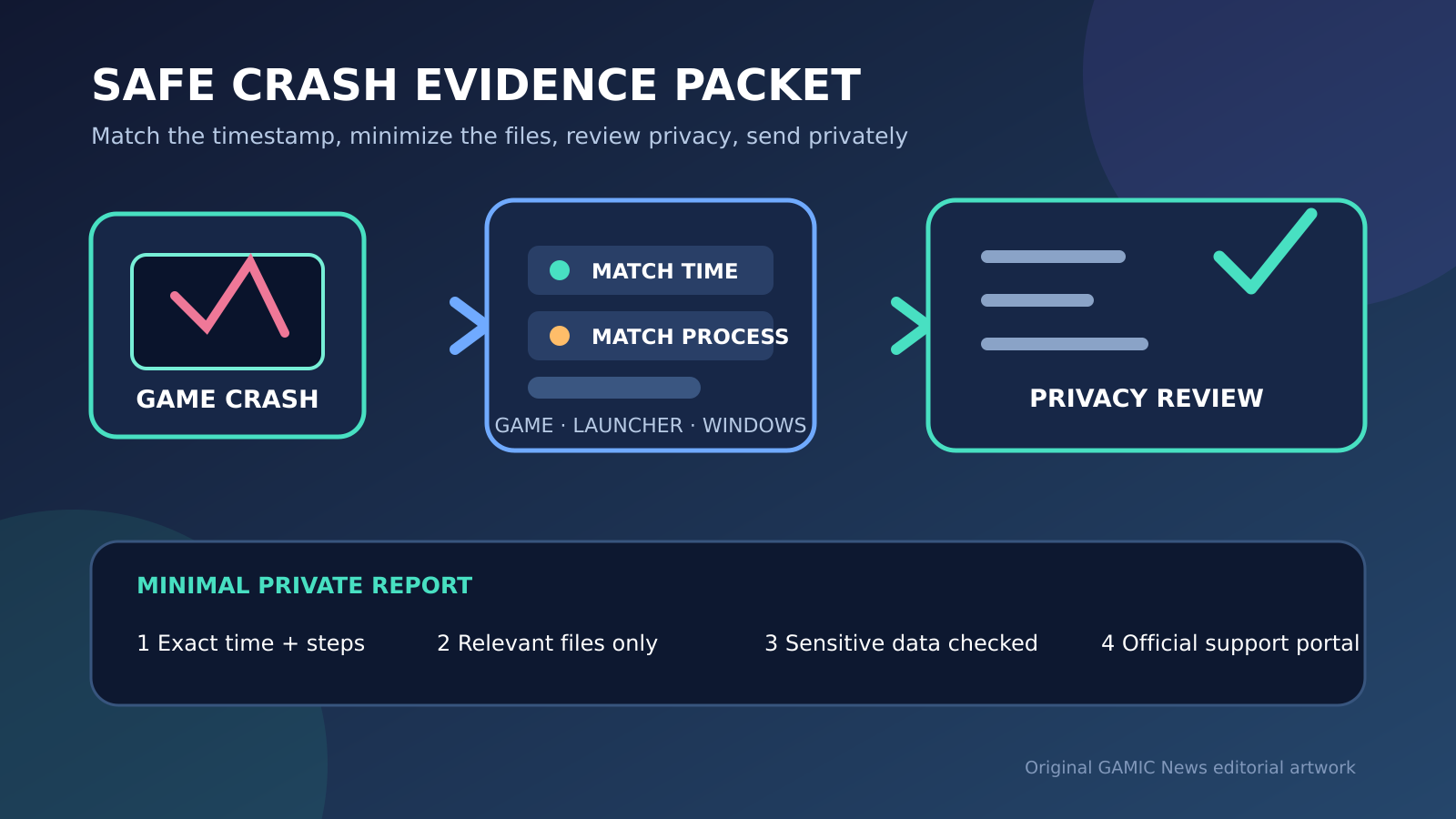
After a PC game crashes, preserve the exact time, error message and repeatable action before reinstalling anything. Reproduce the failure once only if it is safe, then collect the game or launcher log requested by official support, note the Windows build and relevant hardware, and review every attachment for usernames, file paths, account identifiers, chat text or memory contents. Send the smallest evidence set that answers the support request through the vendor’s official private channel; never post a full dump or unreviewed system report publicly.
A useful crash report is not the largest archive a player can produce. It is a short, ordered packet that connects a specific game version and action to a specific time, symptom and diagnostic record. Windows Error Reporting can create reports for crashes and hangs, launchers can maintain their own logs, and a game may write a separate crash folder. These sources answer different questions. Mixing days of unrelated logs into one upload can hide the relevant event and expose more information than support needs.
This guide explains evidence collection, not dump analysis or registry modification. Full memory dumps and advanced debugging can be appropriate when a qualified support engineer asks for them, but they may contain private material and require careful handling. Start with visible facts and ordinary vendor-supported logs. Preserve original files, work from copies, and stop if reproducing the failure risks a save, an online penalty, hardware instability or repeated data loss.
Freeze the timeline before troubleshooting changes the evidence
Record the local date and time as soon as the game closes, freezes or returns to the desktop. Copy the error text exactly instead of paraphrasing it, and note whether the process vanished, remained in Task Manager or required a forced close. Write the last action that occurred in the game, the current game and launcher versions, and whether an update had just completed. If a screenshot is safe, capture the message without including private notifications, friend lists, account names or unrelated windows. This timestamp is the key used to match a visible failure with the correct log entry. For related reporting on crash and safe, read Gaming Overlays and Recording Tools: A Safe Stutter and Crash Checklist.
Do not immediately verify files, reinstall the launcher, clear caches or run a registry cleaner. Those actions can rotate logs, replace binaries and erase the state that support needs to examine. Save cloud synchronization does not preserve diagnostic files. If the game can be closed normally, let the launcher finish any synchronization, then stop. When the crash follows a consistent harmless action, one controlled reproduction can confirm the time and steps. Avoid repeated reproductions when the failure corrupts saves, triggers anti-cheat warnings, overheats the machine or causes a full system restart.
Describe the symptom precisely before choosing a log
A crash to desktop, a frozen window, a launcher error, a blue screen and a spontaneous reboot are not the same event. A game that closes while Windows continues running usually calls for application-level evidence. A launcher that fails before the game starts points first to launcher records. A whole-system stop or reboot requires a different support route and may involve Windows or hardware evidence. State what remained responsive, whether audio continued, whether an error dialog appeared and how long the failure took. This description prevents a support agent from requesting a large diagnostic bundle that cannot answer the real question. For more gaming coverage, read Gaming news and guides.
Separate performance symptoms from termination. Low frame rate, a periodic hitch and delayed input can be measured without a crash record. If the process does not exit, say that it hangs rather than crashes. Windows Error Reporting distinguishes crashes and non-response conditions, and individual games may use their own reporter. Do not rename a file to make it look like a dump or assume the newest file anywhere on the drive belongs to the incident. The evidence should share the recorded timestamp and correspond to the process that actually failed.
Start with the game’s own crash folder and official support instructions
Open the publisher’s current support article for the affected title and follow its documented location or in-game reporting tool. Some games create a text log, a small dump, configuration details and a crash identifier together; others upload a report and display only a reference code. Preserve that reference code and copy the generated folder before launching the game again. Do not collect similarly named folders from mod tools or old installations unless support specifically requests them. A title-specific reporter normally provides more relevant context than a broad system inventory.
Check the modification times inside the copied folder. The primary file should align with the crash time, while older sessions can be left out of the initial submission. Keep the original extension and filename because support automation may rely on them. Do not open binary dump files in random online viewers or upload them to public file-sharing services. If the game offers a consent screen describing what will be transmitted, read it and use the least expansive option that still meets the support request. Note in your manifest whether the report was uploaded automatically or remains only on the device.
Collect launcher logs only when the launcher is part of the failure
Epic’s official instructions tell users to enable Debug Logging, reproduce the launcher issue, use Show Logs and attach the most recent EpicGamesLauncher log to the support ticket. That procedure is designed for launcher behavior; it does not automatically prove why a separate game executable crashed after launch. Enable extra logging only for the shortest reproduction needed, then turn it off. Copy the relevant file, record its time range and keep the original locally. If the failure occurs entirely inside one game, prefer that game’s support instructions before collecting a verbose launcher history.
Steam’s official System Reports documentation explains that a report describes the machine’s hardware and software configuration for support review. A system report is supporting context, not a replacement for the crash time, error and game-specific log. Generate it only when Steam Support or the publisher requests that level of configuration detail. Before attaching it, read the visible text for account identifiers, device names, storage paths or unrelated software you do not need to disclose. Never paste a complete system report into a public forum merely because it is text rather than a dump.
Use Windows application events as a timestamped clue, not a verdict
When a game closes unexpectedly on Windows, an Application log entry near the recorded time can identify the failing executable, event type or faulting module. Open Event Viewer through Windows search, inspect Windows Logs and Application, and match the entry by time and process name. Save or copy only the relevant event details requested by support. An event naming a module is evidence that the fault surfaced there; it is not automatic proof that the module caused the original problem. Drivers, overlays, corrupted data and the game itself can all influence where a failure becomes visible.
Avoid clearing any log before the case is resolved. Do not export the entire Security log or days of system events for a game ticket. If Event Viewer contains no matching application event, say so instead of selecting a nearby warning from an unrelated service. A clean timeline is more valuable than a dramatic error with the wrong timestamp. Record the event source, ID, faulting application and faulting module exactly when present, but leave interpretation to the game publisher or qualified support team unless an official knowledge-base article maps that exact event to a confirmed cause.
Understand what Windows Error Reporting can and cannot show
Microsoft documents Windows Error Reporting as the Windows infrastructure for reporting crashes, non-response conditions and kernel faults. A report can contain information needed to classify the failure, and applications may also implement their own reporting. The existence of a WER record confirms that Windows detected an event; it does not guarantee that a usable local dump was produced or that every game routes failures through WER. Search by the recorded time and application name, and follow official support instructions for any report identifier or file that should be supplied.
Microsoft also documents LocalDumps configuration for collecting user-mode dumps after an application crash, while noting exceptions for applications with custom crash reporting. That is an advanced diagnostic configuration, not a universal first step. Do not add registry settings from an anonymous guide simply to make a larger file. If official support requests a local dump, ask which executable, dump type and retention period they require, document the change and remove temporary collection settings after the requested reproduction. Keep sufficient free storage and never assume that a missing dump means no crash occurred.
Treat crash dumps and diagnostic archives as sensitive files
A dump can include process memory, paths, loaded modules and fragments of data that were in use when the application failed. Microsoft’s Windows privacy guidance distinguishes basic crash information from the crash-dump content itself and notes that sending dump content involves additional permission in Windows diagnostic settings. An archive can also contain the Windows username, device name, account identifiers, command lines or text from overlays and chat tools. File size does not measure privacy risk: a small minidump can still reveal more context than a normal screenshot.
Review text logs with a plain local editor and search for your email address, real name, Windows account folder, IP address, session tokens, license keys and chat content. Do not edit the only original; make a redacted copy and list every redaction so support understands the change. Do not attempt to sanitize a binary dump with a text editor because that can corrupt it without reliably removing private material. If a dump is required, send it only through the vendor’s authenticated private ticket or approved secure upload and ask about retention when the case involves especially sensitive data.
Build a minimal manifest that makes every attachment useful
Create a short text file with the ticket subject, crash time and time zone, game version, launcher version, Windows build, GPU model and driver version, exact reproduction steps, expected result and actual result. List each attachment with its filename, source and matching time. Mark whether the file is original, copied or redacted. Include the crash reporter reference code when one exists. This manifest lets support verify that a launcher log, application event and game crash folder all describe the same incident rather than three unrelated sessions.
Keep the hardware list relevant. A controller model matters for an input crash; a complete inventory of printers and unrelated storage devices usually does not. State recent changes factually: game update, driver update, mod removal or overlay setting change. Do not claim causation merely because two events occurred on the same day. If mods are installed, say so and record the tested state; do not hide them from support or upload third-party mod files. For online games, mention whether the failure occurred before authentication, in a menu or during a specific match type without exposing another player’s personal information.
Send the report through the correct official channel
Use the affected game publisher’s authenticated support portal when the failure is limited to one title. Use launcher support when the launcher cannot download, update or start the game, and use the relevant hardware or Windows support route when the whole system fails. Confirm the destination domain before uploading. A social-media reply, public community post or unsolicited direct message is not an appropriate place for dumps, logs or system reports. If support provides a case-specific upload link, verify that it belongs to the official vendor and that the case number matches.
Begin with the manifest, visible error and smallest relevant logs. Offer the dump rather than attaching it automatically when its size or sensitivity is high. If the portal rejects the archive, do not split it across random public hosts. Ask support for the approved transfer method and retention limits. Preserve the ticket confirmation and the exact files sent. Support may request a second controlled reproduction with added logging; treat that as a new evidence set with a new timestamp instead of overwriting the first one.
Preserve a clean archive and stop collecting when the case is reproducible
Store the evidence in a dated folder outside the game installation: manifest, screenshots, relevant text logs, exported application event and any vendor-generated crash package. Keep original files read-only when practical and make working copies for redaction. A simple checksum can confirm that a large dump was not changed during transfer, but it does not prove that the contents are safe to share. Back up irreplaceable saves separately; diagnostic evidence and save protection are different tasks. Delete temporary public links immediately if one was created contrary to the preferred private workflow.
Once the report demonstrates a stable reproduction and support has acknowledged the files, stop gathering broad telemetry. More logging can consume storage, expose unrelated activity and make the next incident harder to isolate. Disable temporary debug logging and any support-requested dump collection according to the vendor’s instructions, while preserving the submitted packet until the ticket closes. Record the final workaround or fix and its version. If the crash returns after a later update, create a new timestamped packet instead of presenting an old log as evidence of the new failure.