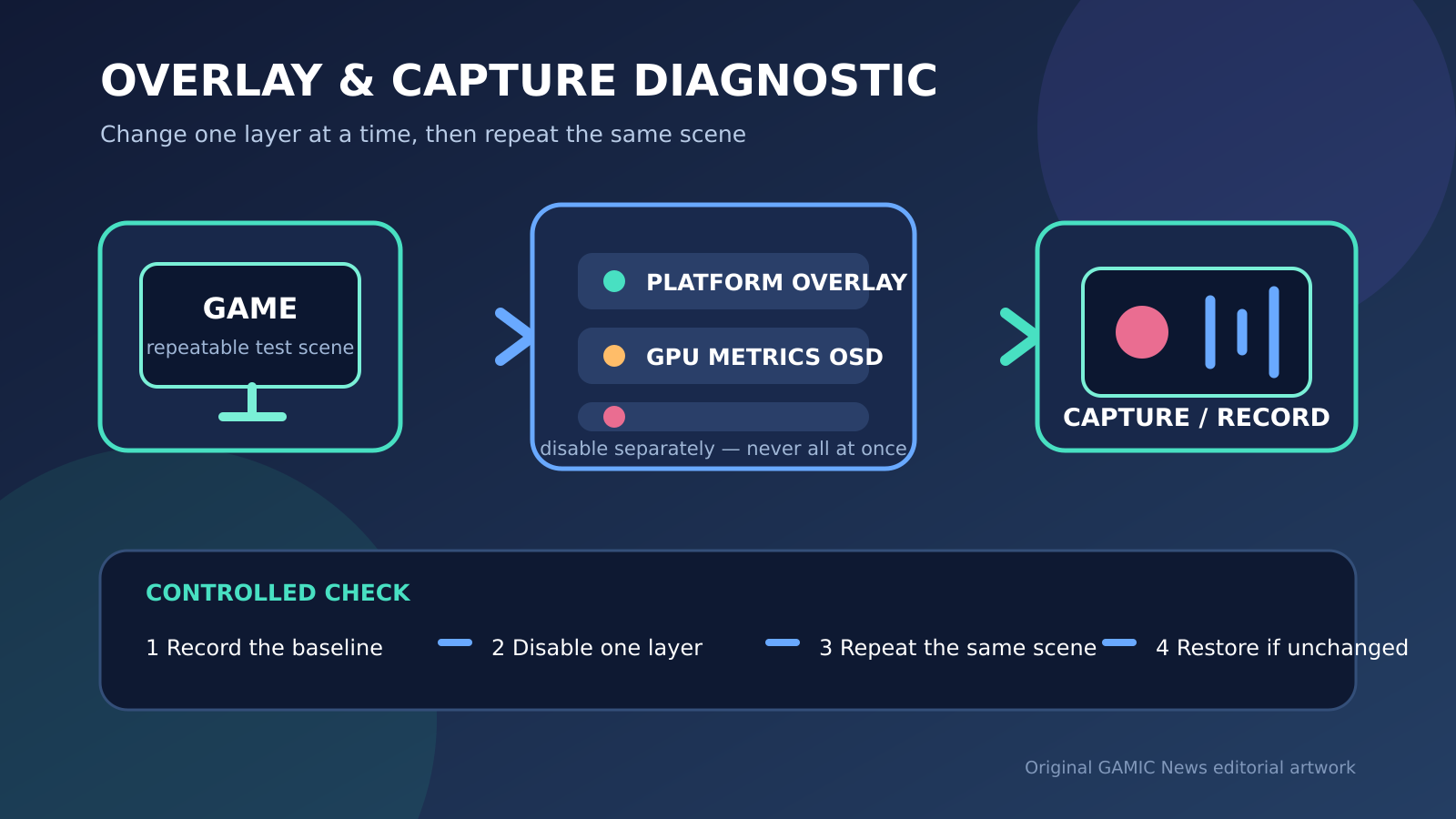
If a PC game stutters or crashes while several overlays are active, do not uninstall everything at once. Record a repeatable test scene, stop active recording, and disable one overlay or capture layer at a time. Relaunch the game after every change and compare the same frame-time, crash or input symptoms. Restore any layer that makes no difference. This controlled sequence can identify an interaction without erasing saves, changing drivers or sacrificing every useful feature.
An overlay is not a single universal program. Steam can draw its community interface and performance monitor; Windows can expose Xbox Game Bar widgets and recording; NVIDIA and AMD software can provide statistics, filters, screenshots, replay buffers or streaming controls. A publisher launcher, voice-chat client, hardware utility or mod tool may add another hook. Two systems can use similar hotkeys while doing different work, so a visible counter is only one clue.
This guide is a diagnosis workflow, not a claim that overlays always reduce performance. Modern systems often run them normally. The goal is to change one variable, preserve evidence and stop once the actual cause is isolated. Use current vendor menus because labels change between versions, and consult the game's support page before disabling a feature it requires for invitations, purchases, controller input or accessibility.
Establish a repeatable baseline before touching any overlay
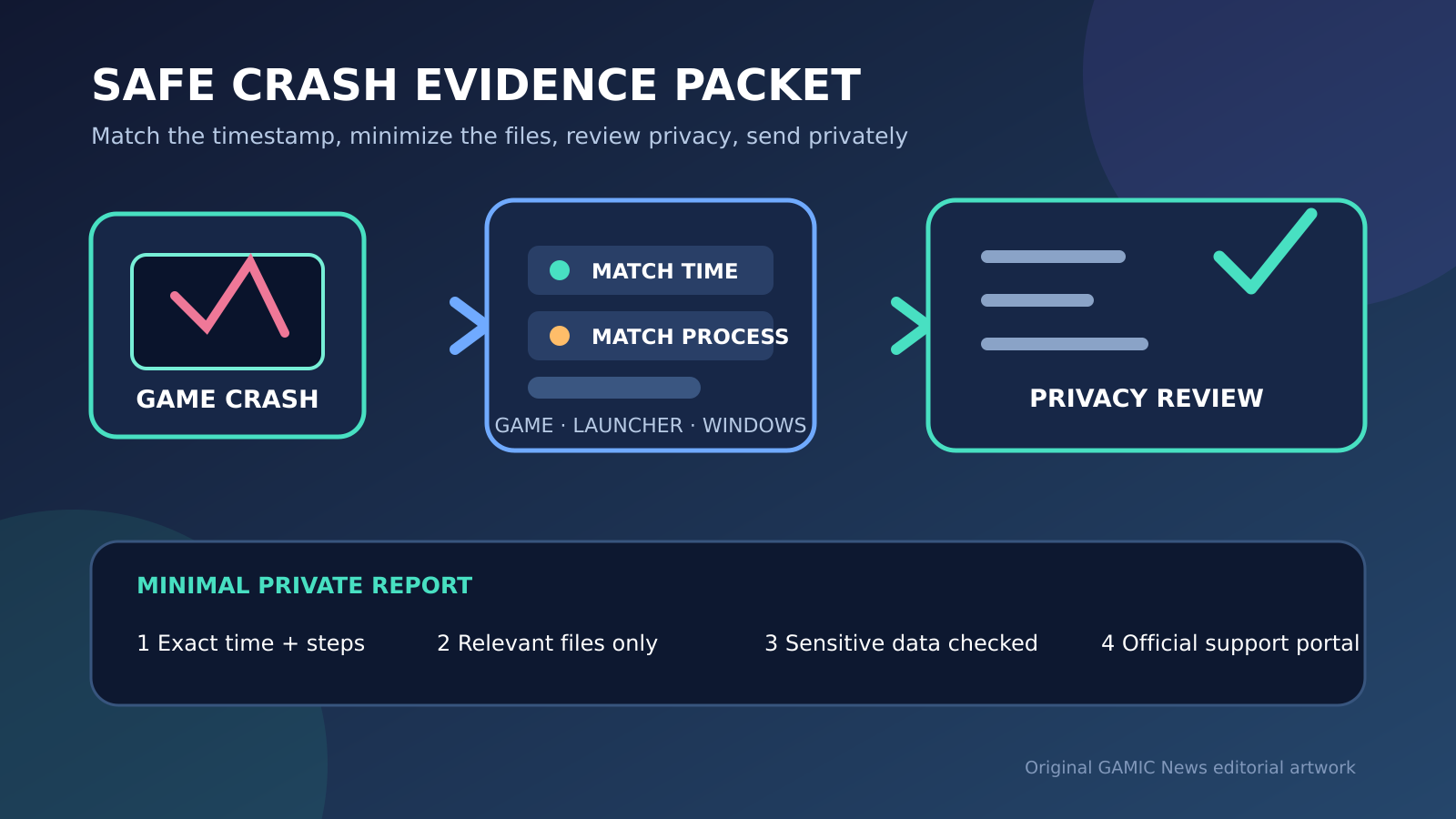
Begin with a scene that exposes the problem reliably: the same menu transition, benchmark, save location or multiplayer training area. Write down the game version, display mode, frame-rate cap, resolution, active overlays and whether a recorder is already running. Note the symptom precisely. A low average frame rate, periodic hitch, delayed controller response, black screen and full process crash are different failures. A useful baseline might say that a hitch occurs every ten seconds while standing still, rather than simply saying that the game feels bad. For related reporting on safe and crash, read PC Game Crash Evidence: Logs, Dumps and a Privacy-Safe Support Report.
Capture only the evidence needed for comparison. A short phone video, an in-game benchmark result or a frame-time graph can be enough. Do not run five monitoring applications merely to diagnose monitoring overhead. If the game has a built-in benchmark, use it with an identical preset. For a crash, preserve the exact error message and time. Close unrelated downloads and updates, keep the same power mode, and avoid changing graphics settings during the overlay test. Otherwise an apparent improvement may come from a second variable.
Map every layer that can appear over the game
List the overlays you knowingly enabled. Steam documents its community overlay under the client's In Game settings and allows it to be controlled globally or per title. Steam also has Game Recording and a performance monitor, which are separate controls even though they may share the in-game interface. Windows Game Bar can host widgets and capture gameplay. NVIDIA describes the NVIDIA app as providing recording tools through an in-game overlay, while AMD software exposes performance, recording and streaming features of its own. For related reporting on safe and crashes, read PC Game Crashes After a Graphics Driver Update: A Safe Recovery Guide.
Then look for less obvious layers. A second publisher launcher may open after Steam or Epic starts the game. Voice chat, RGB utilities, controller remappers, laptop control centers, frame-rate tools and mod managers can display counters or notifications. Do not disable security software to make the list shorter. Instead, inspect the notification area and the game's startup chain. Record each candidate and its hotkey. If two tools use the same shortcut, change one shortcut temporarily rather than assuming whichever interface appears first is the only active layer.
Stop active recording and replay buffers before disabling interfaces
Recording is a distinct workload from drawing a small overlay. A recorder may encode video, capture audio, maintain a rolling replay buffer and write data to storage. First stop any recording or broadcast through its own control, wait for the file to finish, and verify that the capture saved successfully. Microsoft documents Windows and Alt plus R as the Game Bar recording shortcut; Steam exposes recording settings in Steam, Settings, Game Recording; NVIDIA and AMD provide their own capture controls. Use the interface you actually configured instead of guessing from a hotkey.
Repeat the baseline with recording stopped but the overlay still available. This separates capture workload from the interface layer. If the symptom disappears, reduce recording resolution, quality, frame rate, audio tracks or replay duration one setting at a time before abandoning capture entirely. Check free space and the destination drive as well: a saturated or nearly full drive can produce a different pattern from a rendering hook. Keep the test clip short and do not overwrite footage or crash evidence that may be useful to support.
Test Steam Overlay without breaking features that depend on it
Steam's official support page places the global overlay control under Steam, Settings, In Game and also describes per-game control in the title's Properties. Close the game before changing it, then exit and restart the Steam client if the result is ambiguous. Test the same scene with only this layer changed. Do not delete Steam files or launch the game from an arbitrary executable as a substitute for the supported toggle; that can alter authentication, command-line options or the publisher-launcher path and invalidate the comparison.
The overlay can support invitations, community functions, purchases and some controller workflows. If disabling it fixes the symptom, confirm the result twice, then check the game's current support material and Steam client updates. Consider leaving it disabled only for the affected title rather than globally. If it makes no difference, restore it and continue. A no-change result is valuable because it narrows the search without permanently removing a feature. Record the setting state so a later Steam update does not make the experiment impossible to reconstruct.
Separate Xbox Game Bar widgets from recording
Windows Game Bar can expose several widgets, and its recording feature can be started or stopped independently. Microsoft documents Game Bar troubleshooting under Windows Settings, Gaming, Game Bar and provides Windows and Alt plus R for recording. Start by stopping capture, closing pinned widgets and repeating the baseline. If needed, test Game Bar's enabled state next. Relaunch the game after the change; merely hiding the bar with Windows and G does not prove that every widget or recording component has stopped.
Preserve accessibility and communication needs. Game Bar can be part of a player's audio, social or capture workflow, and Microsoft's documentation includes keyboard and screen-reader operation. If one widget is implicated, remove or unpin that widget before disabling the entire feature. Check whether a controller button opens Game Bar unexpectedly during the test. A shortcut collision can feel like input lag or a lost button even when frame delivery is healthy. Restore the prior state if the same symptom appears with Game Bar fully out of the test.
Test NVIDIA or AMD features through their supported controls
For NVIDIA systems, identify whether the NVIDIA app's in-game overlay, recording, filters or statistics are active. The vendor describes the app as a unified control center with capture tools in the overlay. Stop capture first, then toggle the overlay through the current app settings and restart the game. Do not uninstall the display driver just to test an interface. A driver removal changes far more than one variable and belongs to a separate recovery workflow only when driver evidence specifically points there.
For AMD systems, distinguish the metrics overlay from performance logging and recording. AMD's current performance-metrics documentation exposes controls including Show Metrics Overlay and whether statistics appear in video or stream output. Test the visible metrics layer, logging and recording separately. Preserve a screenshot of the original configuration before changing it. If a feature is absent, do not install an older utility to reproduce a menu from an outdated guide. Use the controls supplied by the current compatible AMD Software installation and note its version.
Relaunch between tests and compare evidence rather than impressions
Many overlay components attach when the game process starts, so toggling a switch while the game remains open may not remove the existing hook. Close the game normally, wait for the process to disappear, apply one change, and relaunch. Use the same save, camera position or benchmark. Run long enough to cover the baseline failure interval. If the original hitch appeared every ten seconds, a five-second test cannot disprove it. Repeat a promising result at least once before treating it as meaningful.
Compare the original measure, not a new favorite statistic. If the complaint is a recurring frame-time spike, inspect the spike cadence; a small average-FPS gain is secondary. If it is a crash, confirm whether the same action completes and inspect the newest log. If it is delayed input, use the same wired or wireless path and avoid changing the controller connection simultaneously. Write pass, fail or unchanged beside each layer. This prevents circular troubleshooting in which the same combination is tested repeatedly without learning anything.
Interpret the result without blaming the first disabled application
A symptom disappearing after one toggle establishes a useful association, not necessarily the final mechanism. The implicated layer may conflict with a second overlay, a display mode, an anti-cheat component or a particular game build. Restore all other layers to their baseline state and retest the candidate alone. Then test the smallest useful configuration: for example, leave the interface enabled but recording stopped, or keep recording while hiding metrics. This distinguishes the feature involved and produces a practical workaround instead of a blanket ban.
If two overlays only fail when combined, decide which feature is less important for that title and leave the other intact. Check official release notes and the game's support channel for a known issue, but do not download unofficial DLL replacements or injectors. Avoid generalized claims that one vendor's overlay is always harmful. The same tool may work correctly in other games, APIs and display modes. Keep the evidence scoped to the tested title, version, hardware and settings until a vendor documents a broader cause.
Escalate crashes with a minimal configuration and useful records
If the game still crashes with capture stopped and overlays tested individually, return the system to the least disruptive known configuration and collect support evidence. Include the game and launcher versions, GPU model, current driver version, Windows build, exact reproduction steps, error message and the overlay matrix. Attach only relevant crash logs after checking them for personal paths, account identifiers or chat content. Never post license keys, authentication tokens or full system inventories publicly.
Send the report to the game's official support first when the failure is title-specific. If a vendor overlay alone reproduces it across several games, use that vendor's support route and include the controlled comparison. Do not repeatedly reinstall the game, driver and launchers before preserving logs; every reinstall can replace evidence. A concise test table showing baseline, recording off, Steam off, Game Bar off and GPU overlay off is more actionable than a long list of simultaneous changes.
Restore a stable setup and document the workaround
After identifying a workable configuration, restore every setting that did not affect the symptom. Keep account security, cloud saves, accessibility controls and required anti-cheat services intact. If an overlay is disabled for one title, prefer a per-game control where the vendor supports it. Re-enable recording at a conservative preset and perform a short validation clip if capture matters. Confirm that audio, controller shortcuts, invitations and screenshots still behave as expected.
Write a final note with the date, game version, application versions, winning configuration and evidence. A future update may fix the conflict, so the note should make a safe retest possible. Revisit only one variable after a meaningful game, client or driver update. Do not schedule constant background experiments on a stable system. The objective is not to minimize the number of running features at all costs; it is to keep the features you use while removing the smallest confirmed source of instability.