When an online PC game feels delayed, first record the exact time, region, match mode and visible symptom. Test one ordinary match without downloads or streams, compare Ethernet with the same Wi-Fi connection if practical, and use the game’s own network display when available. Measure several minutes rather than trusting one speed-test number. Keep ping, jitter or frame-time spikes and packet-loss evidence separate, because a low average ping can still hide instability. Do not open ports, disable security software or reset the router until the evidence identifies a local configuration problem.
“Lag” can describe several different failures: network delay, packet loss, jitter, frame-rate drops, shader stutter, controller delay or a struggling server. Each has a different signature. If animation freezes while the network indicator remains stable, the cause may be rendering rather than the connection. If other players teleport, inputs arrive late or voice audio breaks while frame rate stays steady, network evidence becomes more relevant. A useful diagnosis changes one variable at a time and preserves the result.
This guide stays at the safe evidence-collection layer. It does not recommend bypassing a firewall, exposing a PC directly to the internet, changing DNS as a universal cure or forwarding undocumented ports. Official Microsoft, Xbox and Steam guidance shows that latency, loss and route evidence must be interpreted in context. The objective is a short comparison that tells the player, household, internet provider or game publisher where the fault most likely begins—and where the evidence is still inconclusive.
Name the failure before blaming the internet connection
Write down what the player actually sees. Rubber-banding means the character appears to move and then snaps back. Delayed hit registration means an action is acknowledged later than expected. A disconnect is a session failure rather than merely slow response. Choppy animation can be a rendering problem even when it occurs during multiplayer play. Note whether voice chat breaks at the same moment, whether every player is affected, and whether the frame-rate counter changes. This first description determines which measurements are relevant and prevents a graphics problem from being misreported as packet loss. For more gaming coverage, read Gaming news and guides.
Record the game build, platform launcher, selected server region, match type and local time with time zone. If the game exposes a network graph, capture it without player names, chat or account identifiers. Note whether the symptom begins at match start, appears only in crowded scenes or follows a household upload. Do not repeatedly provoke a disconnect in ranked play or any mode with penalties. One controlled observation in a safe environment is usually enough to establish a timestamp for later comparison.
Build a baseline while the connection is idle
Before changing anything, close only voluntary high-bandwidth activity such as large downloads, cloud backup jobs and video uploads, while leaving the normal router and security configuration intact. Run the game in its usual server region and observe several minutes. Record the median or ordinary latency range, the highest spikes, visible packet loss and the exact time. A single ping result is a snapshot, not a baseline. Real-time games exchange traffic continuously, so intermittent queues or radio interference can be missed by a quick general speed test.
Repeat the observation at a different time only when the symptom is intermittent. A result that worsens every evening but remains stable earlier may point toward congestion, yet it does not by itself identify whether the bottleneck is inside the home, at the access network or farther along the route. The FCC’s broadband measurements note that congestion can raise both latency and packet loss. Preserve the time series rather than presenting one best result and one worst result without context.
Compare Ethernet and Wi-Fi without changing five variables
If the PC and router make it practical, connect the same computer to the same router by Ethernet and repeat the same game region and test window. Do not simultaneously update drivers, reboot every device, change DNS and move the router; that would make the comparison impossible to interpret. A stable wired result alongside unstable Wi-Fi is evidence that the local radio path deserves attention. It is not proof that the internet provider or game server is perfect, because the wired test may use a different time or route.
For the Wi-Fi retest, record the band, distance, walls and whether the signal changes when the device moves. Xbox network guidance lists inadequate signal strength and wireless interference among possible contributors to packet loss and delay. Prefer a clear comparison over a promise that a particular frequency band will always be better. Nearby networks, Bluetooth devices, repeaters, mesh backhaul and household layout can change the result. Keep the access point’s existing security enabled throughout the test.
Separate latency, jitter, loss and bandwidth
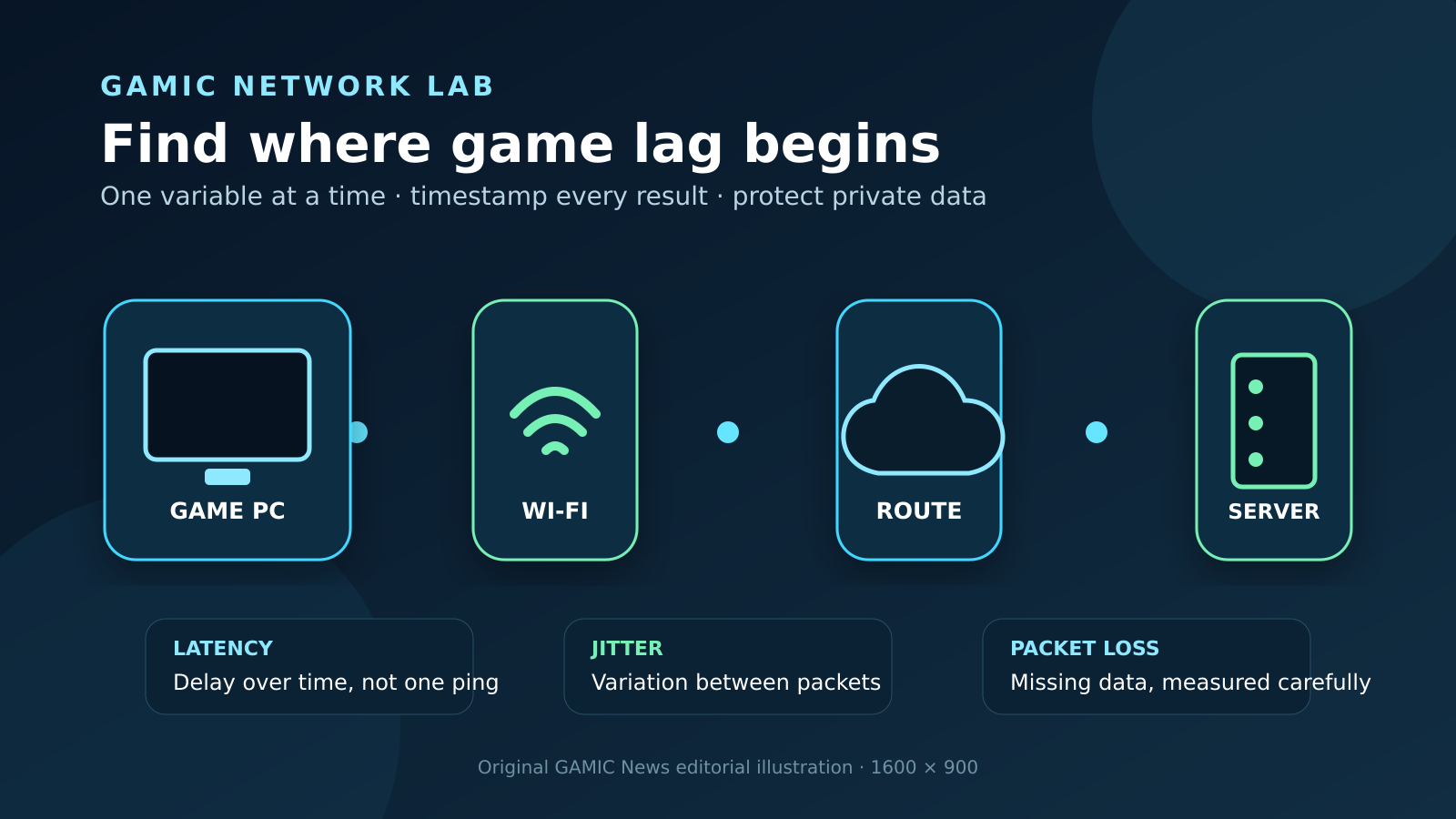
Latency is the travel delay for a packet or round trip. Jitter is the variation between successive delays. Packet loss means some packets do not arrive. Bandwidth describes how much data can be transferred, not how consistently a small real-time flow is delivered. A connection can download quickly yet feel poor in a game because its delay jumps under load. It can also show a respectable average ping while short loss bursts disrupt movement or voice. Report each metric separately whenever the game or official diagnostic tool exposes it.
Avoid importing fixed thresholds from an unrelated service as universal gaming rules. A turn-based title, competitive shooter, cloud-streamed game and remote-play session do not have identical requirements. Xbox publishes targets for particular console and remote-play contexts, but those numbers are context-specific rather than guarantees for every PC title. The best baseline is the same game, region and device during a known-good session compared with the failing session.
Use PathPing as evidence, not an automatic blame tool
Microsoft documents PathPing as a Windows command that combines route discovery with repeated probes and calculates latency and loss statistics for intermediate hops. Run it only against an appropriate destination supplied by the game publisher or support team. A public website address may terminate at a content network unrelated to the actual match server, so a clean result there does not clear the game path. Save the command, start time and complete output as text after reviewing local device names or addresses.
Interpret intermediate loss carefully. Some routers de-prioritize or do not answer diagnostic probes while continuing to forward later traffic normally. Steam’s official network-reporting guidance warns that a hop showing apparent total loss is not necessarily the fault when subsequent hops continue responding. Consistent loss that begins at one point and remains present through the destination is more meaningful, but even that pattern should be correlated with the game timestamp and repeated before assigning responsibility.
Read Tracert asterisks without inventing a broken hop
Microsoft’s Tracert documentation explains that some routers do not return the expected time-exceeded messages and therefore appear as asterisks. That absence is not automatically packet loss affecting the game. Look at whether later hops answer and whether the destination is reachable. A route can also change between tests because providers balance traffic. Keep one or two timestamped traces rather than running dozens and selecting the most dramatic path.
Traceroute data can reveal public IP addresses and network geography. Review output before posting it publicly, and prefer a private official ticket when the publisher asks for route evidence. Do not run aggressive third-party scanners or probe arbitrary game infrastructure. Standard operating-system diagnostics and the publisher’s named endpoints are sufficient for an initial support case. If no valid match endpoint is available, state that limitation instead of pretending a route to the game’s marketing site represents the session.
Test the connection under ordinary household load
If lag appears when someone uploads files, begins a video call or downloads a large update, reproduce that ordinary load once in a controlled way and compare it with the idle baseline. Record which activity started and when the game metrics changed. Queues in a router or access link can increase latency under load even when advertised bandwidth is high. Stop the load immediately if it disrupts another person’s work or a metered connection. The objective is correlation, not stress testing the household network.
Check both upload and download activity. Cloud photo backup, livestreaming and file synchronization can fill the upstream path while remaining less visible than a download. Use the router’s own traffic view only if already available and understood; do not install unknown monitoring software or capture other people’s content. A timestamped note that latency rises during a known upload is often enough for the next step, such as scheduling transfers or consulting the router or provider documentation.
Distinguish a local problem from a game-server incident
Compare signals that use different paths. If several unrelated services fail on the same device and other household devices also struggle, investigate the local network or provider first. If only one title and one region fail while ordinary browsing and another game remain stable, check the publisher’s official status page and support channels. Do not treat social-media speculation as confirmation. Record the status page time and incident identifier when one exists.
A server incident can coexist with local Wi-Fi weakness. Likewise, a good general speed test cannot prove that a particular game route is healthy. Report what each observation supports: local radio instability, load-related delay, broad internet trouble, title-specific failure or inconclusive evidence. Avoid absolute language such as “the server is definitely broken” unless the publisher confirms the incident. This disciplined wording makes a support ticket easier to act on.
Avoid risky fixes that destroy the diagnostic value
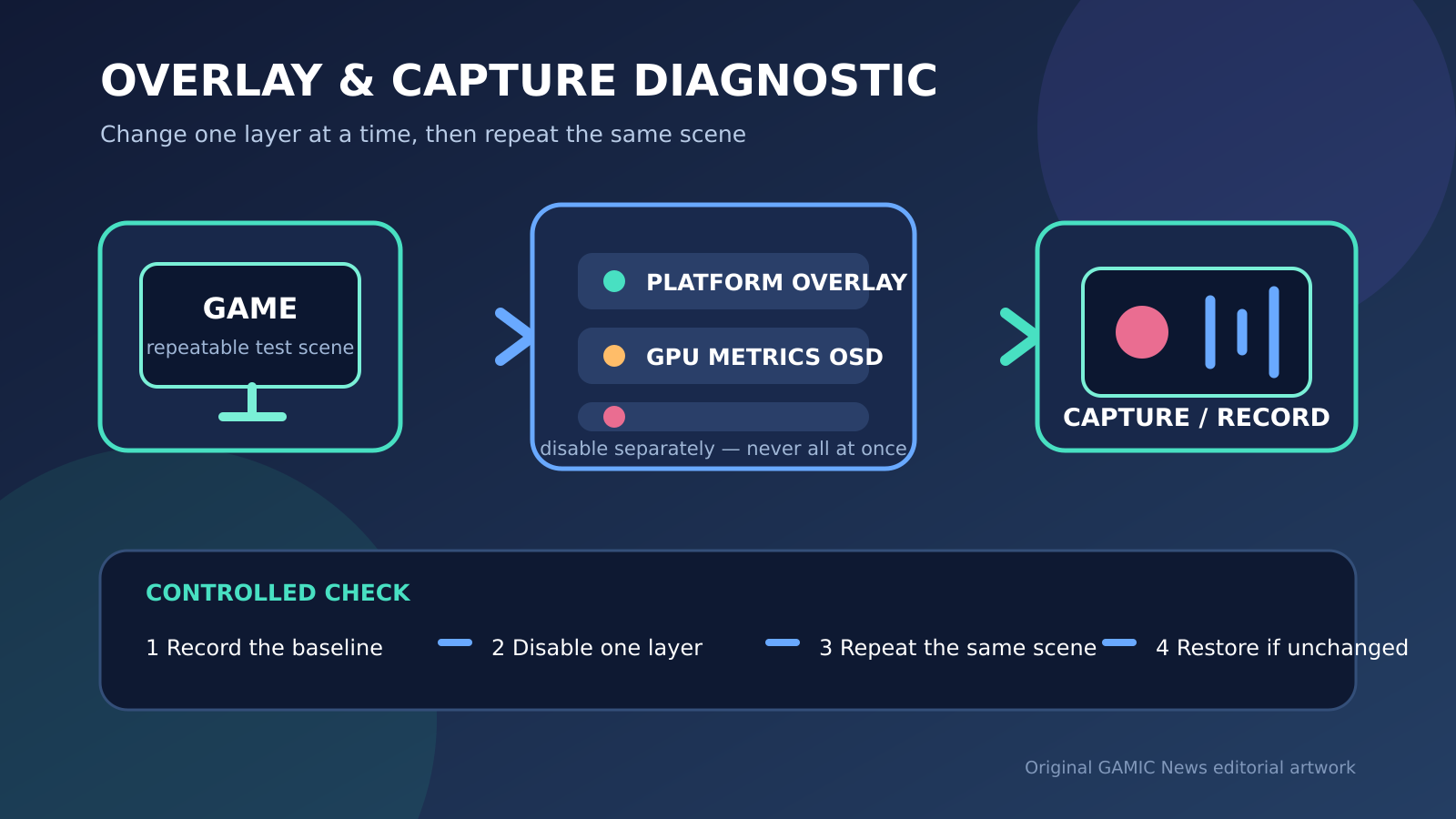
Do not disable the firewall, antivirus or router security to see whether lag disappears. Do not place the gaming PC in a public DMZ or forward broad port ranges copied from an unofficial forum. These changes can increase exposure and create a new variable without proving the original cause. If a publisher’s official guide requires a specific network change, record the original setting, apply only the documented scope, and reverse it if the test fails or support no longer needs it.
A DNS change usually affects name resolution, not the ongoing latency of every established game session. It may alter which service endpoint is selected, but it is not a universal packet-loss repair. Similarly, reinstalling the game rarely repairs congestion between the router and a remote server. Preserve the baseline before updates or resets. Make one reversible change at a time, retest the same scenario and stop when the evidence contradicts the hypothesis.
Create a privacy-safe report for support
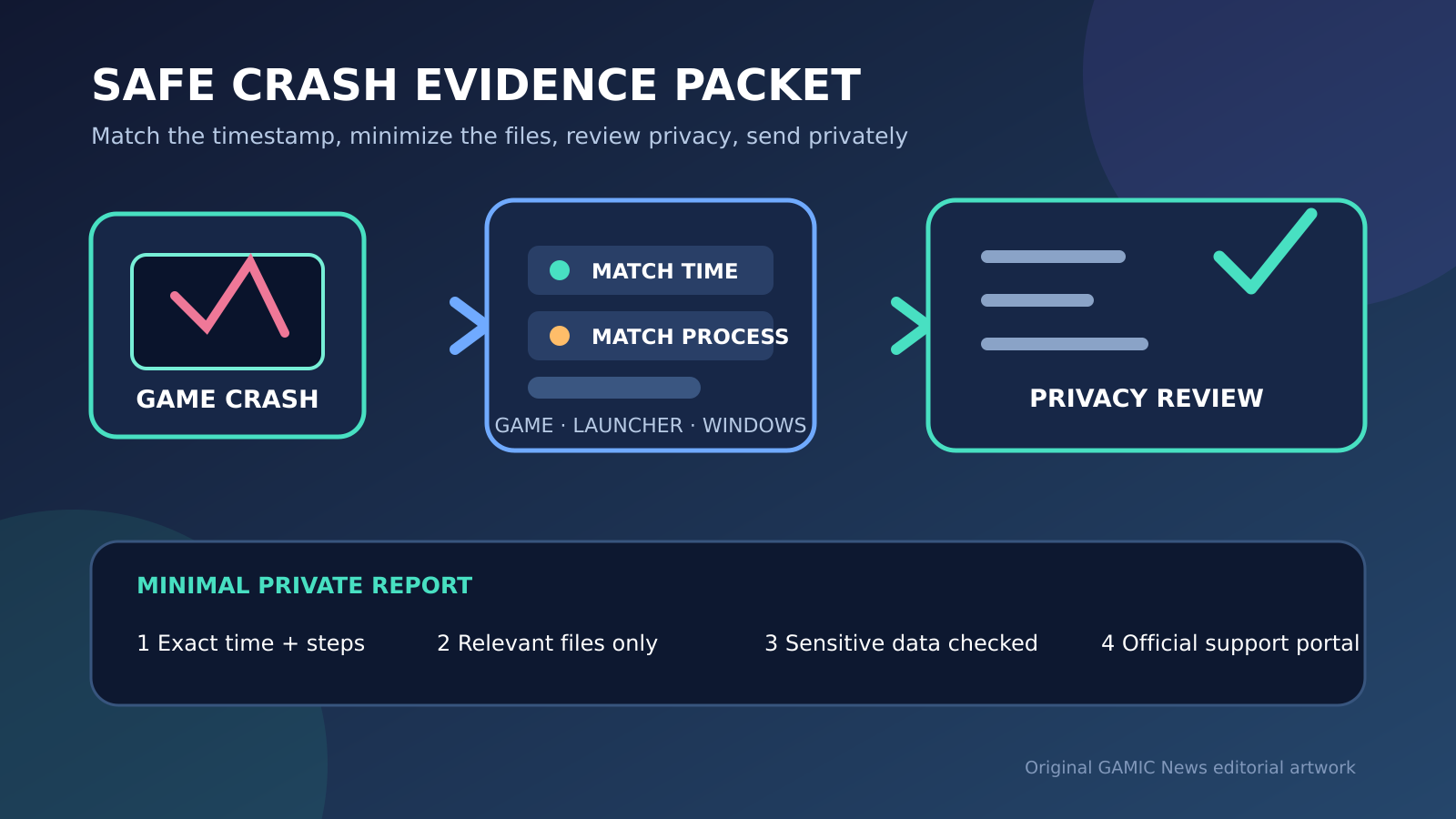
Prepare a short manifest containing the game and build, server region, local time with time zone, connection type, symptom, idle baseline, loaded comparison and Ethernet-versus-Wi-Fi result when available. Attach only the relevant network overlay screenshot and the smallest diagnostic output requested by official support. Remove chat, player names, account identifiers, device names and private addresses when they are not required. Keep an untouched private original and label every redacted copy.
Send the report through the publisher’s authenticated portal, the platform’s official support system or the internet provider’s documented channel. Avoid public paste sites for route output and logs. State limitations plainly: for example, the match server address was unavailable, the issue could not be reproduced safely, or the test used a different time window. A precise incomplete report is more trustworthy than a large archive that implies certainty the evidence does not provide.
Retest once and close the investigation cleanly
After the support team, provider or player makes one justified change, repeat the same scenario and measurement window. Compare symptom frequency, latency variation and loss rather than declaring success because one match felt better. If the problem disappears, keep the before-and-after notes until the ticket closes. If it returns, add a new timestamped observation; do not edit the original result to make the narrative look cleaner.
Stop collecting once the evidence consistently identifies the failing layer or official support accepts the case. Continuous diagnostics can consume attention and expose more network information than necessary. Restore any temporary logging, reconnect normal household activity and document the final outcome. If the incident was confirmed on the publisher side, link the official notice. If it remained inconclusive, say so and preserve the packet for the next recurrence instead of inventing a cause.