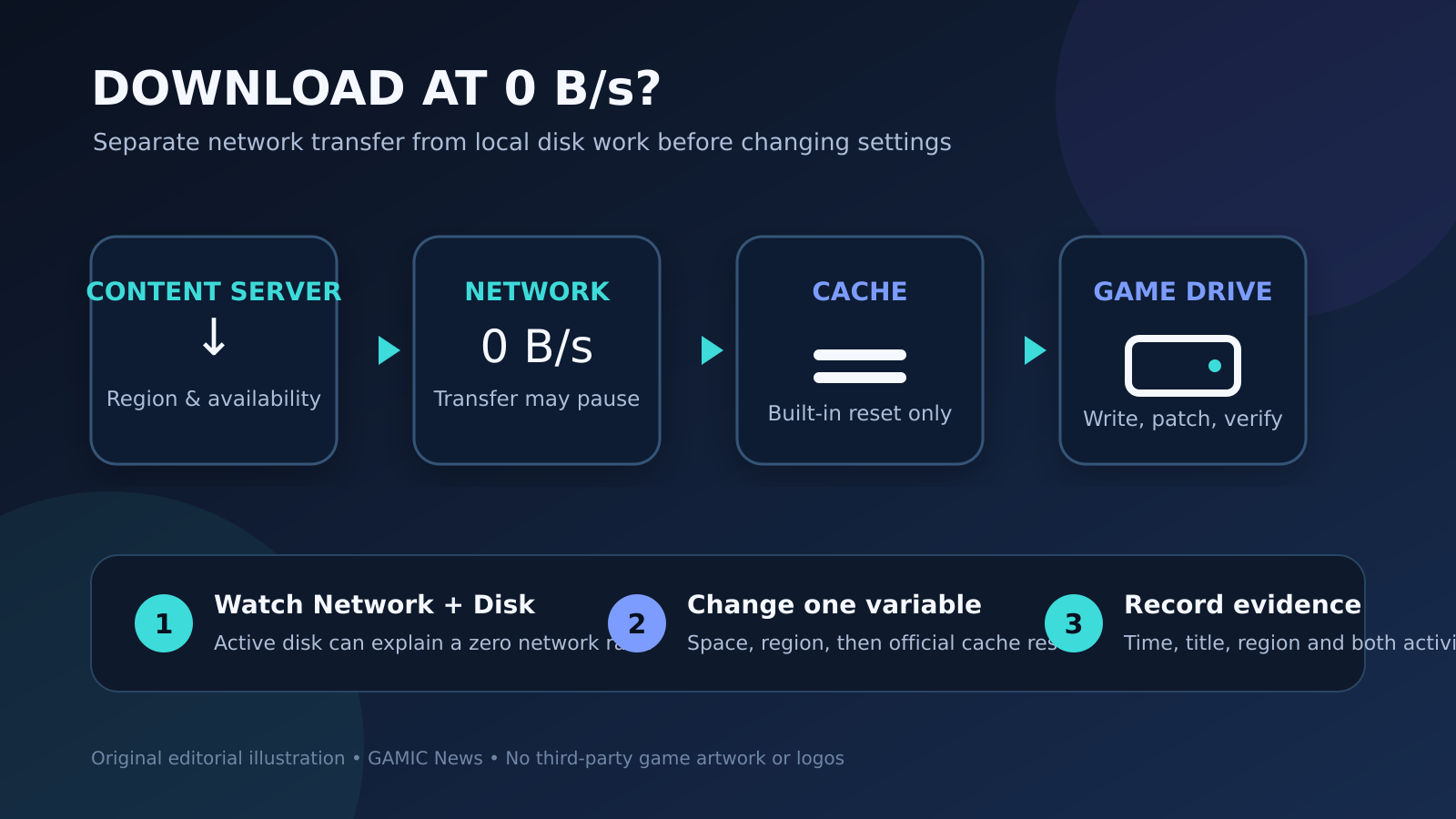
If a Steam download shows 0 B/s, first wait a few minutes while watching both Network and Disk activity on Steam’s Downloads page and in Windows Task Manager. Steam may pause network transfer while it decrypts, patches or writes files. If both remain idle, pause and resume once, confirm free space, then follow Steam’s official sequence: review the download region and clear the download cache only after noting that the client will ask you to sign in again.
A zero network rate is a symptom, not a diagnosis. It can mean the client is applying an update locally, the target drive is saturated, a content server is slow, the cache is inconsistent, another program is interfering, or the connection has genuinely stalled. The safest approach changes one variable at a time and records what happened. That preserves installed games, avoids needless reinstalls and produces useful evidence for Steam Support.
This checklist deliberately avoids disabling security controls, deleting Steam library folders, editing the registry or copying undocumented commands. It is based on Steam’s current support guidance for slow downloads, installation issues and clearing the download cache, plus Microsoft’s guidance for reading CPU, memory, disk and network activity in Task Manager. Menu names can change with client updates, so use the official support path if the wording on your screen differs.
Decide whether Steam is downloading or working on the disk
Open Steam’s Downloads view and look at the network and disk graphs together. A game update is not always a continuous internet transfer. The client may receive a compressed block, stop requesting new data, unpack or patch existing files, verify the result and then continue. During that local phase the network rate can briefly read zero while disk activity remains visible. Treat that pattern as active work unless the queue stops progressing for an extended period or reports an error. For related reporting on safe and checklist, read Gaming Overlays and Recording Tools: A Safe Stutter and Crash Checklist.
Open Windows Task Manager with Ctrl+Shift+Esc and check the Processes and Performance views. Microsoft documents these views as a way to observe CPU, memory, disk and network usage. Record the target drive’s active time and Steam’s network activity for two or three minutes. Do not end the Steam process while the drive is busy writing. An abrupt stop during patching may force the client to verify or reacquire data, lengthening the repair rather than solving it.
Record a baseline before pressing every repair button
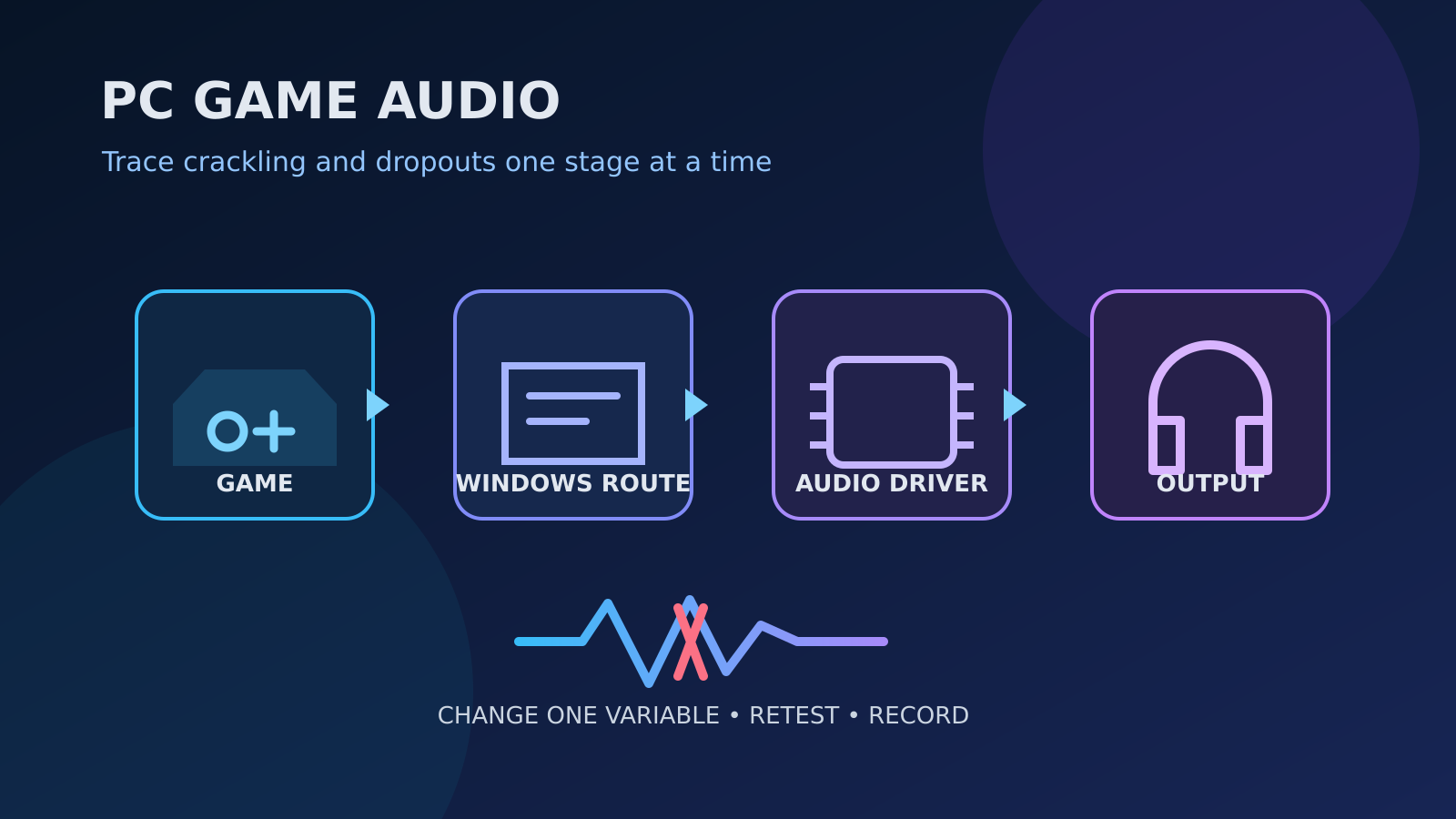
Write down the game name, displayed download rate, disk rate, percentage complete, remaining size and local time with time zone. Note whether the problem affects one title or every item in the queue. Also record the selected Steam download region and the Steam library drive. A screenshot can help, but crop account names, friend activity and other personal information before sharing it. This small baseline makes each later comparison meaningful. For related reporting on safe and checklist, read PC Game Audio Crackling or Cutting Out: A Safe Driver, Output and Latency Checklist.
Wait through one ordinary local-write phase before declaring the transfer frozen. Large patches can rewrite much more installed data than their compressed download size suggests, especially on a slower hard drive. If the percentage, disk graph or processed-byte figure changes, let the operation continue. If network and disk remain flat and no progress changes, pause and resume the item once. Repeatedly clicking the control provides no extra evidence and may keep resetting the same step.
Check the queue, schedule and gameplay pause rules
Confirm that the affected title is first in the queue and that Steam has not scheduled it for later. Steam can manage automatic updates according to client settings, and downloads may pause when a game launches unless the user allows downloads during gameplay. Close the running game normally, return to the Downloads view and start the queued item manually. Do not use Task Manager to kill the game unless its normal exit path has failed.
Check whether another game is updating first. Steam may display one queued item at zero because a different item has the active slot or because the client is committing files for the earlier update. Make one clean comparison with no game running and only the target item active. If that resolves the apparent stall, the cause was queue behavior rather than a broken connection. Restore the user’s preferred update schedule afterward instead of leaving an unintended setting change.
Verify free space on the actual library drive
Identify the library that contains the game and inspect free space on that exact volume. Checking only the system drive can be misleading when the Steam library is on another SSD, hard drive or external device. Updates need room for downloaded blocks and temporary patching work. A nearly full drive can slow writes or prevent an update from completing even when the final patch size shown by Steam looks modest.
Free space conservatively by moving or removing files you recognize through normal Windows and Steam interfaces. Do not delete unknown folders inside steamapps, depot caches or the game directory while an update is pending. If an external drive is involved, confirm it remains connected and appears normally in Windows. Avoid repartitioning, formatting or running repair commands based solely on a zero-rate display; those actions carry far more risk than the symptom justifies.
Compare the current Steam download region
Steam’s official slow-download and installation guidance recommends checking the selected Download Region. Open Steam Settings, choose Downloads and note the current region. If both network and disk are idle, select a different but reasonably nearby region, restart the client if prompted and repeat the same download for several minutes. This is a reversible content-server comparison, not a promise that the geographically closest label will always be fastest.
Change only the region during this test. Do not also change DNS, reboot the router, clear the cache and update storage drivers, because a successful result would reveal nothing about which action mattered. If the alternative region works, record both regions and the time. If it does not, restore the original or preferred region before proceeding. Regional congestion can vary, so one result should not be generalized into a permanent ranking of servers.
Clear Steam's download cache with the expected sign-in impact
Steam provides an official Clear Download Cache command under Settings and Downloads. Its support page says the process can solve games that will not download or start and does not affect currently installed games, but the client will require a Steam sign-in afterward. Before using it, make sure the account holder can complete sign-in, including any Steam Guard step, and record the queue state so the comparison remains auditable.
Use the built-in command once, allow the client to restart or sign out, sign back in through the normal Steam interface and retest the same title. Do not manually erase cache directories as an improvised substitute. If the download begins, record that the cache reset preceded recovery without claiming it proves a specific corrupt file. If nothing changes, move on rather than clearing the cache repeatedly; repeated resets add disruption but no new diagnostic value.
Compare the network without weakening security
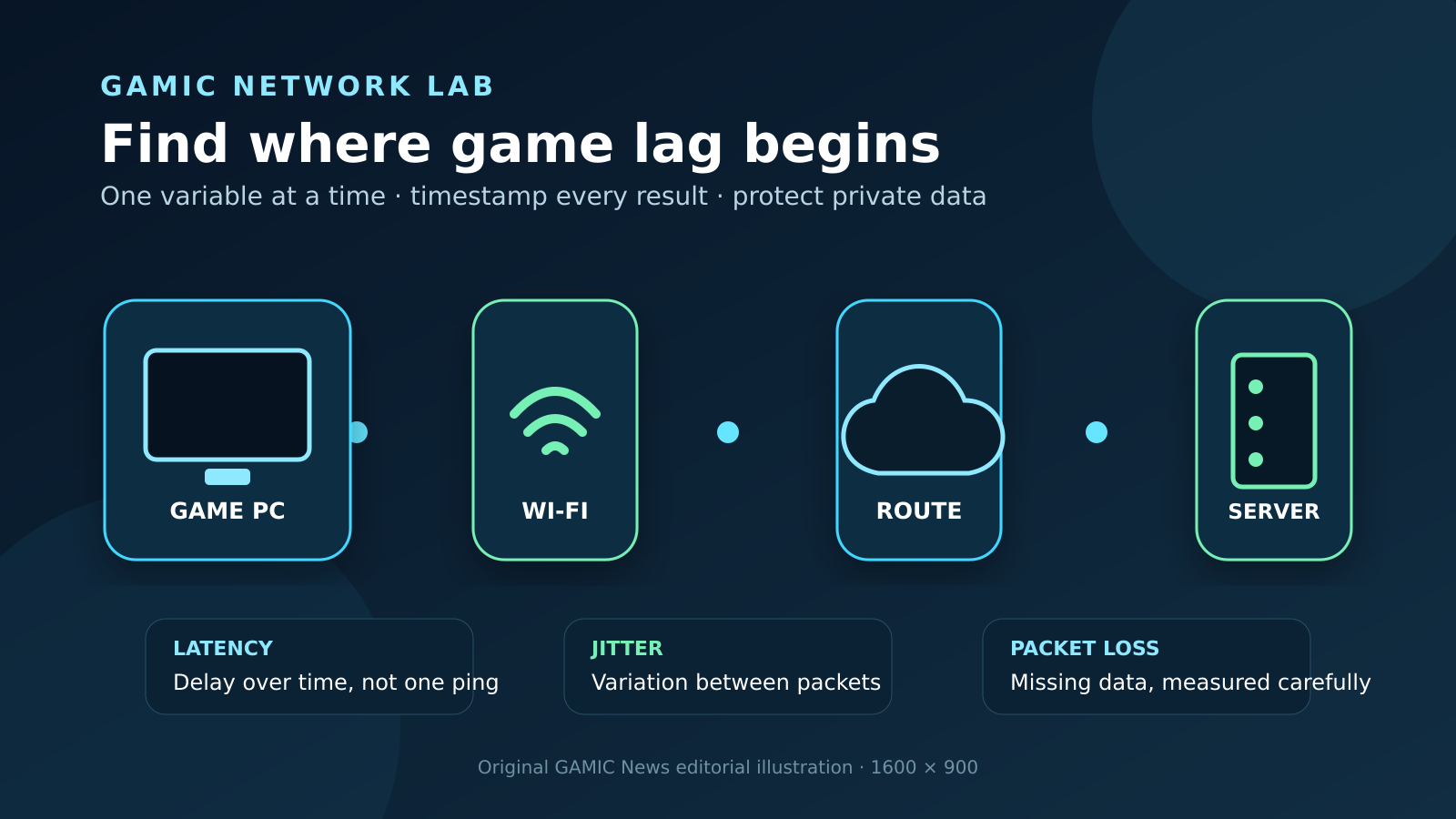
Check whether ordinary web access works and whether another legitimate download on the same connection progresses. Pause voluntary high-bandwidth tasks such as cloud backup or another large game update, then retest Steam. If practical, compare the same PC through Ethernet and its normal Wi-Fi connection at similar times. A difference can identify the local wireless path as a factor, but a single good wired result does not prove the internet provider or Steam content server is faultless.
Do not disable the Windows firewall, antivirus protection or router security. Do not place the PC in a DMZ, forward broad port ranges from an unofficial post or install a mystery network optimizer. Steam maintains a separate official page about programs that may interfere with the client; consult it and the security vendor’s instructions before making any exception. A safe test exits a known optional application normally and restores it afterward rather than removing protection wholesale.
Look for disk contention and background interference
In Task Manager, sort the Processes view by Disk and note whether another known application is continuously using the target drive. Search indexing, backup, game recording, antivirus scanning and another launcher can compete for storage throughput. Observation is safer than immediately terminating processes. If a user-controlled backup or another download is active, pause it through that application’s own interface and repeat the Steam test.
High disk active time with low throughput can occur on a busy hard drive, a nearly full SSD or a device handling many small writes. It is not, by itself, proof that the drive is failing. Do not run destructive disk utilities or firmware tools during an active Steam patch. If Windows reports a storage error, the drive disconnects, or unrelated files also fail, stop the download, preserve important data and use the hardware maker’s and Microsoft’s documented diagnostic path.
Treat library repair and reinstall as later steps
If only one library location is affected, use Steam’s current storage-management interface and official support instructions to inspect that library. Menu labels have changed over time, so avoid following an old screenshot blindly. Before moving a title, verify the destination has enough room and that locally stored saves or mods are backed up according to the game’s own documentation. Cloud synchronization is helpful but should not be assumed to cover every file.
Reinstalling Steam or the entire game is a costly test and may erase local configuration or unmanaged mods without addressing a content-server or disk-contention problem. Reserve it for official support guidance after the cache, region, space and activity checks have failed. If a reinstall becomes necessary, document the library paths and save locations first. Never delete the whole Steam directory merely because the instantaneous rate reads zero.
Build a concise evidence packet for Steam Support
If the stall persists, prepare a short timeline: game, update size, Steam client version, Windows version, library drive type, free space, region, time, network rate, disk rate and each single change tested. State whether every download fails or only one title. Include the exact error message if one appears. These observations help support distinguish an account or depot issue from local storage, queue behavior or regional delivery trouble.
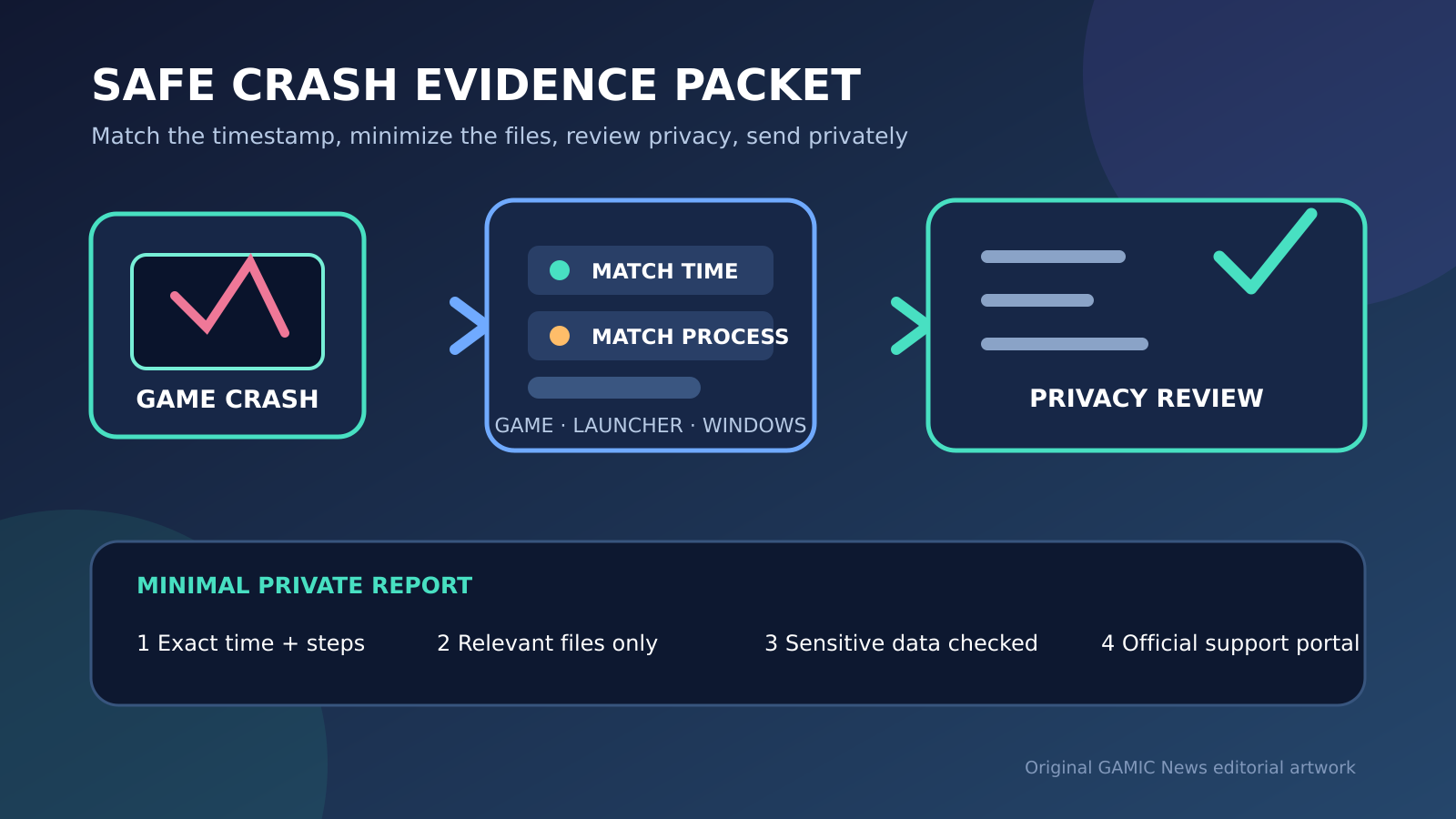
Submit the packet through Steam’s official Help site. Share only screenshots and logs requested for the case, and review them for account names, email addresses, device names and unrelated friend or chat information. Do not post authentication codes or full account credentials. If the problem disappears before the ticket is sent, keep the baseline and note the last change; avoid rewriting the timeline into certainty that the evidence does not support.
Retest once, restore settings and close cleanly
After any justified change, retest the same game for a comparable interval. Success means sustained progress in downloaded or processed data, not merely a momentary spike. Watch both network and disk graphs long enough to see a full transfer-and-write cycle. If the item completes, record the before-and-after state. If it stalls again, preserve the new timestamp and stop repeating the same cache or region operation.
Restore temporary pauses, preferred update schedules and the original region if the alternative brought no benefit. Keep normal firewall and security controls enabled. The final record should say what was observed, what changed and what remains unknown. That disciplined endpoint prevents a harmless disk-write pause from turning into a chain of risky system changes—and gives official support a focused case when the download truly is stuck.