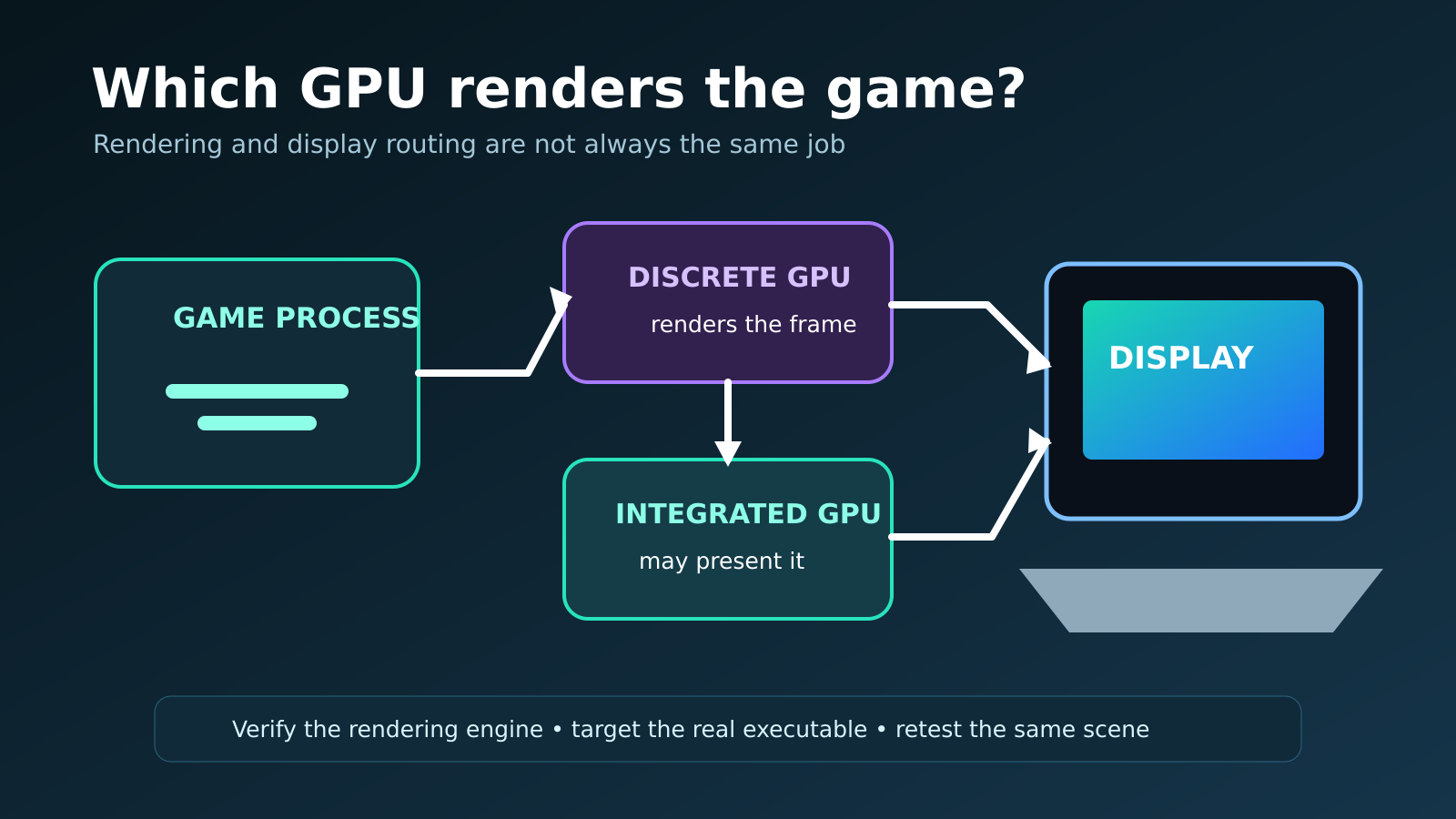
A laptop can show activity on its integrated GPU even while the discrete GPU renders a game. Hybrid designs may pass the finished frame through the integrated graphics processor that owns the internal display. Therefore an integrated-GPU graph, a display name or a cable attached to the laptop does not by itself prove that the game selected the wrong renderer.
Microsoft exposes per-application graphics preferences when a Windows device has more than one GPU. AMD and NVIDIA also document switchable or hybrid graphics behavior. These systems balance performance and battery life, but the exact routing depends on the laptop design, drivers, power mode, display connection and executable that launches the game.
The safe approach is to identify the rendering engine, establish a plugged-in baseline, select the correct executable in Windows, restart the title and measure again. This guide avoids disabling hardware, editing firmware or deleting drivers until the evidence shows an actual fault.
Understand render GPU versus display GPU
On a hybrid notebook, the discrete GPU can render frames and transfer them to the integrated GPU for presentation on the internal panel. NVIDIA’s Optimus description explicitly documents this type of path. Task Manager may therefore show copy or display-engine activity on the integrated adapter while the discrete adapter’s 3D engine does the heavy work. Inspect the engine labels, not only the overall percentage. For related reporting on windows and checklist, read PC Game Controller Not Detected in Windows: A Safe Troubleshooting Checklist.
Some laptops include a multiplexer or Advanced Optimus path that can connect the internal panel differently, while an external port may be wired to one GPU. These designs vary by model. Consult the laptop manual or manufacturer utility before assuming an HDMI or USB-C port bypasses the integrated GPU. The goal is to identify the real topology, not to force every machine into the same diagram.
Capture a plugged-in performance baseline
Connect the manufacturer-supplied power adapter, select the documented performance mode, close unrelated heavy tasks and launch a repeatable scene. Record frame rate, frame time, CPU use, temperatures, clock rates and each GPU engine. Battery operation may intentionally limit the discrete GPU or total platform power, so a battery-only result is not a fair baseline for maximum gaming performance. For related reporting on before and windows, read How to Back Up PC Game Saves Before Reinstalling Windows.
Note the game build, resolution, preset and whether an external display is connected. Do not change five settings at once. If performance is already consistent with the hardware’s supported range and the discrete GPU shows 3D activity, integrated activity is probably normal routing. If the discrete GPU remains idle while the integrated 3D engine is saturated, continue the selection checks.
Find the executable that performs the rendering
Many games start through a launcher, updater, anti-cheat bootstrapper or store client and then spawn another executable. Windows graphics preference must target the process that performs the rendering. Use Task Manager details while the game is running to identify the executable and its installed path. Avoid choosing an untrusted file with a similar name from a download or temporary folder. For related reporting on before and checklist, read Steam Cloud Sync Conflict: A Safe Recovery Checklist Before You Choose a Save.
Store applications may appear through a packaged-app selector rather than a normal Browse dialog. Follow the current Windows interface for the application type. If a game updates into a new directory or executable name, verify the preference again. Applying high performance to the launcher alone can leave the actual game under the default policy.
Set the per-app preference in Windows
In Windows 11, open System, Display, Graphics, choose the game and select Options. Microsoft documents power-saving and high-performance choices when multiple GPUs are present. Select high performance for the verified game executable, save and fully restart the title. The change does not reliably migrate into a process that was already running.
Record which adapter Windows names for each option. Do not assume “high performance” maps to the expected device without reading the label. Test the same scene after restart and compare GPU engines and frame time. If nothing changes, confirm that the correct executable was selected before changing drivers or disabling adapters.
Check the laptop maker’s control mode
Manufacturer utilities may expose hybrid, discrete-only, eco or automatic modes. These controls can require a reboot and may be unavailable on battery. Read the model-specific documentation because names are not standardized. Save the original mode and use the vendor’s supported sequence. A discrete-only mode can increase power use and heat, so it is not automatically the best everyday setting.
If the laptop has a hardware or firmware multiplexer, switching it changes display routing rather than merely an app preference. Compare hybrid and discrete modes only after the Windows per-app test, and keep other settings fixed. Do not flash unofficial firmware or modify hidden BIOS options to imitate another model. Unsupported routing changes can disable the internal display or recovery path.
Keep integrated and discrete drivers compatible
Hybrid graphics depends on both adapters. AMD’s switchable-graphics guidance notes that missing drivers can prevent the feature from working and recommends compatible integrated and discrete packages. Start with the laptop manufacturer’s supported bundle when the model uses customized power, display or multiplexer behavior. Record versions before updating.
Do not disable the integrated GPU in Device Manager as a first fix. On systems where it drives the internal display, that can remove brightness control, video acceleration, external ports or even the visible desktop. If a vendor support procedure requires driver removal, preserve recovery options and follow the documented order rather than using a generic cleanup ritual.
Test power, temperature and platform limits
A discrete GPU can be selected correctly and still run slowly because the power adapter is not recognized, the battery is low, the laptop is in quiet mode, or temperature limits reduce clocks. Check the charging indicator, adapter wattage and manufacturer diagnostics. Compare observed GPU power and clock behavior with the model’s supported documentation, not a desktop card with the same marketing name.
Let the system cool, clear external vent obstructions and repeat the scene. If performance starts high and falls as temperature rises, selection is not the main problem. Do not use unsafe fan, voltage or firmware tools to mask it. A cooling or power fault needs a different report than a game that consistently renders on the wrong adapter from launch.
Use an external display as a diagnostic, not a myth
An external monitor can change routing on some laptops, but only when its port is physically connected to a different GPU. Verify the model’s port map, then repeat the baseline at the same render resolution and refresh. A performance change can also come from resolution, presentation path or panel refresh, so keep those variables controlled.
If the external display makes the discrete GPU active while the internal display does not, document the port and mode and contact the laptop maker. Do not conclude that every external screen bypasses hybrid graphics. USB display adapters may add their own compression and driver path, making them poor tools for a clean GPU-selection test.
Report the result without destructive guesses
A useful report includes laptop model and firmware, Windows build, both GPUs and drivers, power adapter, vendor mode, display connection, game executable, Windows preference, scene, frame-time capture and GPU-engine graphs. State whether the issue affects one game or all 3D applications. Remove account names and unrelated personal processes from screenshots.
Send a title-specific executable or profile problem to the developer, a model-mode issue to the laptop maker, and a reproducible driver regression to the GPU vendor. Stop before disabling hardware or installing unofficial packages. The objective is not to eliminate all integrated-GPU activity; it is to prove which device renders the workload and whether the supported configuration delivers the expected performance.
Check per-game profiles after updates and reinstalls
A game update can replace an executable, move it into a versioned folder or add a new renderer. A store repair or reinstall can do the same. After such a change, compare the active process path with the entry saved in Windows Graphics settings. Remove obsolete entries only after confirming they no longer launch; otherwise the list can hide which profile actually applies.
Driver and Windows updates can also reset or reinterpret preferences. Recheck the named high-performance adapter and perform the same scene test instead of assuming the old choice survived. Keep a short log of version, executable path and result. That record makes a recurring reset visible and gives the laptop or platform vendor a reproducible configuration issue.
Distinguish low utilization from wrong GPU selection
A correctly selected discrete GPU may show low utilization when the game is CPU-limited, frame-capped, paused, compiling, streaming assets or running at a light scene. Compare clock, power, frame time and the active 3D engine rather than demanding a fixed percentage. Raising resolution slightly can shift load toward the GPU, but use that only as a diagnostic and return to the original preset.
If frame rate is capped and stable, low utilization is often expected. If frame time is poor while one CPU thread is saturated, changing the GPU preference may not help. If the discrete GPU is active but held at very low power despite a demanding uncapped scene, investigate adapter recognition, power mode and temperature. The percentage alone cannot distinguish these cases.
Finish by returning the laptop to its supported default hybrid mode and verifying an ordinary desktop workload, video playback and the same game. This confirms that the diagnostic changes did not break brightness control, sleep, battery behavior or an external port. Save only the per-game preference that produced a measured improvement; remove experiments that did not change the rendering engine. If discrete-only mode is required for acceptable operation despite the manufacturer advertising functional hybrid graphics, document both results and escalate them as a platform issue. A clean final state matters as much as identifying the renderer, especially on a portable system whose power and display paths share several components.