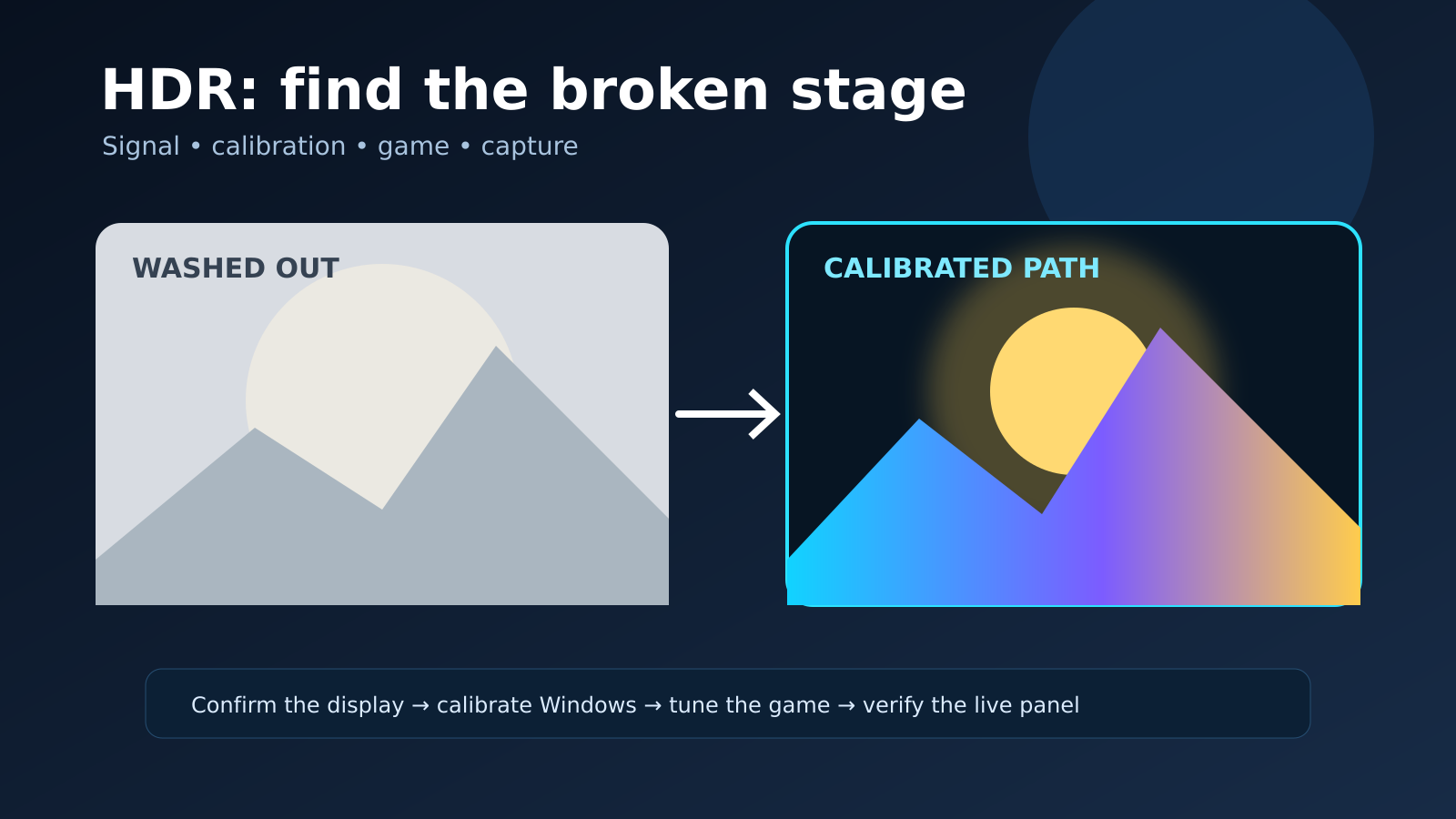
A pale desktop, raised blacks or clipped highlights after enabling HDR can come from several different stages of the display chain. Windows may be balancing SDR content inside an HDR desktop, the game may use native HDR or Auto HDR, the monitor may switch picture modes, or a capture path may convert the signal incorrectly. Calling all of those symptoms “bad HDR” hides the useful question: at which stage does the image first become wrong?
Microsoft documents separate controls for HDR capability, SDR content brightness, Auto HDR and the Windows HDR Calibration app. Those controls overlap visually but do different jobs. Calibration describes a display’s dark and bright limits; the SDR slider changes how ordinary desktop content is mapped while HDR remains enabled; Auto HDR adds an HDR treatment to supported SDR games. A repeatable test should change one layer at a time.
This checklist does not promise that every monitor can deliver strong HDR. Hardware brightness, local dimming, panel contrast and firmware still matter. Its purpose is to establish a trustworthy baseline, preserve the original settings, and produce evidence that distinguishes a configuration error from a game, driver, cable or display limitation.
Record the exact signal path before changing it
Write down the PC, graphics adapter, driver version, Windows build, display model, connection type, adapter or dock, resolution, refresh rate and color mode shown by the display. On a multi-monitor system, identify which screen Windows has selected for HDR. If a receiver, capture card or dock sits between the GPU and display, include it. A chain is only as capable as the link that negotiates the active signal. For related reporting on windows and checklist, read Game Uses the Integrated GPU on a Laptop: Verify It Before Forcing a Fix.
Save photographs of the display menu and screenshots of Windows settings, but remember that a screenshot may not reproduce what the panel emits. Record whether the symptom appears on the desktop, in one game, in every HDR application or only in captured footage. This baseline prevents a later cable swap or picture-mode reset from erasing the evidence.
Confirm Windows sees the correct HDR-capable display
Open System, Display and select the physical screen under test. Windows exposes HDR options per display, so adjusting the wrong numbered monitor produces confusing results. Check the reported capabilities and ensure the game is launched on that screen. Microsoft states that external HDR use depends on a compatible display and connection; a product name alone does not prove the current input mode is passing HDR. For related reporting on out and checklist, read PC Game Audio Crackling or Cutting Out: A Safe Driver, Output and Latency Checklist.
Temporarily simplify the topology if practical: connect the display directly to the graphics output and use one screen for the baseline. This is a diagnostic step, not a permanent prescription. If HDR works directly but fails through a dock or receiver, the difference narrows the fault to link capability, firmware, bandwidth or negotiation rather than the game’s tone mapping.
Separate native HDR, Auto HDR and an SDR baseline
First disable HDR and capture how the game looks in SDR using a known preset. Next enable Windows HDR but leave Auto HDR off and test a game with its own native HDR option. Finally, when supported, test Auto HDR with a game that does not provide native HDR. Restart the game after each change because some titles detect the output mode only at launch. For related reporting on hdr and checklist, read PC Game Black Screen After Alt-Tab: A Safe Display, HDR and Driver Checklist.
Do not stack conclusions across modes. A native-HDR title can expose its own peak-brightness and paper-white controls, while Auto HDR relies on Windows processing. If SDR is correct, native HDR is wrong and another native-HDR title is correct, the problem is likely title-specific. If every mode becomes pale as soon as Windows HDR is enabled, examine calibration, SDR balance and the display input.
Use Windows HDR Calibration as a measurement step
Microsoft’s Windows HDR Calibration app provides patterns for the darkest visible detail, maximum luminance and full-frame brightness, then creates a profile for the selected display. Run it in the display’s intended HDR picture mode, with dynamic room-light features fixed for the test. Follow the point where detail just disappears rather than dragging every control to its maximum.
Save the profile with a descriptive name and note the values. If the result worsens, remove or replace that profile using the documented Windows controls instead of layering random profiles. Calibration cannot add brightness or local dimming the panel does not possess. It describes usable behavior so compatible applications can map content more consistently.
Adjust the SDR content brightness for the desktop only
When HDR is enabled, Windows must place ordinary SDR windows within an HDR output. The SDR content brightness control changes that balance. If the desktop looks gray or excessively bright while native HDR games look reasonable, adjust this slider in small steps. Use a familiar web page and neutral image, then return to the game without changing its internal tone-mapping controls.
Do not use the SDR slider to repair clipped HDR highlights. It is a desktop balance control, not a substitute for the calibration app or a title’s peak-luminance setting. Keep the value with the test record because a setting that suits a dim room may look different in daylight. Consistency matters more than a universal number copied from another panel.
Inspect the display picture mode and input settings
Many monitors and televisions switch to a separate HDR picture mode when they receive HDR metadata. Check whether black level, local dimming, dynamic contrast, color temperature or energy saving changes automatically. Use the manufacturer’s documented neutral or game mode as a baseline. Disable only processing that is clearly part of the test, and record it so the original configuration can be restored.
An HDMI input may expose enhanced bandwidth or deep-color settings independently for each port. A DisplayPort input may have its own version or compatibility option. Never assume that an expensive cable proves the negotiated mode. Check the display information screen and GPU control panel, then change one cable or port at a time if the reported resolution, refresh or color depth is not what the hardware documentation supports.
Use in-game luminance controls in the correct order
After Windows and the display have a stable baseline, reset the game’s HDR settings and follow its calibration images. Set black level first when offered, then peak brightness, then paper white or interface brightness. Paper white usually affects the average scene or UI rather than the panel’s physical peak. Copying a value from another display ignores different tone mapping and room conditions.
Test a reproducible scene containing shadows, midtones, bright highlights and a readable interface. Avoid judging only a dramatic loading screen. If a game stores settings in the cloud, confirm that a reset actually took effect. Record the game build because patches can change calibration behavior, and report the exact options rather than saying only that HDR was enabled.
Distinguish live-display faults from capture faults
HDR screenshots and video require color metadata and tone mapping that many sharing services handle differently. A washed-out capture does not prove the monitor image was washed out. Photographing the panel is also imperfect because a phone applies exposure and processing. The strongest evidence pairs a description of the live view with the original capture file and the application used to view or convert it.
If the live display is correct but recordings are pale, test the capture software’s documented HDR workflow and export format. If only the stream preview is wrong, view the file locally in an HDR-aware player before changing the game. Keep capture diagnosis separate from display calibration; otherwise a conversion error can trigger unnecessary driver reinstalls and monitor returns.
Stop safely and produce a useful report
Return to the saved baseline if the controlled changes do not improve the image. Avoid registry files, undocumented service changes and arbitrary color profiles. A clean report should include Windows build, GPU and driver, display and firmware, connection, resolution and refresh, HDR capability screen, calibration profile, affected games, mode comparisons and photographs that show the display menu.
Send the report to the responsible vendor based on the isolation result: game developer for one title, display maker for one input or picture mode, dock maker for a failing intermediary, or GPU vendor for a driver-specific regression. The diagnosis is successful even without an instant fix when it proves which layer changes the result and preserves a reproducible path for support.
Recheck after sleep, restart and a cold display start
HDR negotiation can differ after a display wakes, a cable is reconnected or Windows resumes from sleep. Once the calibrated baseline works, repeat it after a full PC restart and after the display has been powered off rather than left in standby. Confirm that Windows selects the same profile and that the monitor reports the same input mode. A problem that appears only after resume is different from a permanently incorrect calibration.
Keep the restart test small. Do not combine it with a driver update or firmware change. If cycling the input restores correct output, capture the display information before and after the cycle and report that transition. Stable settings should survive ordinary restarts; a reproducible wake-only failure gives support a concrete state change to investigate instead of another subjective description of color.
Finally, repeat one neutral SDR reference after returning from HDR. This confirms that the calibration work did not leave the monitor in an altered black-level or color-range state. Record whether the display automatically exits its HDR picture mode and whether Windows restores the expected SDR profile. If SDR is now wrong as well, reset only the documented picture controls and retest the direct connection. A reliable workflow ends with both modes behaving predictably, not merely with one dramatic HDR scene looking brighter. Preserve the calibration profile name, the test patterns used and the final SDR brightness value with the report. Those details let another person reproduce the result on the same display without guessing which of several similarly named modes was active.