Variable refresh rate lets a compatible display vary its refresh timing with rendered frames, reducing tearing and repeated frames within a supported operating range. A visible brightness pulse, black flash or rapid shimmer when frame rate changes is often called VRR flicker, but the label can hide unstable frame delivery, an unsupported mode, a cable problem, local dimming behavior or a panel fault that also appears with VRR disabled.
AMD describes FreeSync as requiring compatible graphics and display hardware, while Windows documents variable refresh support in modern presentation paths. Certification and marketing names establish capability, not the exact cause of a symptom on one system. The useful test observes frame time and refresh behavior together, then changes one variable at a time.
This guide begins with safe reversible checks. It does not recommend overclocking a panel, editing undocumented timing values or forcing modes outside the manufacturer’s specification. If the flicker remains in a supported configuration, the evidence should be strong enough to take to the display, GPU or game vendor.
Define the symptom precisely
Brightness pulsing in dark scenes differs from a full black dropout, horizontal tearing, a corrupted frame or backlight PWM visible to a camera. Record whether the issue affects the whole panel, one region, menus, loading screens or gameplay. Note the frame rate and frame-time pattern at the moment it occurs. A video that includes both the screen and a performance graph is more useful than a clip of the panel alone. For related reporting on diagnose and before and diagnosis, read PS5 DualSense Stick Drift: How to Diagnose It Before Paying for Repair.
Test whether the symptom appears immediately or after the system warms, whether it follows rapid frame-rate changes, and whether it is visible on the desktop. If the display loses signal and shows an input banner, investigate link stability first. If luminance breathes while the signal remains locked and the refresh counter moves sharply, VRR behavior becomes a stronger candidate.
Confirm hardware, port and range
Identify the exact monitor revision, GPU, cable, port and advertised VRR range for the selected resolution. A display may support VRR only on particular HDMI or DisplayPort inputs, at certain refresh rates, or after enabling an on-screen setting. Check the manufacturer’s manual and the GPU vendor’s supported-display information. Do not infer the range from the maximum refresh rate. For related reporting on diagnose and diagnosis, read Controller Input Lag on PC: Diagnose Bluetooth, USB and Game Delay.
Open the display information menu while the game runs and record the reported refresh. Verify that Windows and the GPU control panel use the intended native resolution and refresh rate. Remove adapters and docks for the baseline where practical. If direct connection works and the intermediary fails, the evidence points to bandwidth, firmware or negotiation rather than the game.
Build a stable frame-time baseline
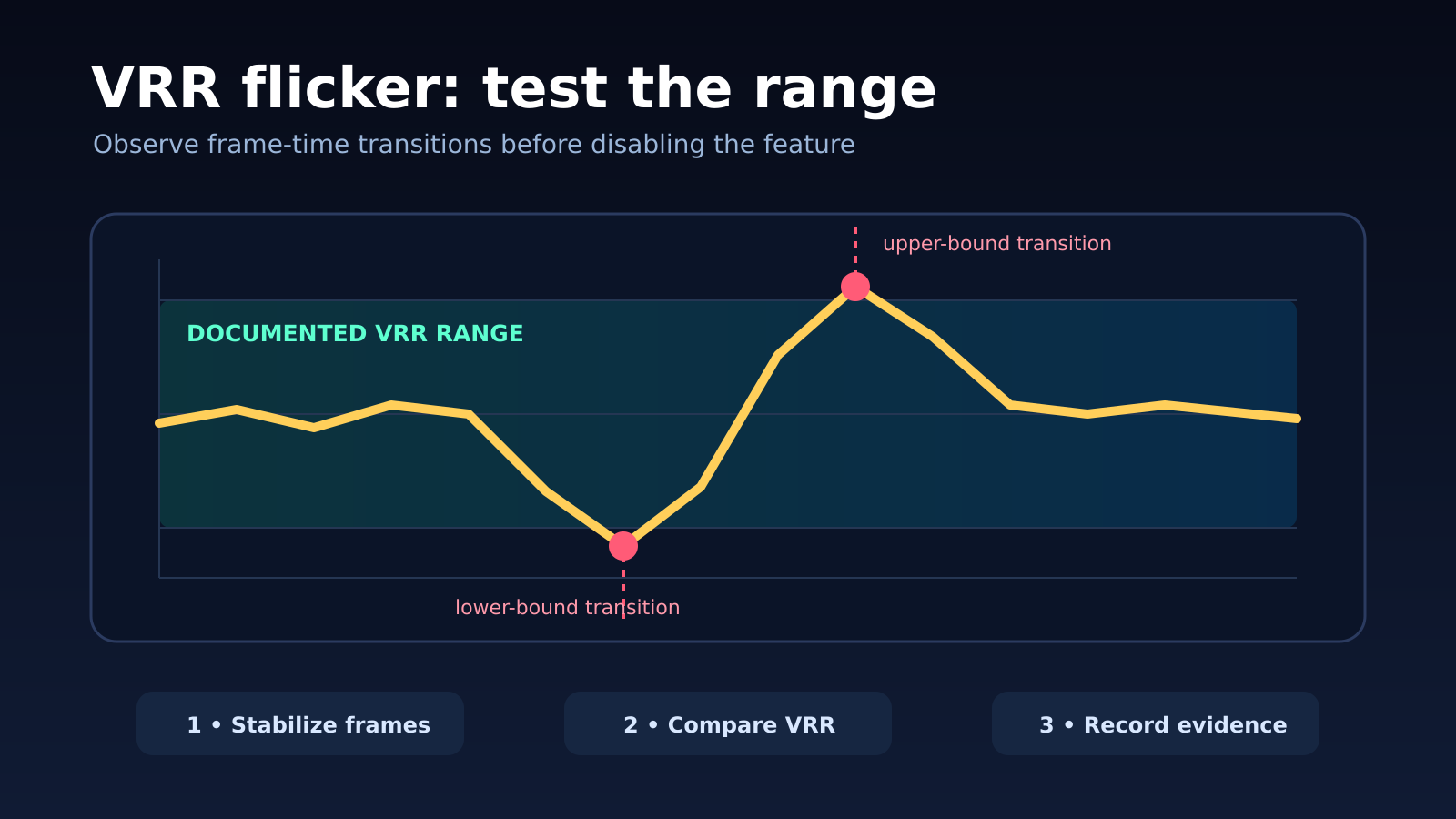
Choose a repeatable scene and cap performance at a rate comfortably inside the documented VRR range. Use the game’s limiter when it produces stable delivery, otherwise a trusted driver or external limiter. The goal is not a magic universal cap; it is a flat frame-time line that removes large transitions. Observe whether flicker remains when frame delivery is deliberately steady. For related reporting on diagnose and diagnosis, read Gaming Laptop Thermal Throttling: How to Diagnose Slowdowns Safely.
If the flicker disappears with stable delivery but returns when the game oscillates across a heavy scene, improve frame-time consistency before changing the display. Lower one workload-heavy setting, close competing tasks and repeat. Average FPS can look acceptable while alternating long and short frames drive visible refresh changes. Record percentiles or the graph, not only the headline average.
Test boundaries and low-frame-rate behavior
Gradually move the cap toward the lower end of the display’s stated range. Some systems use low-frame-rate compensation when rendering falls below that range, repeating frames at a multiple of the render rate. A transition into or out of that behavior can coincide with a visible luminance change on some panels. Observe the boundary without forcing custom timings.
Also test near the upper limit. Running above the VRR ceiling may change synchronization behavior, and a limiter set exactly at the maximum can overshoot. Use a modest margin for diagnosis and keep vertical synchronization settings documented. Do not combine a new cap, new driver and new cable in one pass, because any improvement would be impossible to attribute.
Compare VRR on and off without changing anything else
Disable VRR in one place at a time, first using the game or operating-system path that actually controls the active mode, then repeat the exact scene. Keep resolution, refresh, HDR, picture mode and graphics settings unchanged. If flicker vanishes while performance and link remain stable, the relationship is strong. If blackouts continue, investigate the physical link, display firmware or hardware.
Turning VRR off may introduce tearing or judder, so it is a diagnostic comparison rather than proof that permanent disablement is the best outcome. Re-enable it after the test and restore the baseline. A support report should say “flicker reproduces only with VRR enabled under these frame-time transitions,” not simply “FreeSync is broken.”
Isolate HDR and local-dimming interactions
HDR can select another picture mode and local-dimming policy, changing how brightness variations appear. Test SDR with VRR, then HDR with VRR, using the same frame pattern. If the issue exists only in HDR, record the HDR calibration and display mode. Do not compensate by crushing black level or maximum brightness; that may hide the pulse while damaging image accuracy.
Disable dynamic contrast or ambient-light processing only as a controlled comparison and restore it afterward. If an on-screen frame counter flickers but the game scene does not, the overlay itself may be interacting with refresh or local dimming. Use several scenes, including a flat dark image and a normal mixed-brightness level, before concluding that one menu represents all content.
Reduce a multi-monitor system to one display
Different refresh rates, HDR modes and presentation paths across multiple displays can complicate diagnosis. Disconnect secondary displays for one baseline, restart the game and reproduce the scene. If the problem disappears, reconnect one display at a time and test full-screen and borderless modes. Document which connector and mode each display uses.
Windows 11 provides optimizations for compatible windowed games and exposes per-application graphics options. Changing presentation mode can alter latency and VRR behavior, so treat full-screen versus borderless as a separate variable. Do not generalize a multi-monitor result to a single-display hardware fault without repeating the simplified test.
Control driver and firmware changes
Record the current GPU driver and monitor firmware before updating. Prefer a vendor release that mentions the display, synchronization or game rather than cycling versions randomly. After an update, repeat the same cap and scene. A regression tied to one version is valuable evidence; repeated clean installations without a baseline consume time and can add unrelated configuration changes.
Check the display manufacturer’s firmware instructions and never interrupt an update. Resetting the monitor can erase calibration and input settings, so photograph them first. If a factory reset is required by support, perform it once and rebuild the supported baseline. Avoid custom resolution utilities and panel overclocks while a warranty or hardware defect remains possible.
Prepare a vendor-ready evidence package
Include monitor model and revision, GPU, driver, connection, cable specification, resolution, refresh, VRR range, HDR state, display mode, game build, cap and frame-time graph. Provide short clips showing the same scene with VRR on and off. State whether a single-display test, another port or another certified cable changed the result.
Send the report to the component isolated by the tests. A title-specific issue belongs with the developer; a monitor that flickers across systems in supported modes belongs with the display maker; a driver-version regression belongs with the GPU vendor. Stop using the display if it shows electrical instability, persistent artifacts outside VRR or physical damage. A controlled report is safer than forcing unsupported timings.
Check overlays, menus and loading screens separately
Menus and loading screens often run at very different frame rates from gameplay. A title may remove its cap in a menu, fall to a low rate while compiling, or switch presentation mode during a cutscene. Test each state separately and note the transition. If flicker occurs only while a loading screen jumps between extremes, a menu cap or developer fix may be more relevant than replacing the cable.
Disable one overlay at a time for comparison, including performance displays, capture tools and chat layers. An overlay can change the presentation path or add its own frame pacing. Restore it after the test. The result should identify the exact combination that triggers the symptom, not lead to a blanket claim that all overlays or all VRR implementations are defective.
Compare another supported application before replacing hardware
Run a second game or vendor demonstration that can hold a stable frame rate inside the same VRR range. Use the same resolution, refresh, HDR state and connection. If both applications flicker under equivalent transitions, the system or display path becomes more likely. If only one title does, preserve its build and settings for the developer.
A second computer or console can be useful only when it supports the same input mode and range. Avoid treating an SDR 60 Hz test as proof that a 144 Hz HDR VRR path is healthy. Hardware substitution is strongest when the compared signal is genuinely equivalent and every changed component is recorded.
Before closing the case, restore the original cable layout and repeat the stable capped scene once more. This catches improvements that came from a loose connector being reseated rather than from a setting change. Note the monitor refresh counter, frame-time graph and whether any full signal loss occurred. If the symptom returns only with one cable, port or intermediary at the same supported bandwidth, replace or escalate that component. If it returns only during specific frame-time excursions, attach the graph and exact cap to the report. The final evidence should distinguish brightness variation, link dropout and tearing, because each points to a different remedy and a different responsible vendor.